
My jungle adventure (tutorial)
Chapter 1The Lost Temple
In this tutorial you'll make a third-person adventure in the style of Tomb Raider, in a world made of blocks: an explorer, a jungle, a Maya pyramid with its entrance shut… and an ancient mechanism to open it: push the stone onto the plate. The Golden Idol waits inside. Without writing a single line of code.
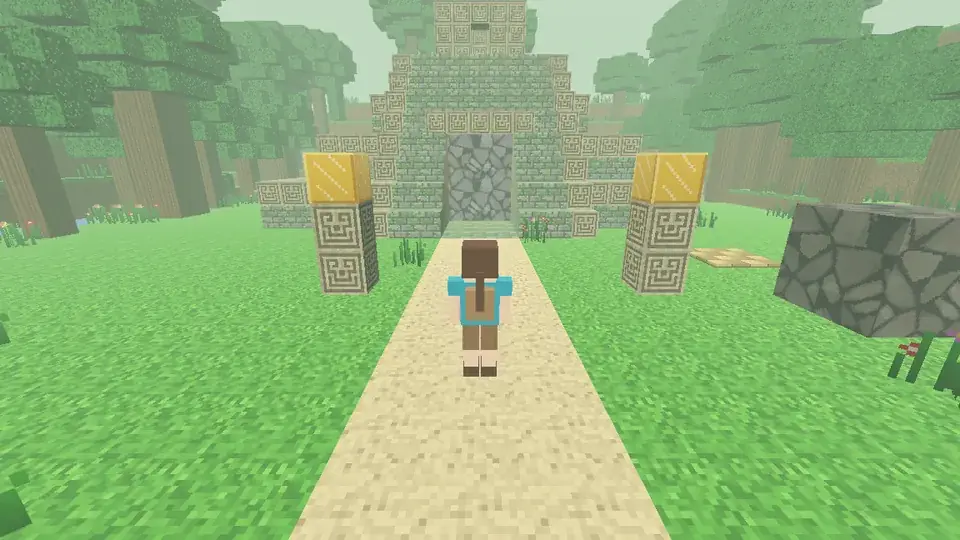
Along the way you'll learn:
- Block worlds (voxel style): placing and removing blocks like in a construction game, and generating a whole jungle with its pyramid in a moment.
- Third person: an explorer with her camera behind her and animations to walk, jump and stand still.
- New BreynFlow pieces: Push Blocks, the event Pressure Plate and Shake Camera.
- And in part two: variables that change the jump and the speed, a screen with life and ammo, weapons and bullets that get recycled (object pooling), fall damage and enemies that wake up with a message.
When you're ready, press Next.
Chapter 2The project
The editor opens in the 3D tab with the scene main: a sky, the sun, a camera and a plane.
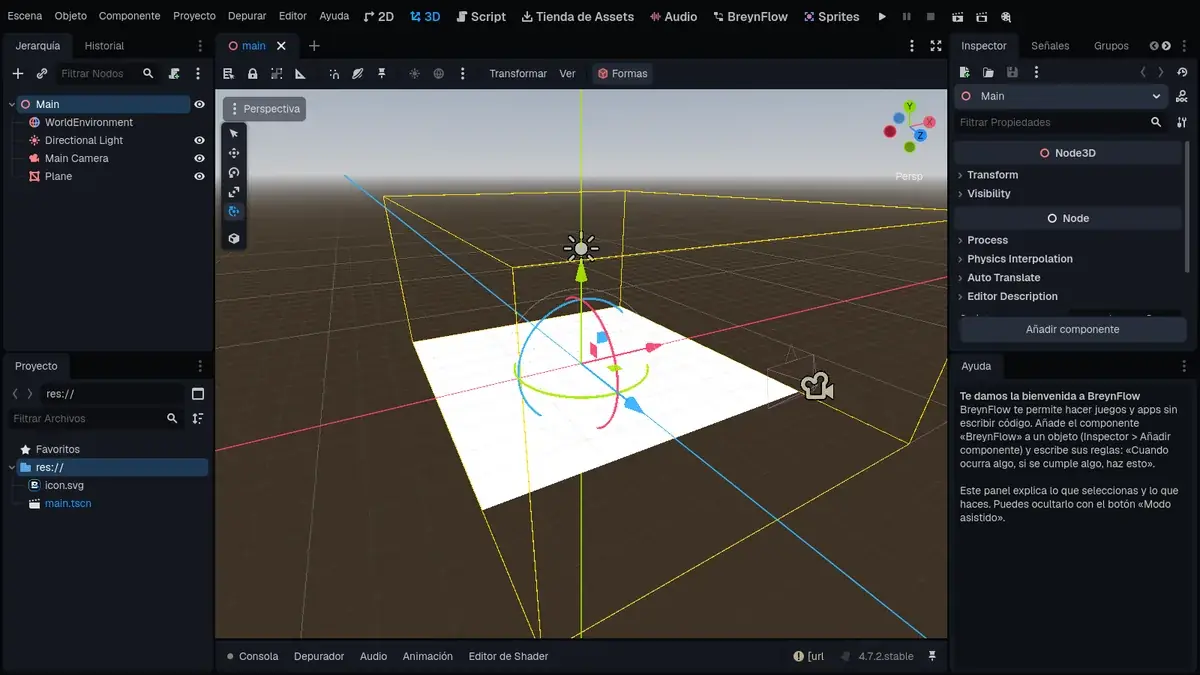
The explorer brings her own camera and the ground will be blocks, so delete what isn't needed: in the Hierarchy, click Main Camera, then Ctrl+click Plane, and press Delete.
The drawings and the sounds
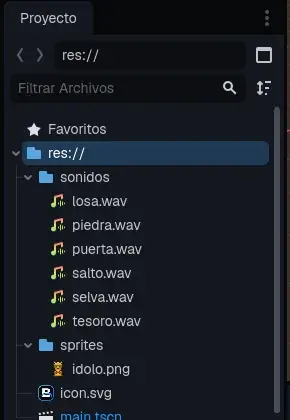
This tutorial comes with the drawing of the idol and the sounds of the game: copy the drawings and sounds to the project (download the ZIP).
Two folders show up in the Project panel: sprites (the idol) and sounds (the plate, the stone sliding, the temple door, the jump, the treasure and the sounds of the jungle).
Chapter 3The block world
Above the 3D view there's the Shapes button. Open it: at the very bottom there's the section Blocks (Voxel).
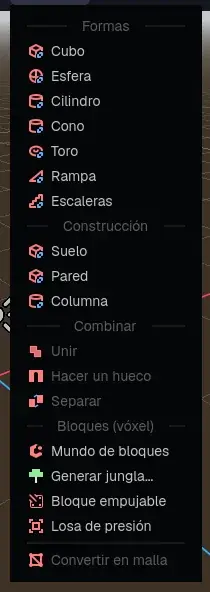
Choose Block World. Blocks shows up in the Hierarchy, and its palette opens below the view: grass, dirt, stone, mossy stone, carved stone, log, leaves, planks, sand, water, gold, tall grass and flowers.
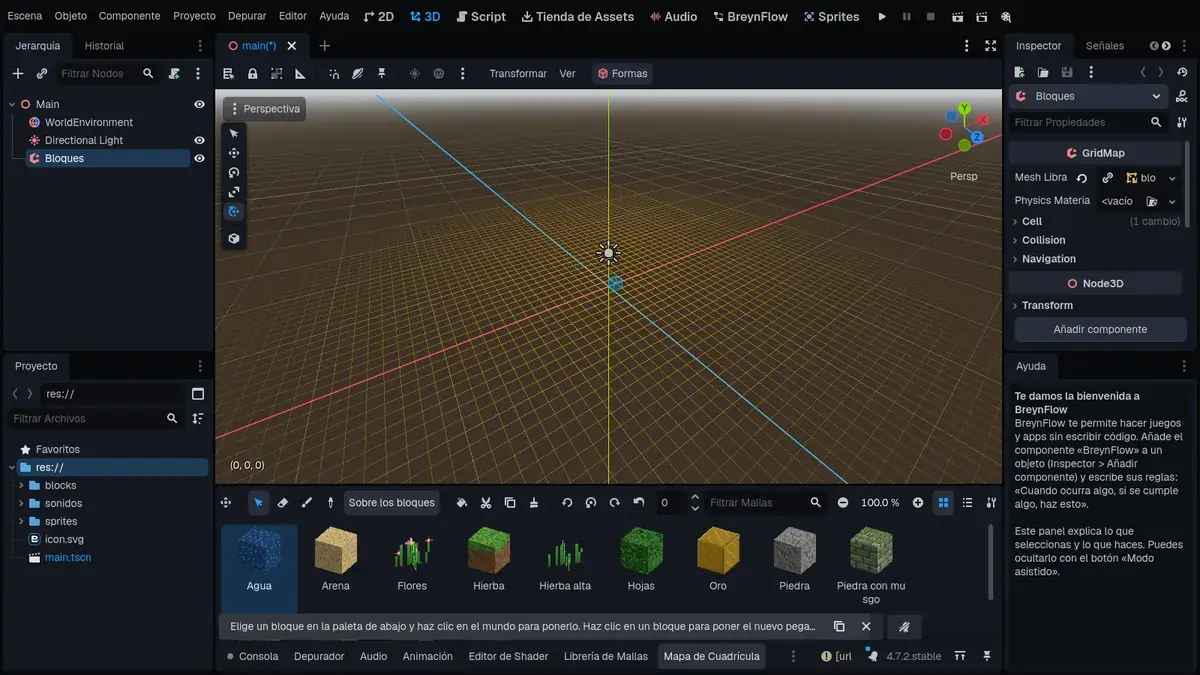
Each block is 1 meter wide and has its picture on top, on the sides and below, like in construction games: grass is green on top and earth on the sides. The pictures are copied to the blocks folder of the project the first time.
Chapter 4Generate the jungle
Placing thousands of blocks by hand would take days. To start, let BreynGINE make the jungle: Shapes > Generate Jungle...
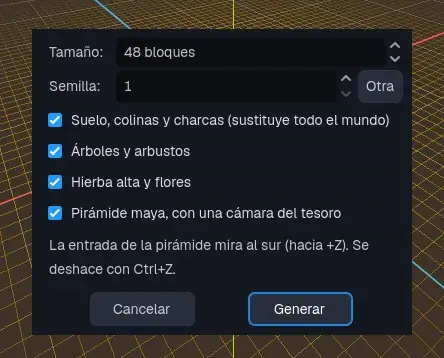
- Size: how many blocks wide it is. Leave 48.
- Seed: each number makes a different jungle (the same number, the same jungle). Leave 1, so everything ends up where the tutorial says.
- Leave the four boxes checked: the ground with hills and ponds, the trees, the plants and the Maya pyramid.
Press Generate.
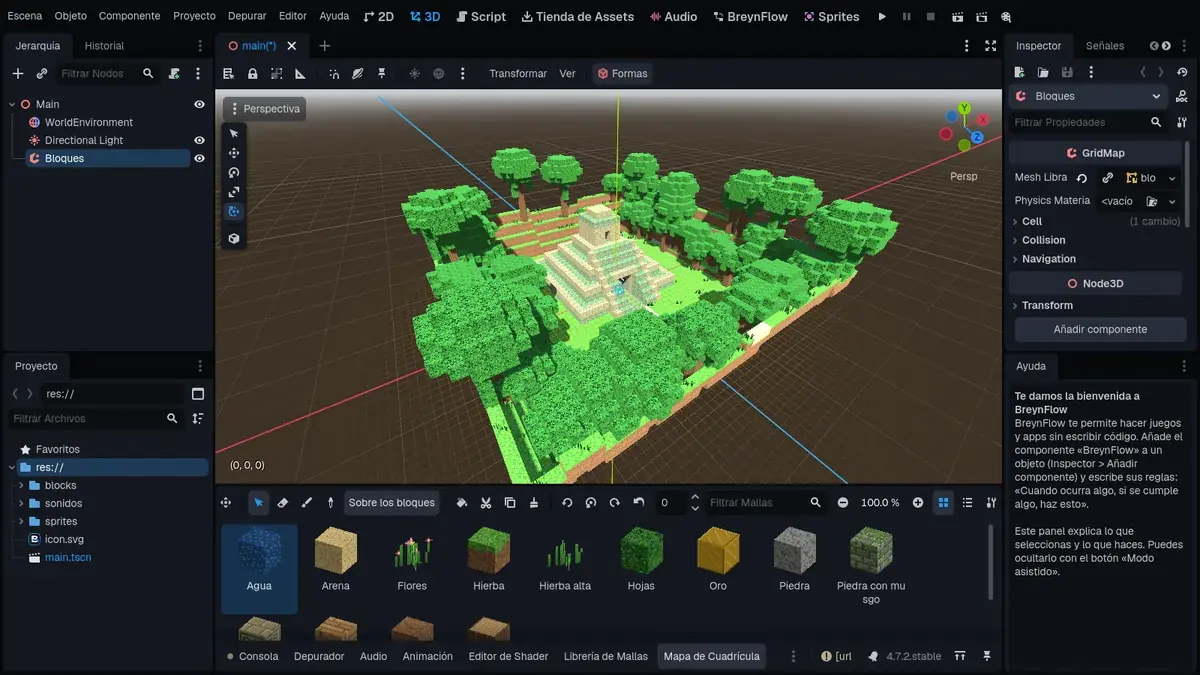
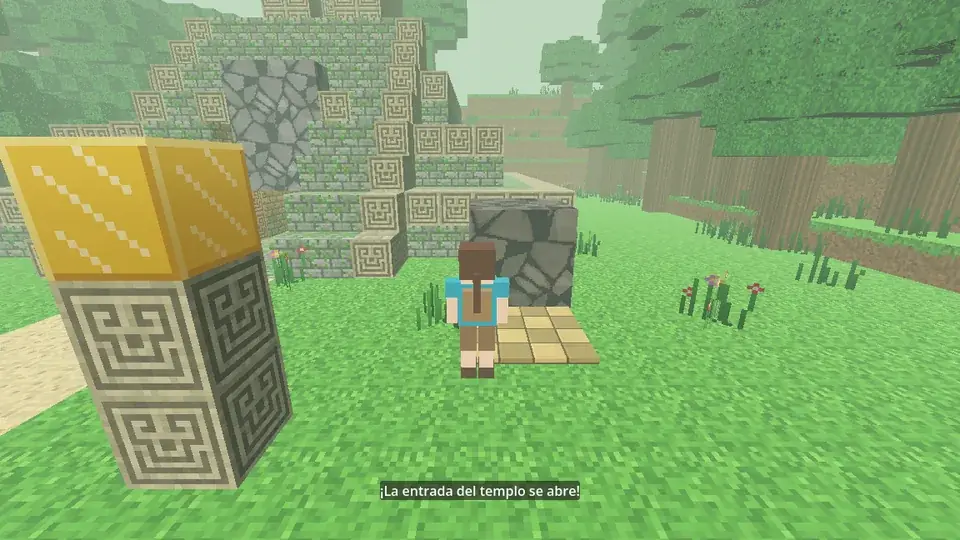
The pyramid has four floors with carved bands, a great stairway to the south and a temple on top. Inside, it hides a tunnel and a treasure chamber. The entrance is at the foot of the stairway, facing south (towards +Z), and a sand path leads to it.
Chapter 5Building block by block
Now, by hand: two columns at the entrance of the clearing, one on each side of the path.
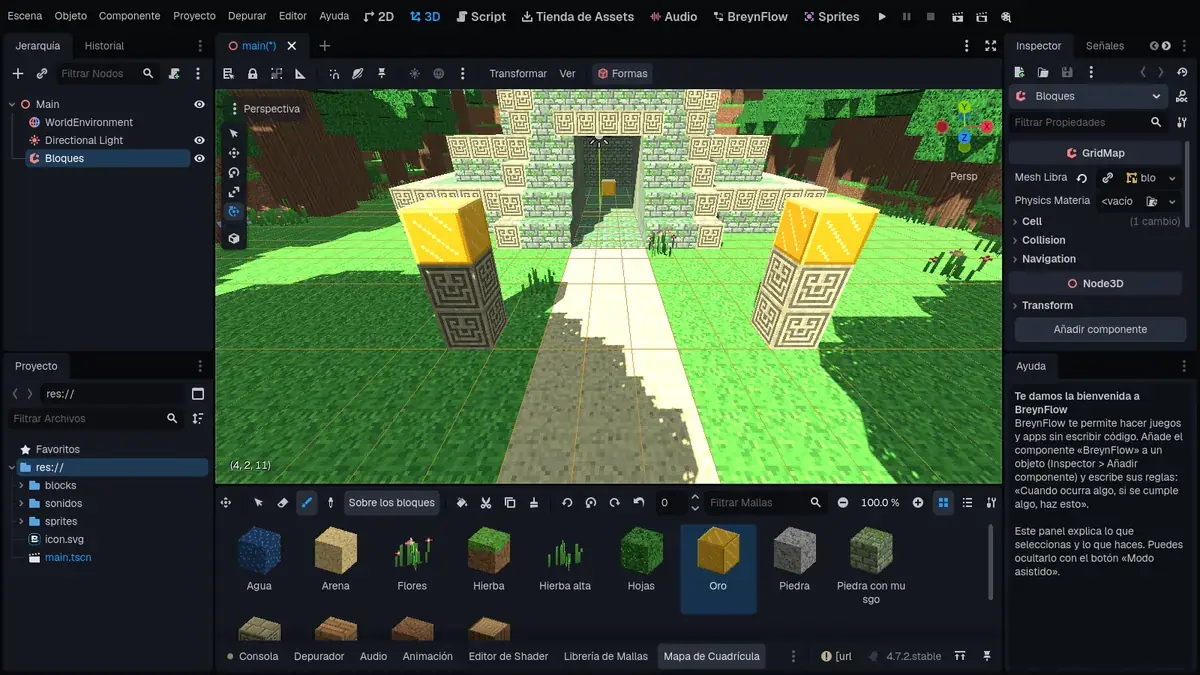
To erase, choose the eraser (or press W) and click the block you want to remove. E goes back to the brush, and R (the picker) takes the block you click, to keep painting with it.
Chapter 6The explorer
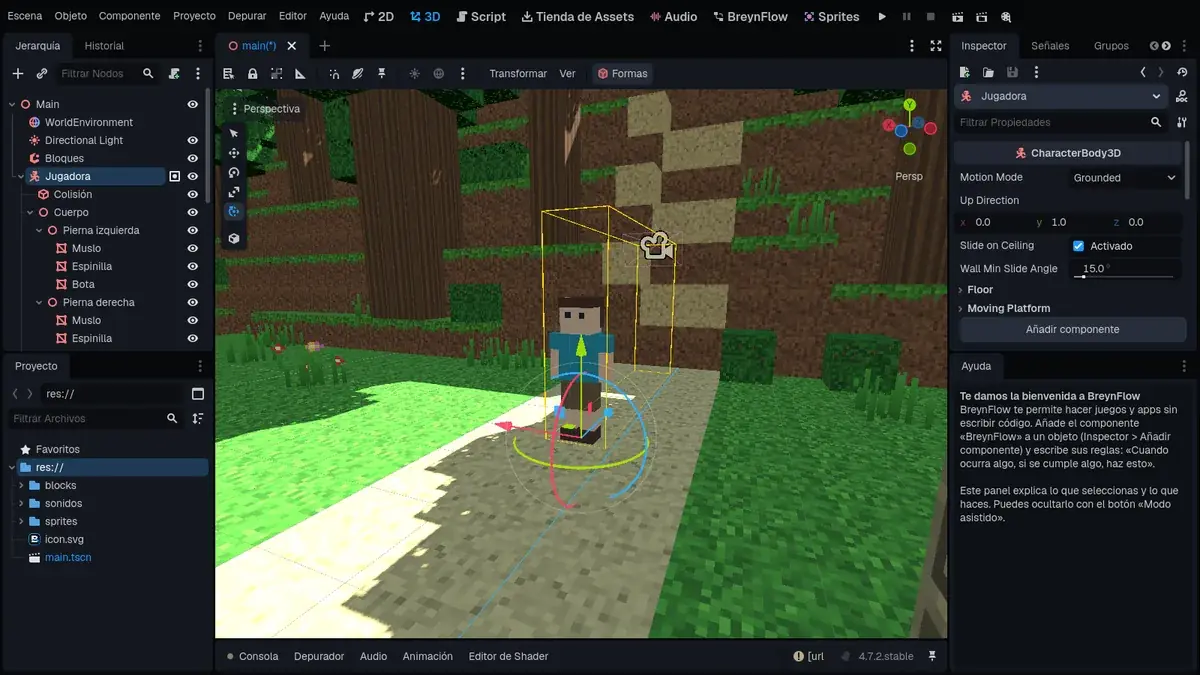
She comes with everything she needs:
- Her Collider (a capsule) and her Body: boxes of colors, with the legs and arms hanging from their joints.
- A Camera Pivot with a Camera Arm (a SpringArm3D) and the Camera at its tip: the camera stays behind her and, if a wall gets in between, it comes closer instead of going through it.
- An AnimationPlayer with three animations: idle, walk and jump.
- She's already in the group player.
Chapter 7Move, push and jump
With the Explorer selected in the Hierarchy, add BreynFlow to her (Inspector > Add Component) and make these rules:
- Move. WHEN: Every Frame. DO: Move with the Controls: in the card, the style third person, Speed 5 and, in Look, the animations idle, walk and jump. And another action: Push Blocks (it already comes with the group pushable).
- Jump. WHEN: Key or Button ui_accept (Space or Enter). IF: Is on the Floor. DO: Jump with force 6; Play Sound sounds/jump.wav (see the tip below).
- Jungle sounds. WHEN: Scene Starts. DO: Play Music sounds/jungle.wav, repeating it whole.
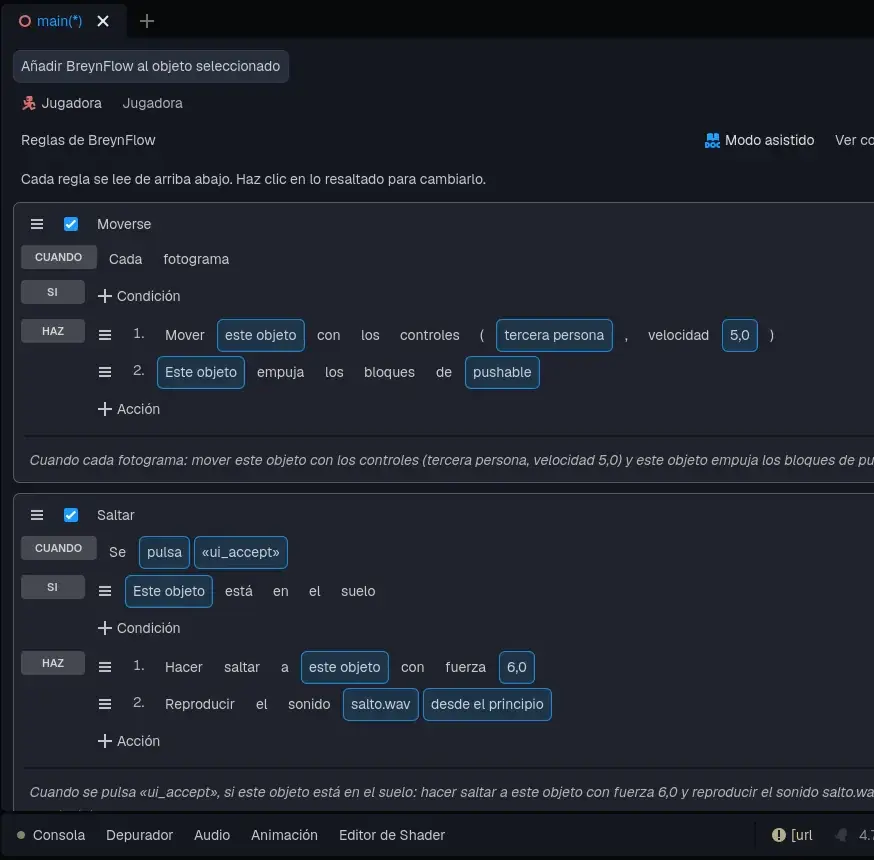
In third person, the mouse turns the camera around the explorer, WASD (or the arrows) moves her where the camera looks, and she turns to where she walks. Push Blocks goes right after moving, in the same rule: if she walks into a block of the group pushable, she pushes it.
Try it!
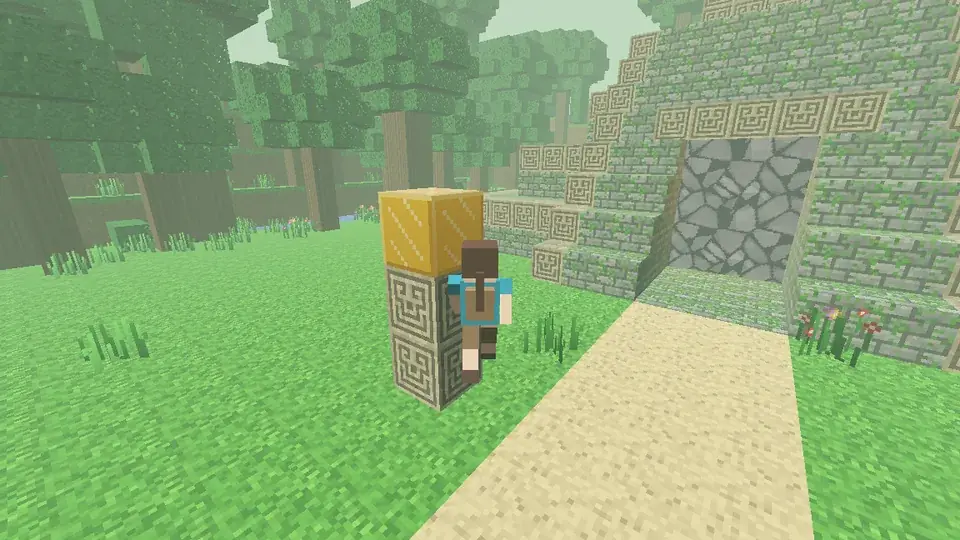
Save (Ctrl+S) and press ▶. Click the game to catch the mouse. Walk around the clearing, jump with Space and climb the stairway of the pyramid jump by jump. Esc frees the mouse.
Chapter 8The door, the plate and the stone
Now, the mechanism of the temple.
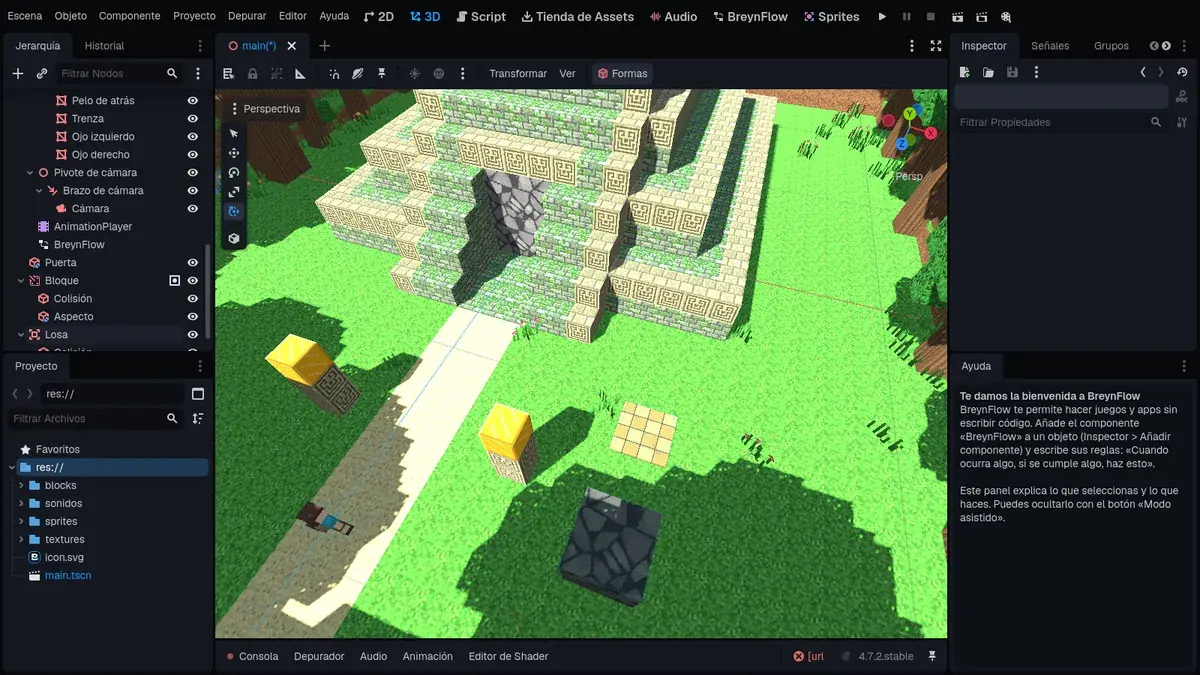
The door: Shapes > Cube, named Door, with Size 3, 4, 1 (at the top of the Inspector) and Position 0.5, 2, 1.5 (in Transform): it closes the entrance right under the carved lintel. In Look, the texture Stone.
The stone to push: Shapes > Pushable Block. Name it Block and set its Position to 8, 0, 13. It's a stone block of 2 × 2 × 2 meters, already in the group pushable.
The plate: Shapes > Pressure Plate. Name it Plate and set its Position to 8, 0, 9: two pushes away from the block, towards the pyramid.
Chapter 9The mechanism
Add BreynFlow to the Block, with one rule:
- Slide. WHEN: Message Received: pushed (it gets this message every time it's pushed). DO: Play Sound sounds/stone.wav.
And to the Plate, the rule that opens the temple:
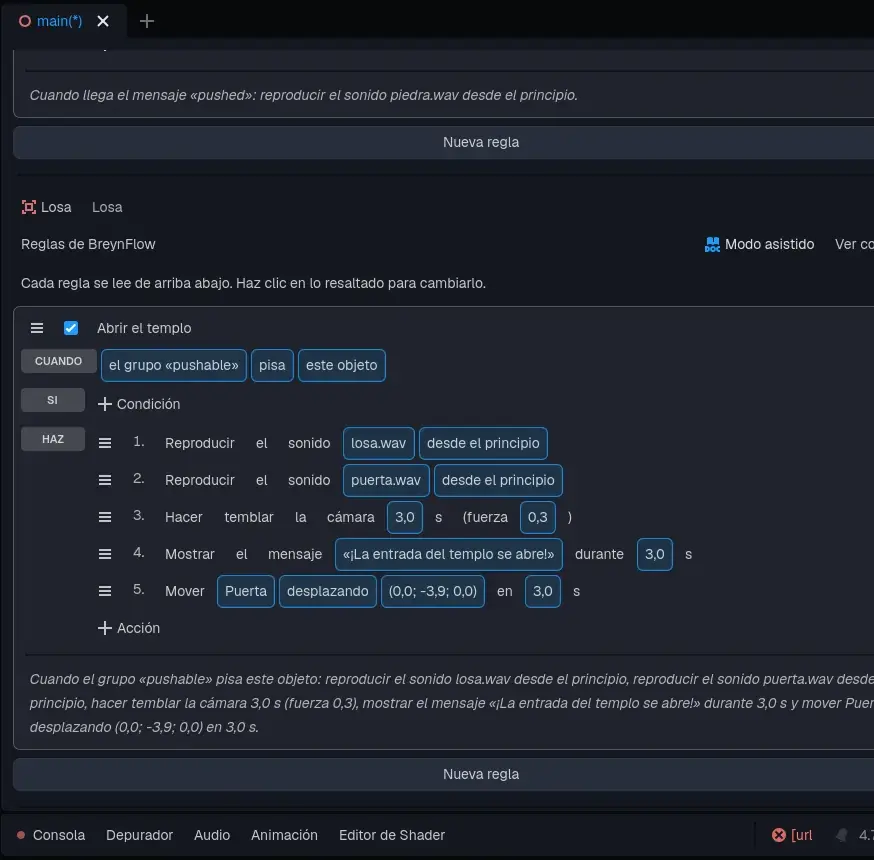
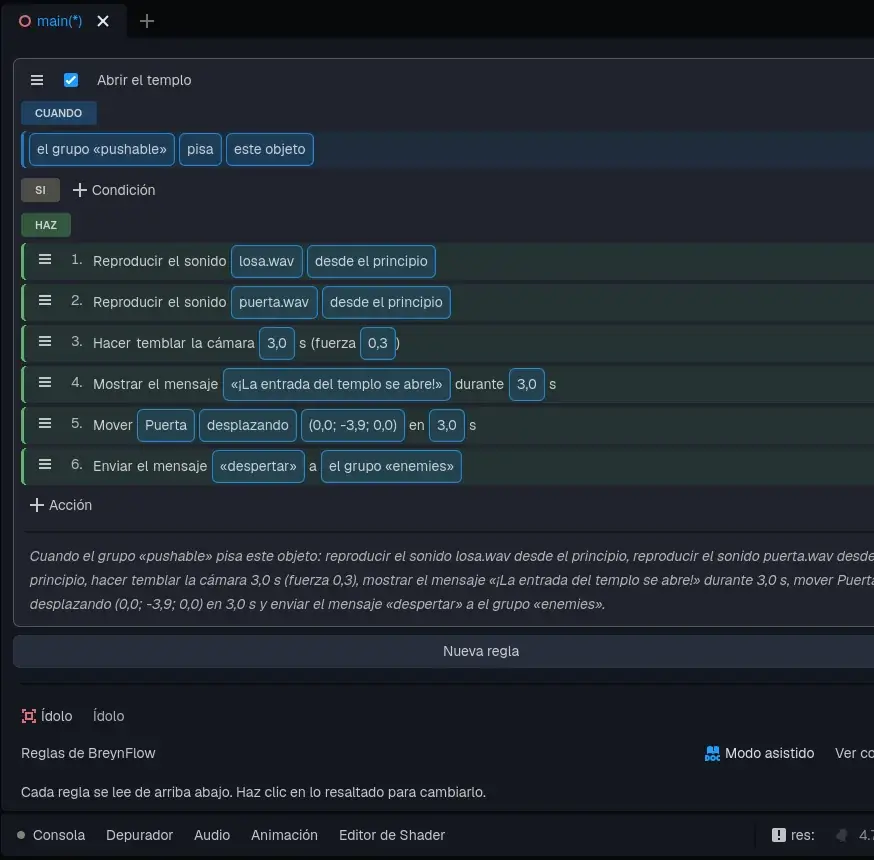
- Open the temple. WHEN: Pressure Plate. The piece says "anything steps on this object": it has two slots, and the first one is the one to change. Click anything (in the card it's the field With: what steps on it) and choose A group... > pushable. The second one, this object (the field Plate: the plate that is stepped on), stays as it is, because the rules belong to the Plate itself. It reads "the group "pushable" steps on this object": this way the plate doesn't react when the explorer steps on it, only to the stone.
- DO: Play Sound plate.wav; another Play Sound door.wav; Shake Camera for 3 s with strength 0.3; Show Message "The entrance of the temple opens!" for 3 s; Move To: the Door, by an offset of (0, -3.9, 0) in 3 s. The door sinks slowly into the ground and only an edge of stone is left showing, which the explorer walks over.
How Push Blocks works: when the explorer walks into the stone for a moment, the stone slides its own size (2 meters), if there's room. If there's a wall, a tree or another block in the way, it doesn't move. And the plate sinks a little while something is on it.
Chapter 10The treasure
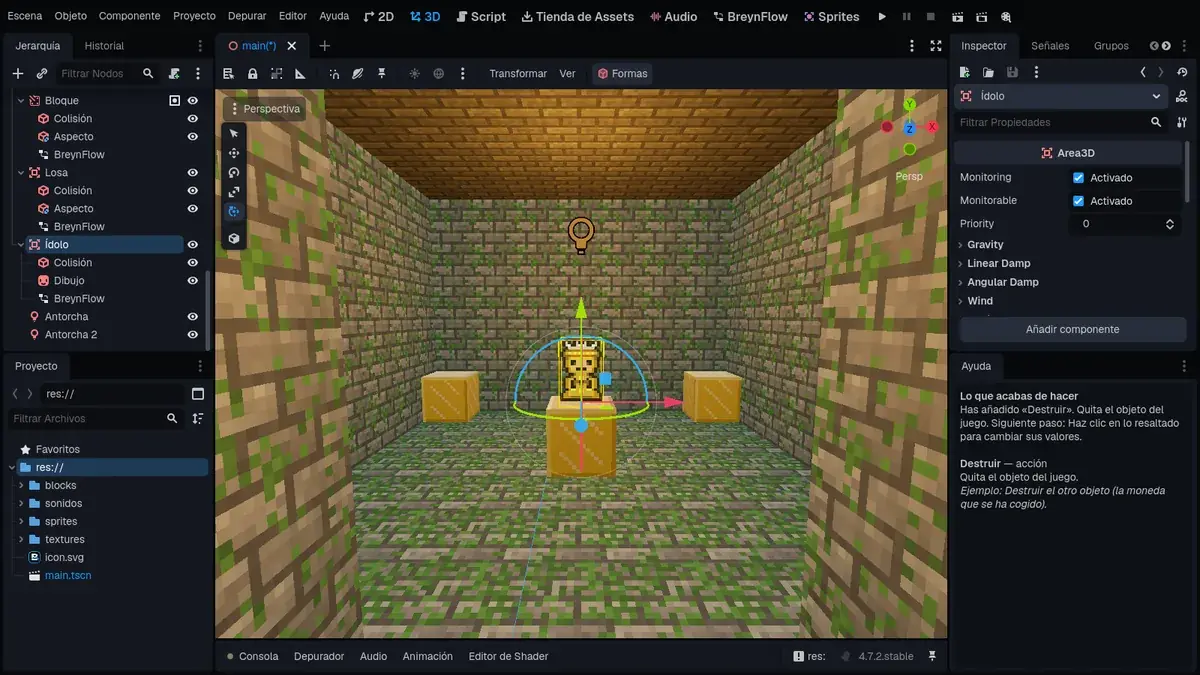
The torches: + > Light > Point Light, named Torch, at 0.5, 3.5, -5.5. Orange color (255, 170, 80), Energy 2, Range 7 and Shadow off (the shadows of point lights are costly, and they aren't needed here). Duplicate it (Ctrl+D): Torch 2, at 0.5, 3, 0, for the tunnel.
Chapter 11The mist of the jungle
The final touch: mist. In the Hierarchy, select WorldEnvironment, click its Environment to open it and, in Fog:
- Enabled: on.
- Light Color: a very light green (158, 189, 158).
- Density: 0.008.
The trees in the distance fade into the haze, and the clearing of the pyramid looks more hidden.
Chapter 12Let's play!
Save (Ctrl+S) and press ▶.
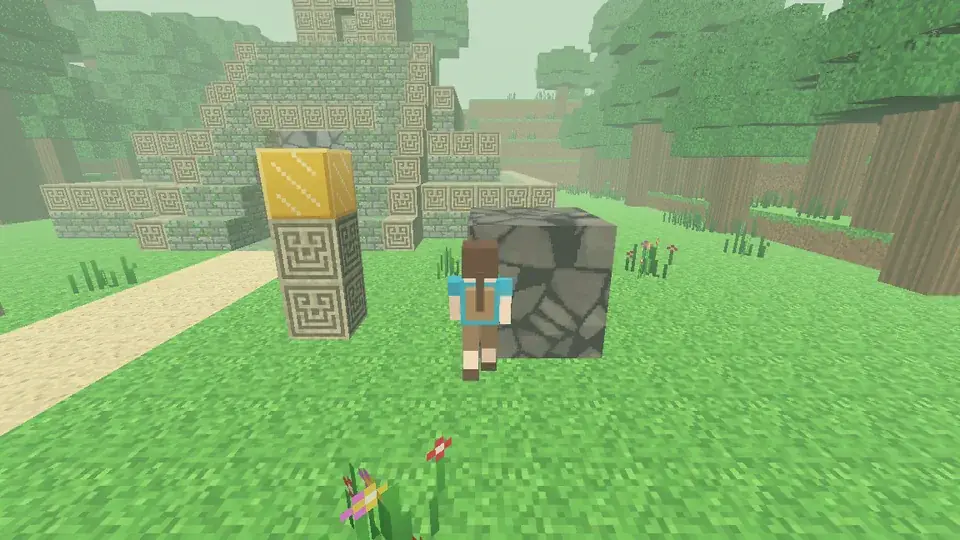
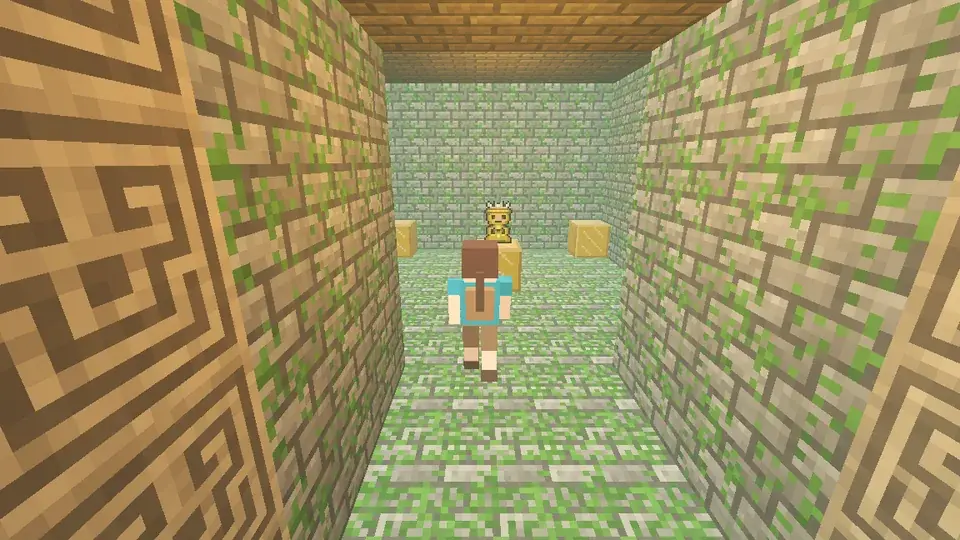
While you play, look at the BreynFlow tab: each rule blinks when it runs.
Chapter 13Part two: the three idols
The Lost Temple works. Now let's turn it into a real adventure: three idols instead of one (and the power they give), a screen with life and ammo, damage from high falls, two weapons with bullets that get recycled, ammo pouches and two stone guardians that wake up when the temple opens.
You'll need more material. Press copy the drawings and sounds to the project (download the ZIP) again: the files you already had stay as they are, and the new ones appear. In sprites: the bullet, the ammo pouch, the guardian, the pistol and the shotgun. In weapons: the pistol and the shotgun in 3D, to put in her hand. In sounds: the shot, the shotgun, the weapon switch, pickup, hurt, the growl, the crumble, the fall and the power of the idols.
Variables to run and jump
For the idols to make the explorer faster and springier, her speed and her jump must live in variables, not in fixed numbers. Select the Explorer and, in her rules:
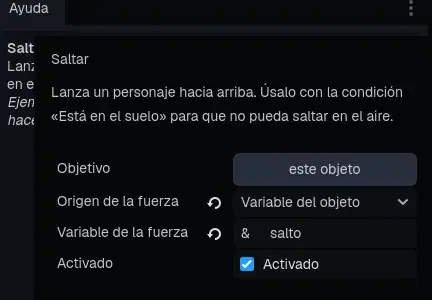
The sentences change to "speed speed" and "force jump". The game plays the same as before, but now any rule can change those numbers while playing.
The idols count
Select the Idol and, in its rule Take the treasure, add right after the sound a Change Variable: idols (global) add 1 (drag it by its ≡ handle to the second place). And change the message to "Golden idol {idols} of 3!", for 3 s: between braces, the message shows the value of the variable, so each idol says which one it is.
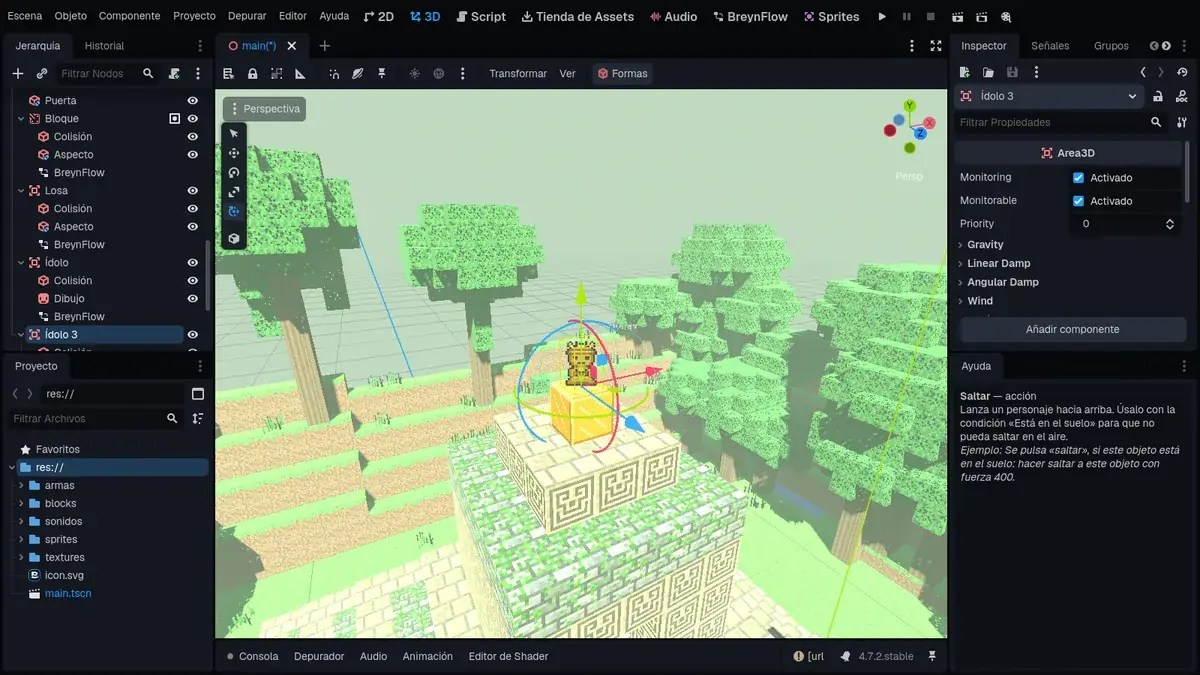
Now the other two. With the Idol selected, duplicate it (Ctrl+D): you get Idol 2, with the same rules. Set its Position to 0.5, 8, -5.5: inside the temple at the top, reached by the stairway.
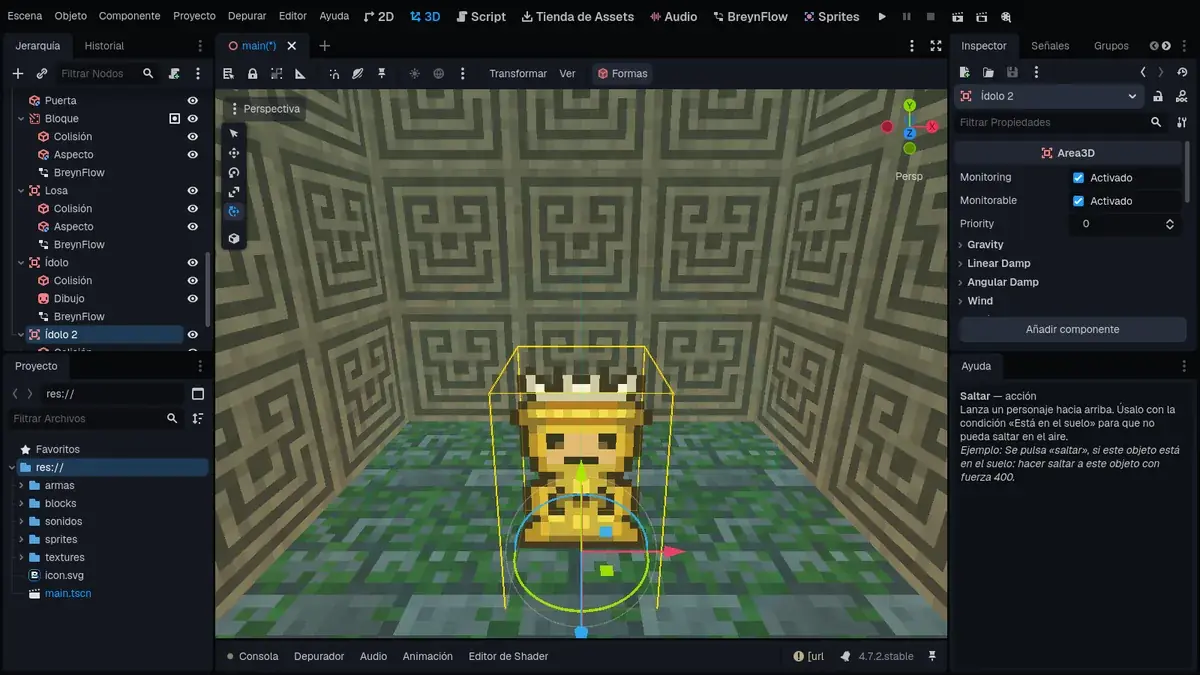
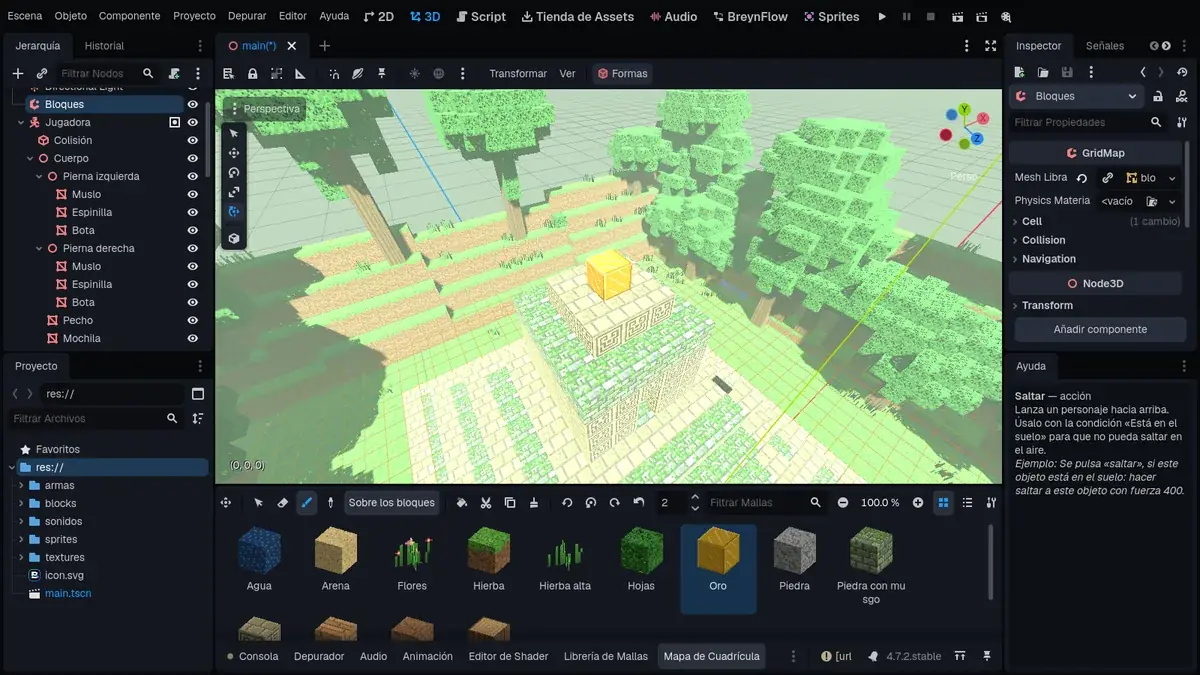
The third goes even higher. Select Blocks, take the brush and the Gold texture from the palette, and paint a gold block on the very top of the pyramid, on the cap of the temple roof (at cell 0, 13, -6). Then duplicate the Idol again: Idol 3, at 0.5, 14, -5.5, on the gold.
The power of the idols
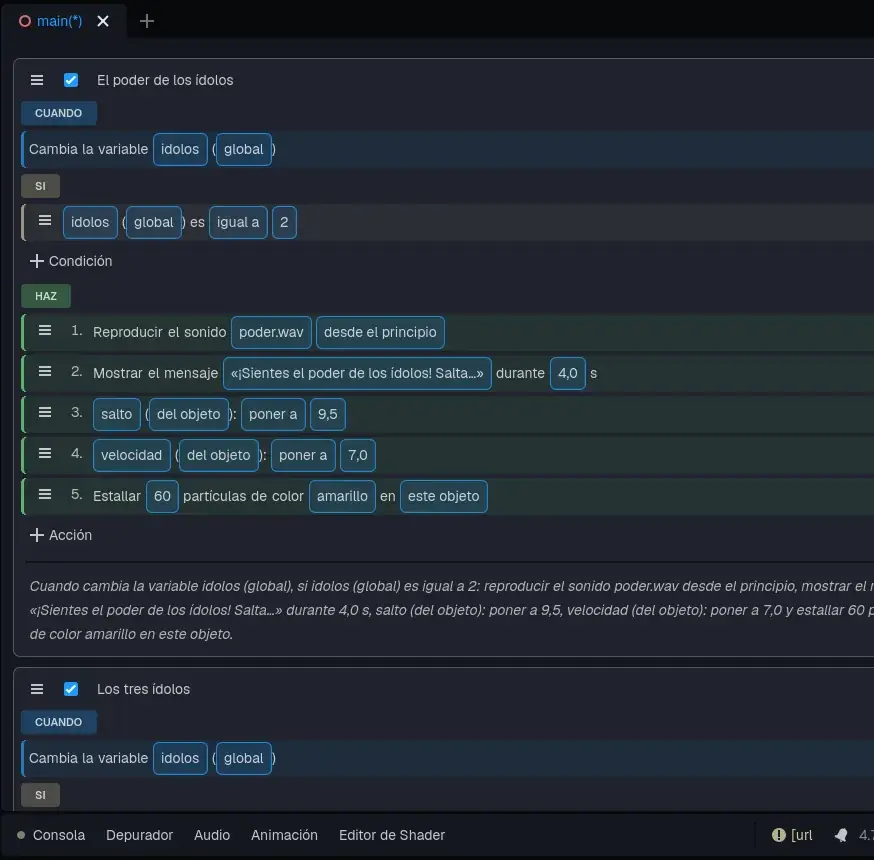
The summit can't be reached with a jump of force 6: the temple wall is 3 meters high. The first two idols will give the explorer the power to climb. Select the Explorer and make two rules:
- The power of the idols. WHEN: Variable Changes: idols (global). IF: Compare Variable: idols (global) is equal to 2. DO: Play Sound power.wav; Show Message "You feel the power of the idols! You jump higher and run faster." for 4 s; Change Variable jump (of the object) set to 9.5; Change Variable speed (of the object) set to 7; and a Particle Burst of 60 particles, size 1.5, for 1 s, at this object.
- The three idols. WHEN: Variable Changes idols (global). IF: idols is equal to 3. DO: Play Sound treasure.wav; Show Message "You gathered the three idols! The Lost Temple is yours." for 6 s.
It doesn't matter in which order the first two are taken: as soon as the count reaches 2, the jump goes from 6 to 9.5 (almost 5 meters) and you can climb from the temple yard to its wall, from there to the roof and from there to the gold on the summit.
Chapter 14Life and the screen
Let's put life and ammo on the screen. First, two settings so it looks right in any window. Open Project > Project Settings:
- Type stretch in the search box, click Window and set Stretch > Mode to canvas_items: the screen grows with the window.
- Type texture filter, click Textures (in Rendering) and set Default Texture Filter to Nearest: pixels look sharp.
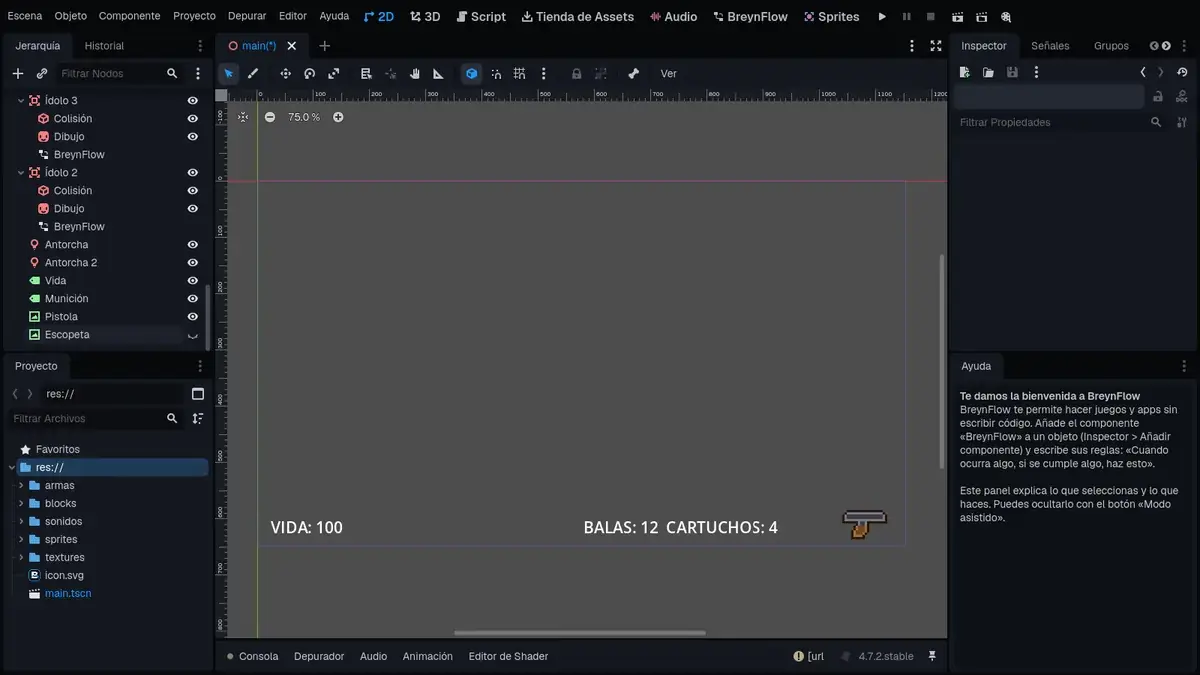
Go to the 2D tab: the blue rectangle is the screen, 1152 × 648. Select Main and, with + > UI, add four things:
- Text named Life: with the text LIFE: 100, font size 28 (Theme Overrides > Font Sizes), at Position 24, 596 (bottom left).
- Text named Ammo: BULLETS: 12 SHELLS: 4, size 28, Position 580, 596 (so even with lots of bullets the text doesn't reach the picture of the weapon).
- Image named Pistol: sprites/pistol.png in its Texture, Expand Mode set to Ignore Size and, in Layout > Transform, Size 96, 52 and Position 1032, 584 (bottom right).
- Image named Shotgun: sprites/shotgun.png, Ignore Size, Size 128, 48, Position 1008, 588. Hide it with the eye in the Hierarchy: you start with the pistol.
The rules of the screen
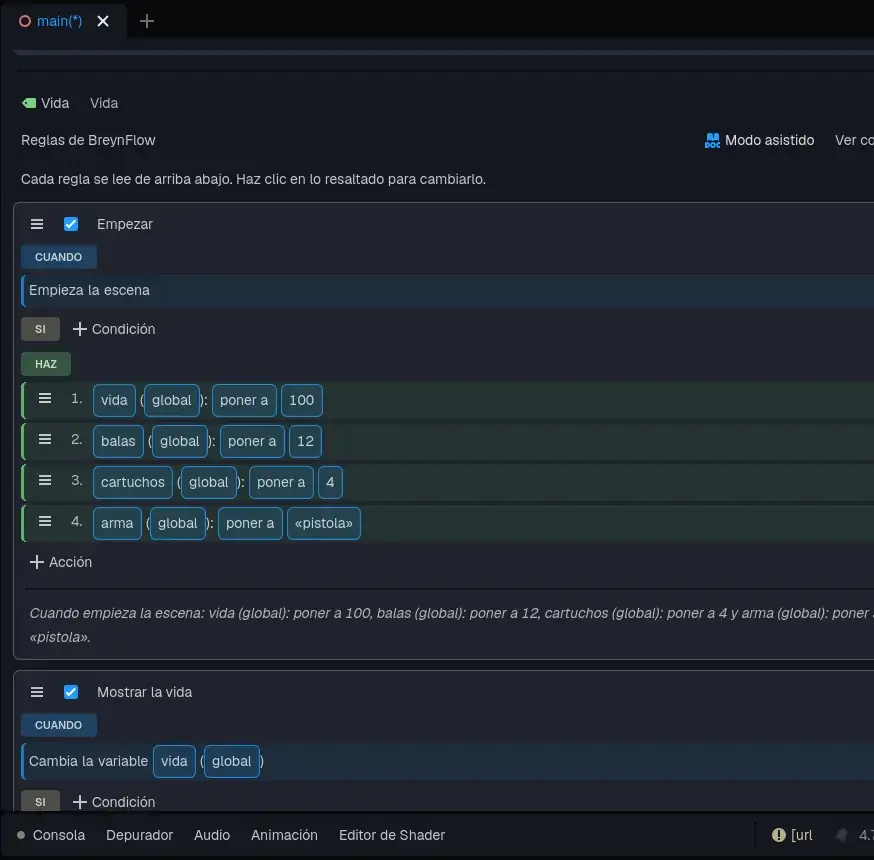
Add BreynFlow to the Life text with these rules:
- Start. WHEN: Scene Starts. DO: four Change Variable, all global: life set to 100, bullets set to 12, shells set to 4 and weapon set to "pistol" (type the word, no quotes needed).
- Show the life. WHEN: Variable Changes: life (global). DO: Change Text of this object to "LIFE: {life}".
- Show the ammo. WHEN: Variable Changes: bullets (global). DO: Change Text of the object Ammo to "BULLETS: {bullets} SHELLS: {shells}".
- Show the shells: the same, but WHEN shells changes.
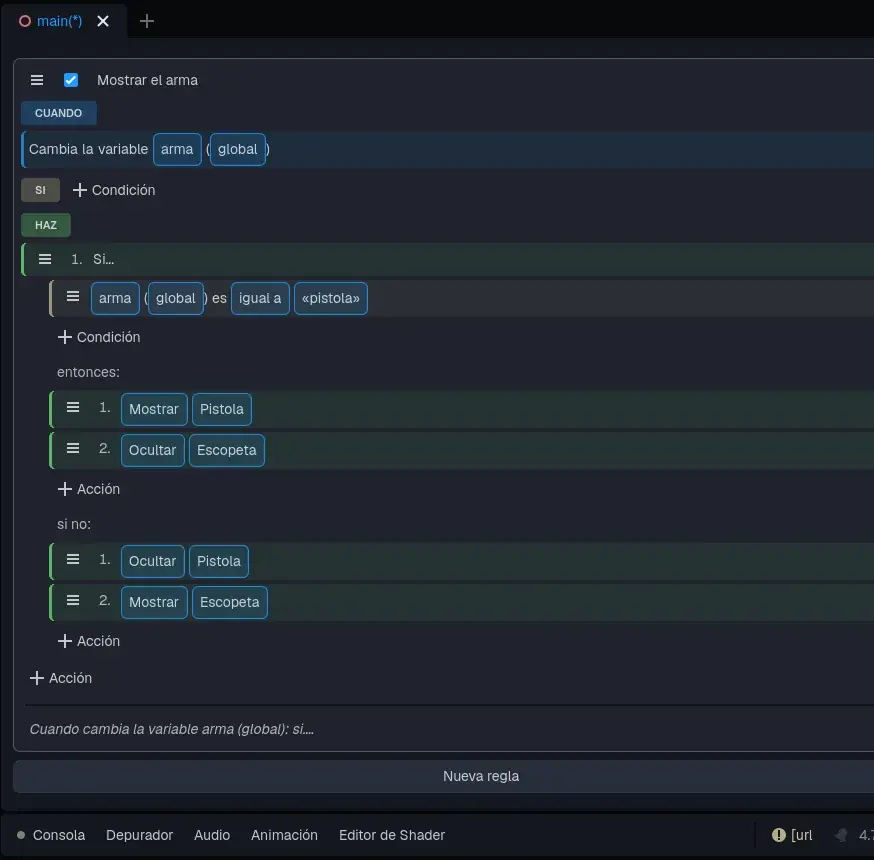
- Show the weapon. WHEN: Variable Changes: weapon (global). DO: If / Otherwise. Inside, the condition Compare Variable: weapon (global) is equal to "pistol". In then: Show or Hide Pistol (show) and Show or Hide Shotgun (hide). In otherwise: the other way round.
Falling from high
A tall pyramid and a 5-meter jump call for a little care. Select the Explorer and add:
- Fall. WHEN: Lands or Hits a Wall (it comes as "this object lands"). IF: Compare Variable: fall_height (of the object) is greater than 3.5. DO: Change Variable life (global) subtract 20; Play Sound fall.wav; Shake Camera 0.5 s with strength 0.2; Blink this object for 1 s.
- Die. WHEN: Variable Changes: life (global). IF: life (global) is less or equal to 0. DO: Show Message "You fell in the Lost Temple..." for 2 s; Fade Screen to the color in 1.5 s; Restart Scene.
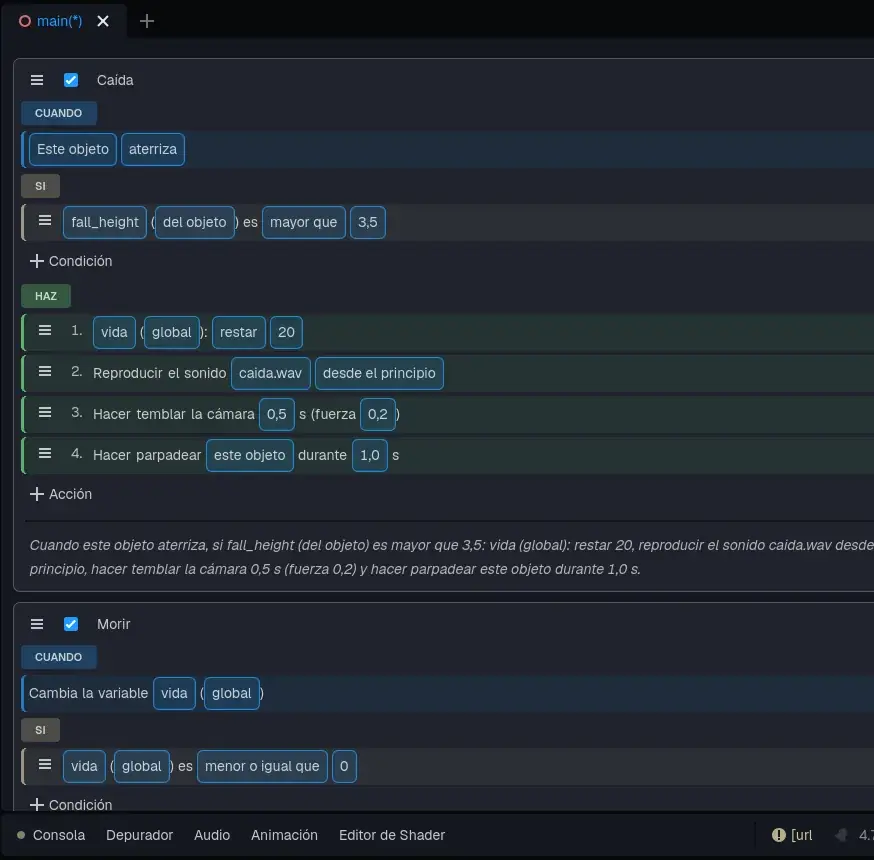
Every time a character lands, BreynFlow writes in its variable fall_height how many meters below the place where it left the floor it landed: a jump on flat ground is 0, however high; going down a step, 1; falling from the temple roof to the yard, 4. The fade takes 1.5 s to cover the screen, and then the scene starts again: the Start rule of Life sets the life back to 100.
Chapter 15The weapons
The bullet
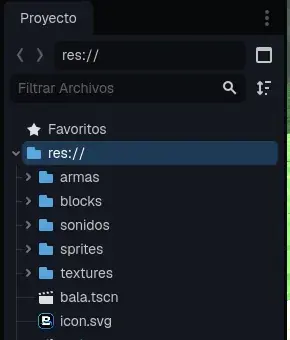
First, the projectile. It's a small object with its own rules, which we'll save as a prefab (a scene of its own) so the explorer can throw copies.
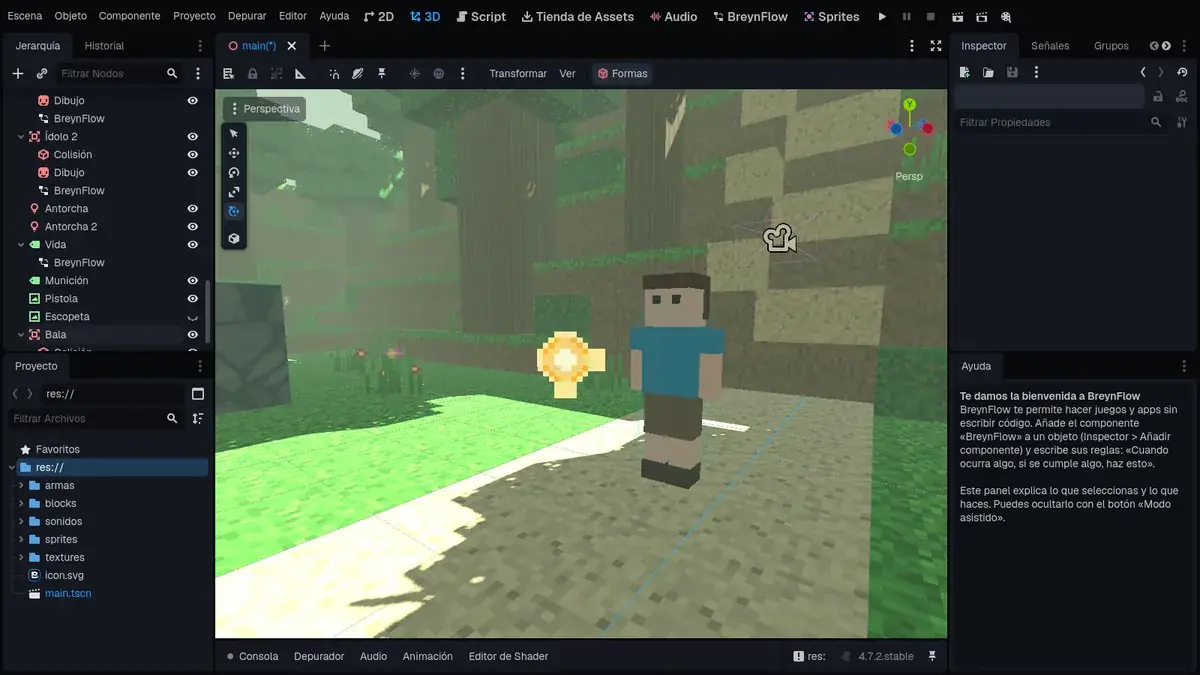
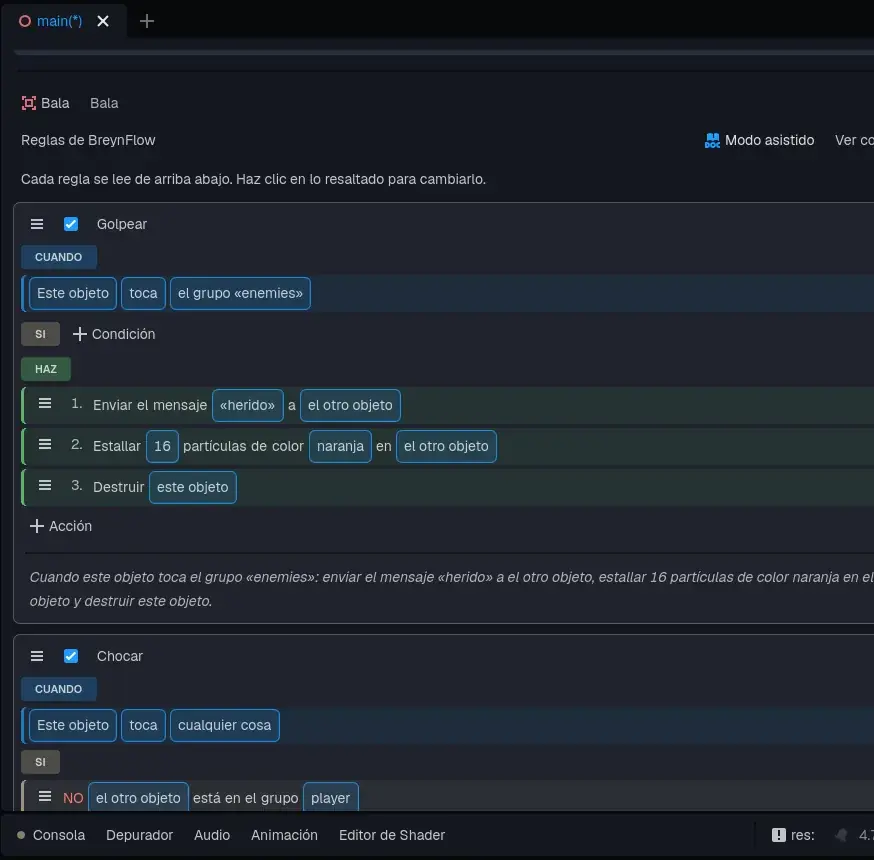
- Hit. WHEN: Collision: click the group "player" and change it to the group enemies. DO: Send Message "hurt" to the other object (the field To: what it touched); Particle Burst of 16 particles of orange at the other object; Destroy this object.
- Crash. WHEN: Collision, but this time clear the group (in the card, the field With empty: "touches anything"). IF: Is in Group: the other object is in the group player... and in the ⋮ menu of the condition check Invert (NOT): the bullet is destroyed when it touches anything but the explorer (so it doesn't crash into her on the way out). DO: Destroy this object.
The key to switch weapons
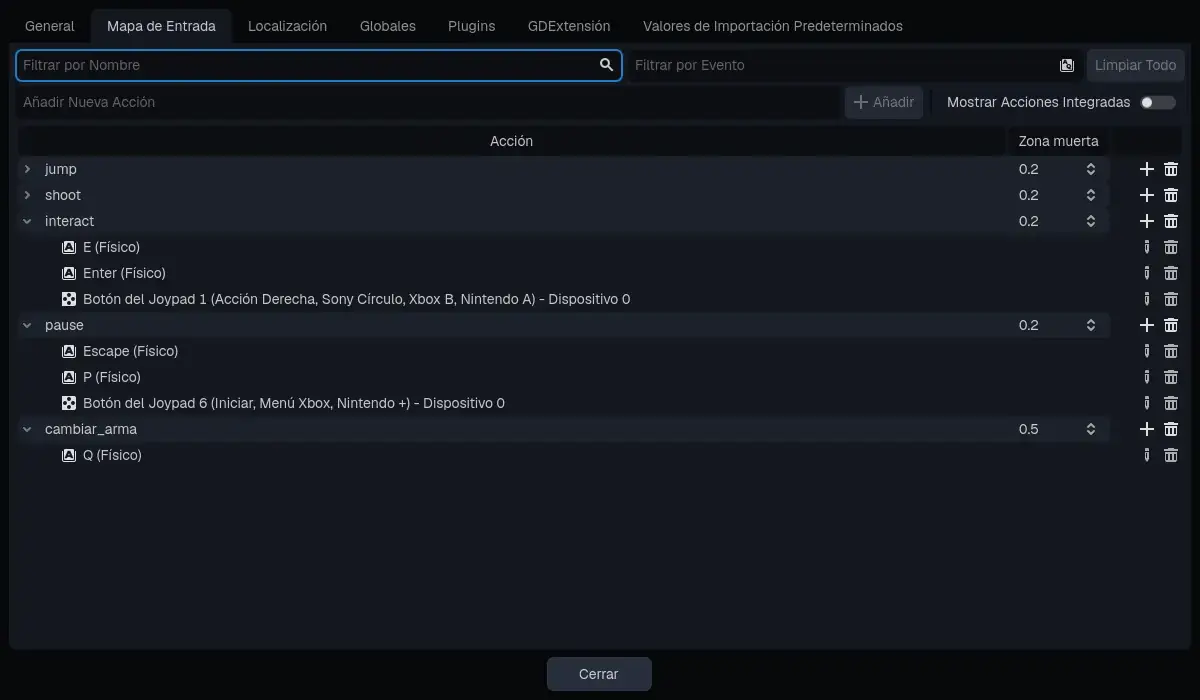
Input actions (the keys) are defined in Project > Project Settings > Input Map. A new project already comes with jump, shoot, interact and pause. Add one: type switch_weapon in Add New Action and press Add. Then, in its row, the + button, press the Q key and accept.
The weapons in her hand
In the Project panel, the weapons folder has two models made of boxes: pistol.tscn and shotgun.tscn. In the Hierarchy, unfold the Explorer and her Body. Drag pistol.tscn from the Project panel and drop it on Right Arm: it goes inside the arm. Set its Position to 0, -0.8, -0.05: now she holds it. Do the same with shotgun.tscn, with Position 0, -1.05, -0.05, and hide it with the eye: she starts with the pistol.
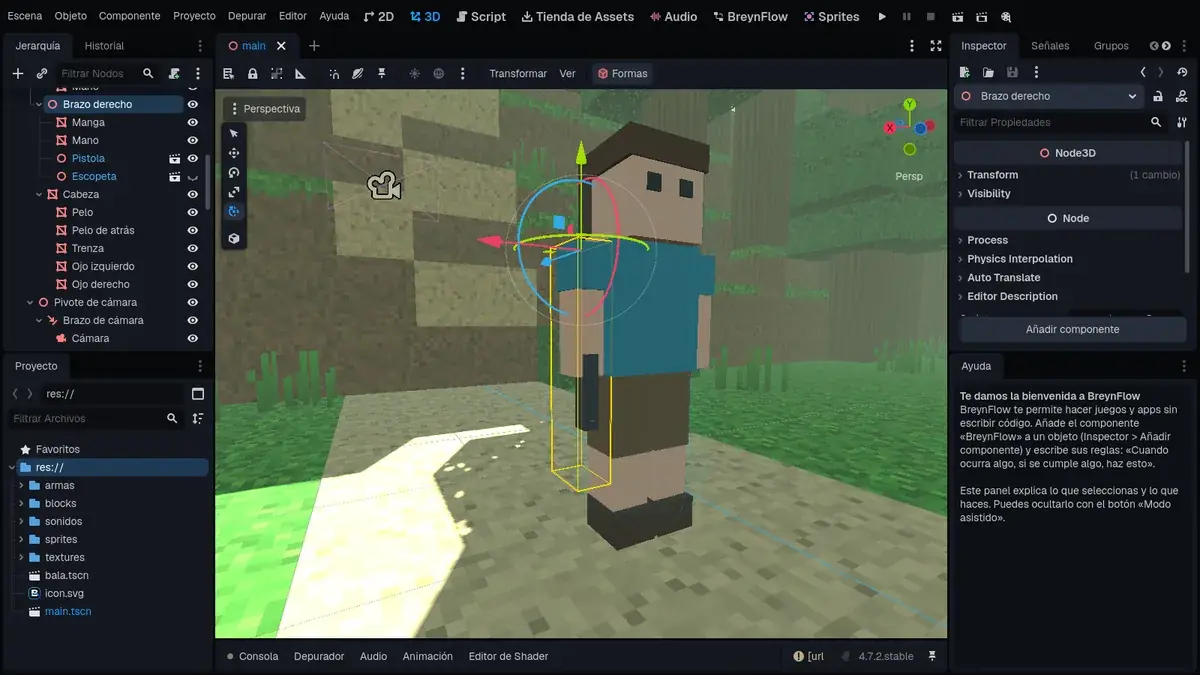
The origin of each weapon (the point you move with its Position) is at the muzzle: that's where the bullets will come out. And since the weapon is inside the arm, it moves with it: it swings when she walks, and rises with the arm when she aims.
Aiming
First, the camera over the shoulder. In the Hierarchy, unfold the Explorer's Camera Pivot, select the Camera Arm and set its Position to 0.9, 0, 0: the camera moves to the explorer's right shoulder and no longer has her right in front. Shots go where the center of the screen points, so now you can see where they go.
Now select the Explorer and add two rules:
- Aim. WHEN: Key or Button: mouse_right (the right mouse button) is pressed. DO: Aim (in Characters and Physics): it comes as "this object starts aiming".
- Stop aiming. WHEN: Key or Button: mouse_right is released. DO: Aim, changing "starts aiming" to stops aiming.
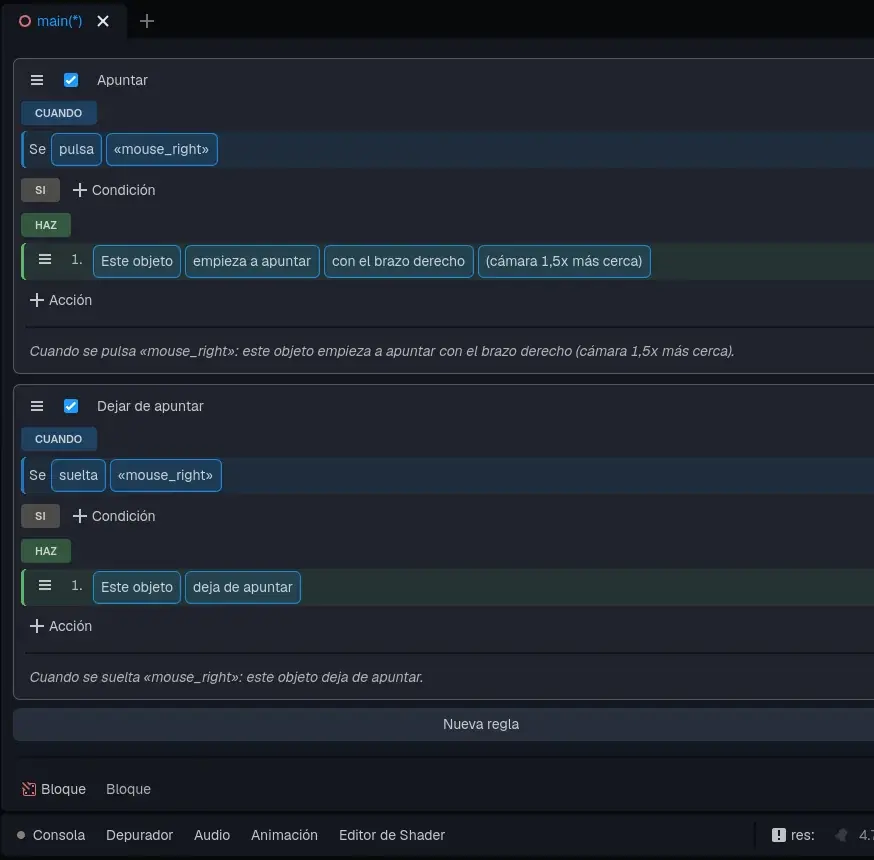
While you hold the right button, the explorer turns to where the camera looks and raises her arm with the weapon towards the center of the screen; the camera comes closer over her shoulder, a crosshair shows in the middle and she walks slower. All of that is set in the Aim card: how much closer the camera comes, how far it moves to the shoulder, the speed while aiming and whether there's a crosshair. It finds the arm to raise by itself (the Right Arm); if your character is different, choose it in Arm.
Shooting
Select the Explorer and add three more rules:
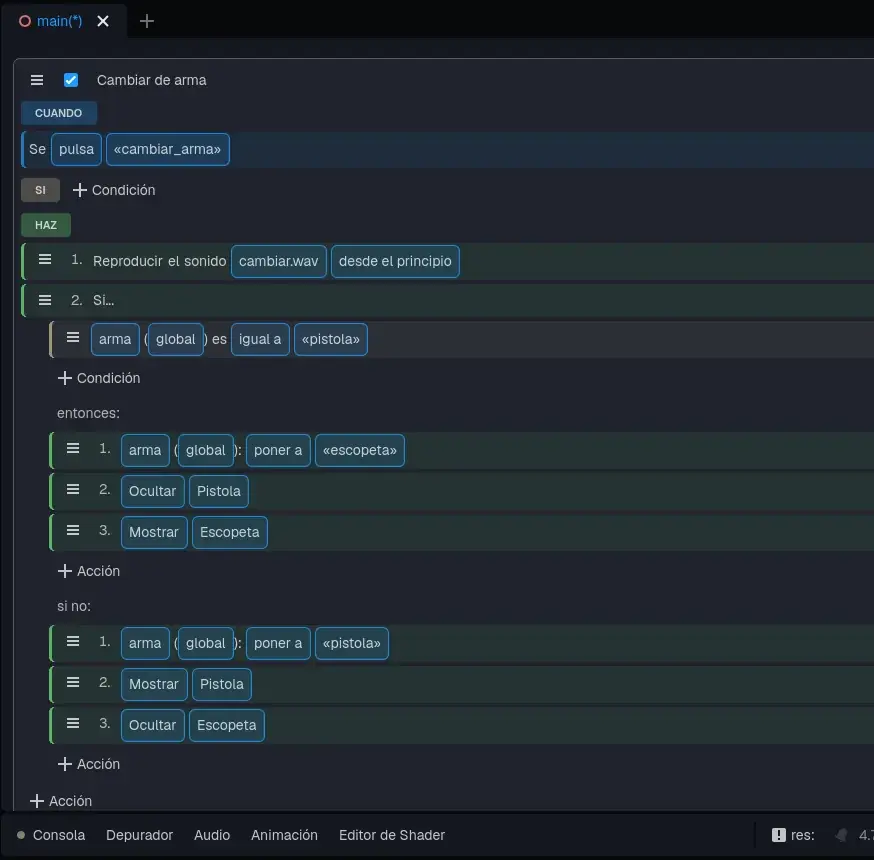
- Switch weapon. WHEN: Key or Button: switch_weapon is pressed. DO: Play Sound switch.wav; If / Otherwise with the condition weapon (global) is equal to "pistol"; in then: Change Variable weapon set to "shotgun", Show or Hide Body/Right Arm/Pistol (hide) and Show or Hide Body/Right Arm/Shotgun (show); in otherwise: weapon set to "pistol" and the two weapons the other way round. The screen finds out by itself, through its rule Show the weapon.
- Shoot the pistol. WHEN: Key or Button: mouse_left is pressed. IF: weapon (global) is equal to "pistol", and bullets (global) is greater than 0. DO: Aim with aims briefly (0.4 s: if you shoot without holding the right button, she raises the weapon for the shot); Throw (Projectile): in the card, Scene bullet.tscn, From the object Body/Right Arm/Pistol (the bullet comes out of the pistol's muzzle), Direction where the camera looks, Speed 25; Change Variable bullets subtract 1; Play Sound shot.wav.
- Shoot the shotgun. WHEN: mouse_left is pressed. IF: weapon is equal to "shotgun", and shells (global) is greater than 0. DO: Aim with aims briefly, as with the pistol; three Throw (Projectile) like the pistol's, but From Body/Right Arm/Shotgun and with Spread 12 degrees (each bullet strays a little at random: a fan of pellets); Change Variable shells subtract 1; Play Sound shotgun.wav; Shake Camera 0.2 s with strength 0.15.
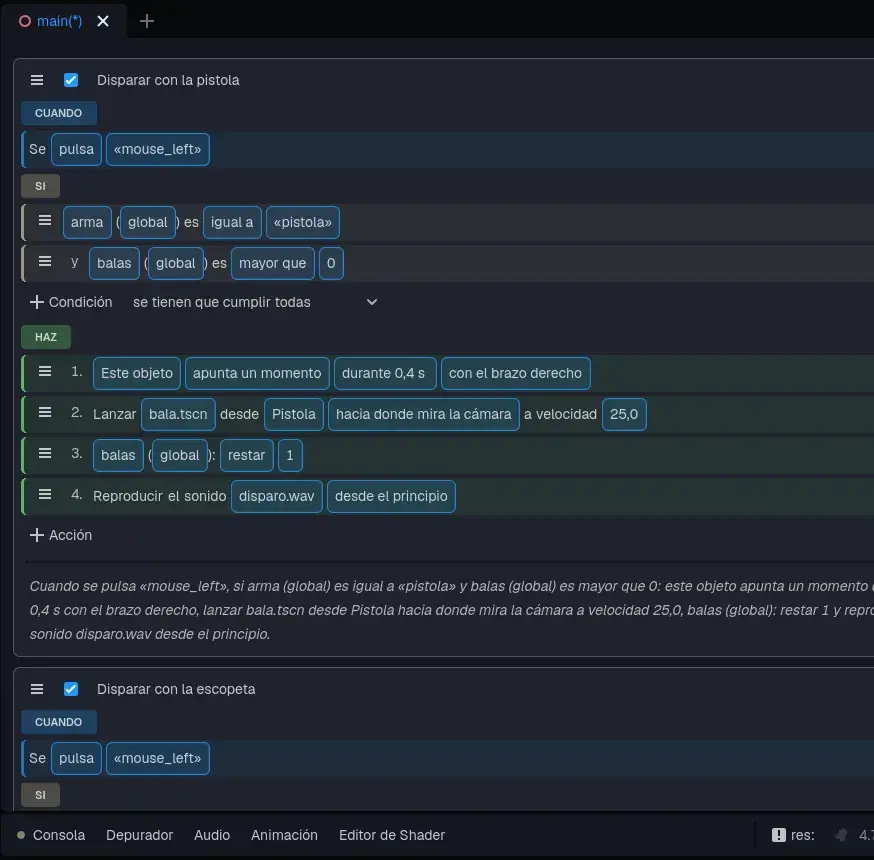
Bullets get recycled: when one leaves the screen or is destroyed, it doesn't vanish for good; it goes back to a reserve (an object pool) and the next shot reuses it instead of creating another. With hundreds of shots, the game doesn't choke creating and deleting objects. It's the Reuse setting of Throw, which comes on.
Ammo
Bullets run out. Select Main and add + > Pickup (3D), named Pouch, at -4, 0, 12, with the texture sprites/ammo.png in its Drawing. Its rule:
- Pick up. WHEN: Collision (touches the group player). DO: Change Variable bullets (global) add 12; shells (global) add 4; Play Sound pickup.wav; Destroy this object.
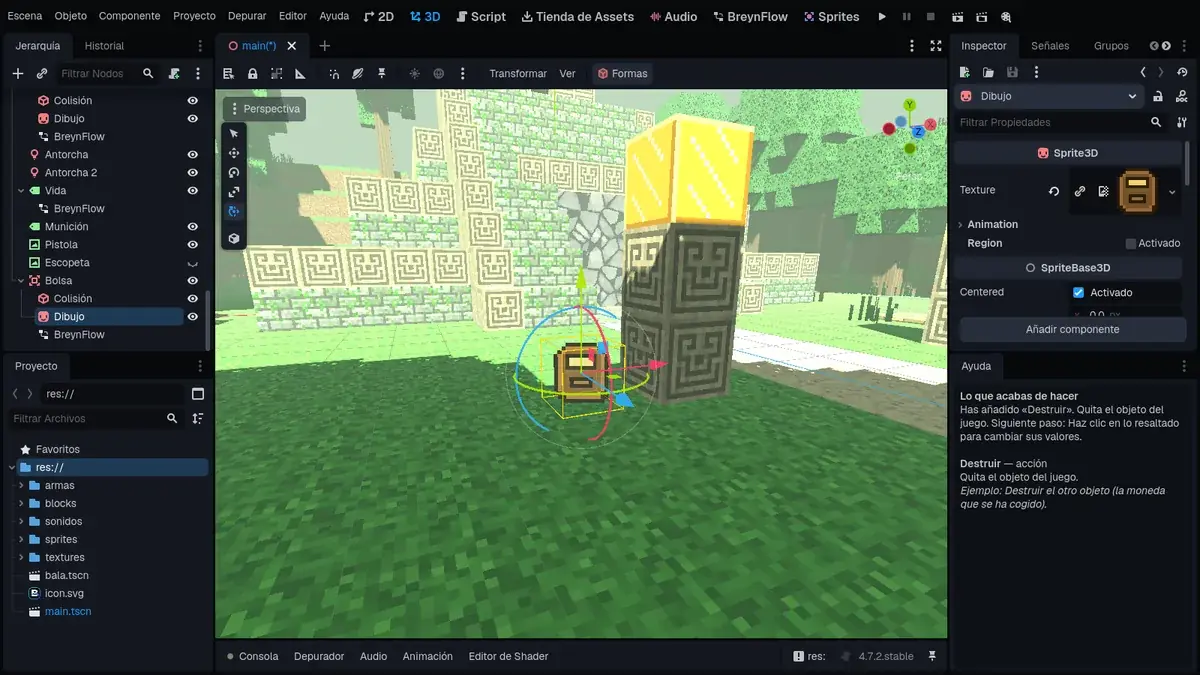
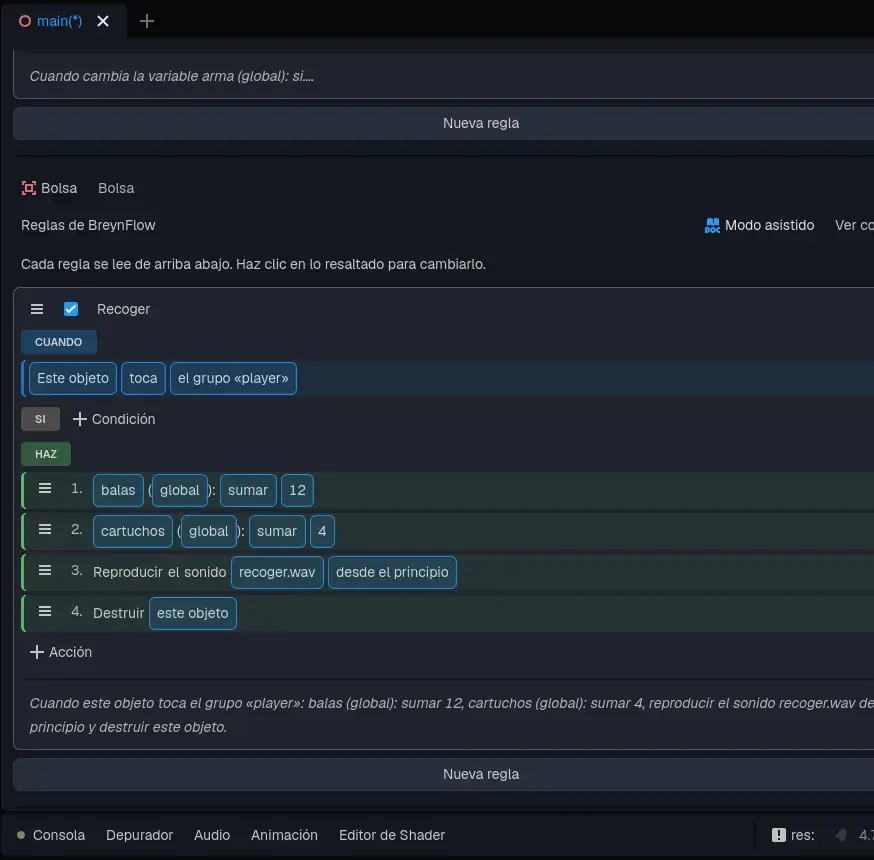
Duplicate it twice: Pouch 2 at 5, 0, 16 (by the path) and Pouch 3 at 0.5, 0, -3.5 (inside the treasure chamber, right out of the tunnel: you're going to need it).
Chapter 16The guardians of the temple
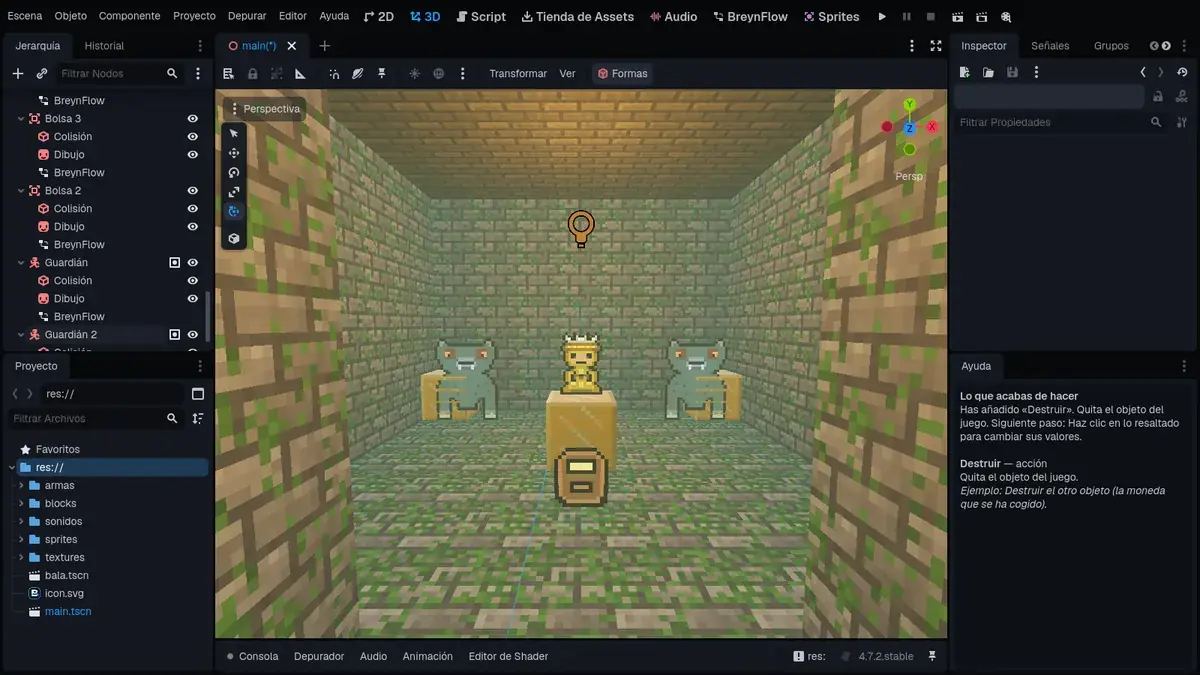
Inside the treasure chamber, two stone jaguars wait for someone to open the door.
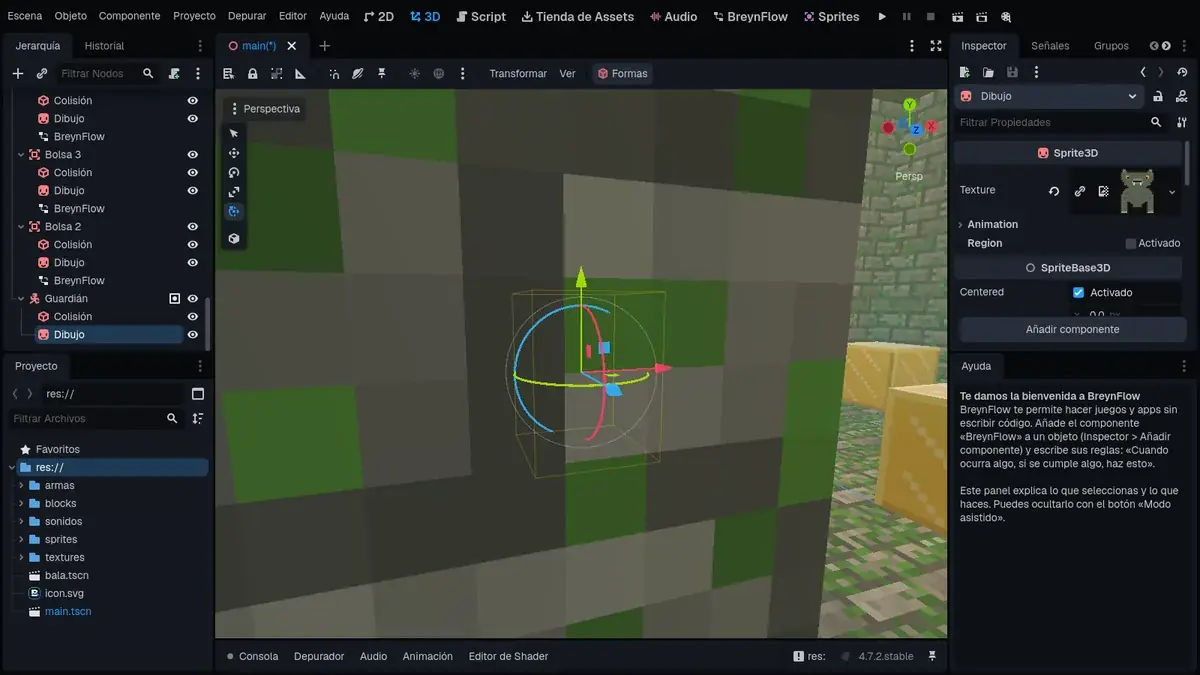
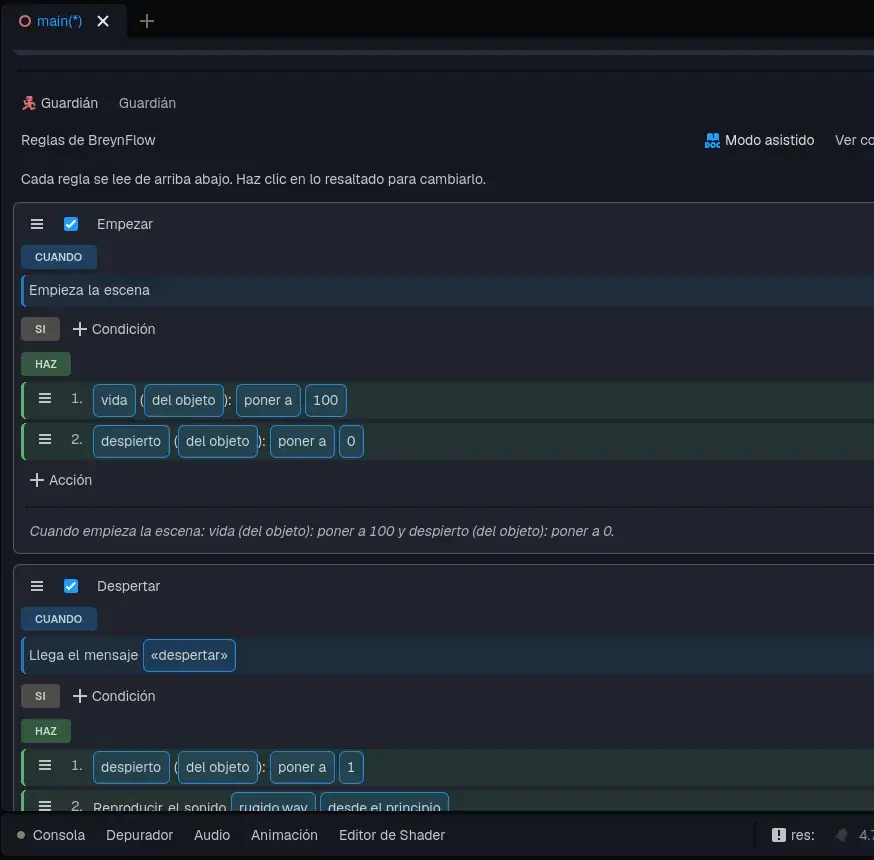
- Start. WHEN: Scene Starts. DO: Change Variable life (of the object) set to 100; awake (of the object) set to 0.
- Wake up. WHEN: Message Received: wake_up. DO: awake set to 1; Play Sound growl.wav.
- Chase. WHEN: Every Frame. IF: awake (of the object) is equal to 1. DO: Move Towards (Follow): towards the Explorer, speed 3.5, and in the card Stop Distance 1.2 (it stays close, without getting inside).
- Bite. WHEN: Time Passes: every 1 s. IF: awake is equal to 1, and Distance from this object to the Explorer less than 1.8. DO: Change Variable life (global: the explorer's) subtract 15; Play Sound hurt.wav; Blink the Explorer 0.5 s; Shake Camera 0.3 s with strength 0.25.
- Hurt. WHEN: Message Received: hurt (the one the bullet sends). DO: life (of the object) subtract 34; Blink this object 0.2 s.
- Defeated. WHEN: Variable Changes: life (of the object). IF: life (of the object) is less or equal to 0. DO: Play Sound crumble.wav; Particle Burst of 40 gray particles, size 1.5; Destroy this object.
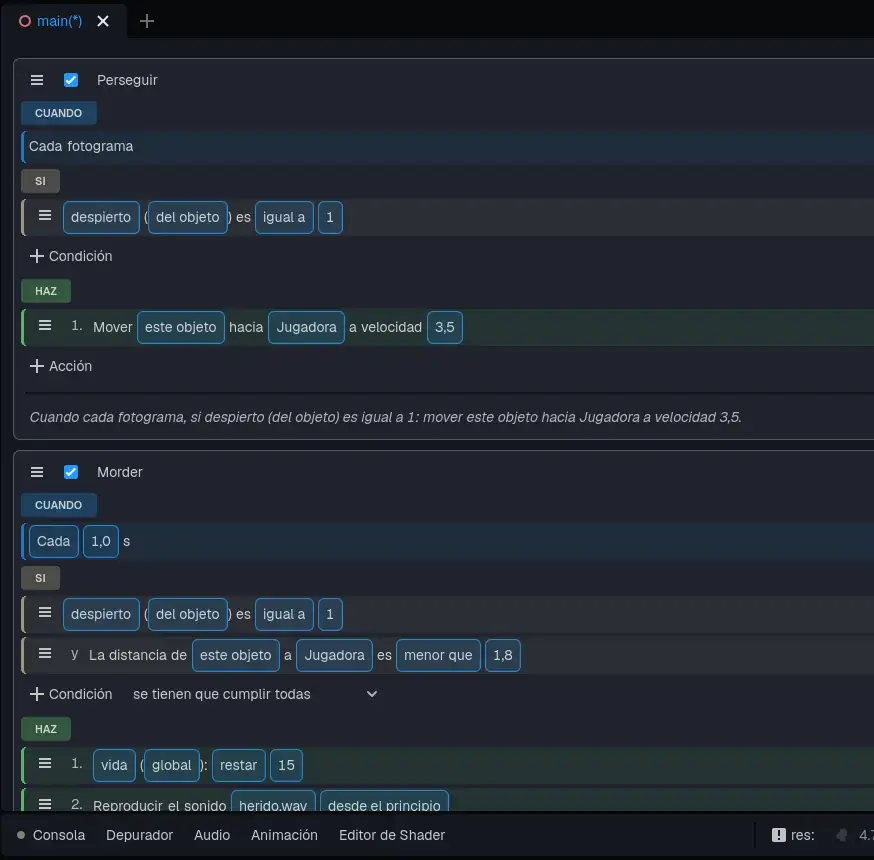
Notice the two lives: the life of the object is the guardian's (each one has its own, even though they share rules) and the global life is the explorer's. Three pistol bullets (34 × 3) or a good shotgun blast up close finish a guardian.
Chapter 17Playing on a phone
A phone or a tablet has no keyboard and no mouse. The explorer is played with touch controls: a joystick to walk and a button for each action. BreynFlow puts them with a single action, and they only show when the game is played on a touch screen: on a computer everything stays the same.
Select the Explorer and add one more rule:
- Touch controls. WHEN: Scene Starts. DO: Touch Controls (in Input). It comes as "show the touch controls (joystick yes, buttons A = ui_accept)". Click the buttons: each one is a pair, its text and the action it presses. Change the A to Jump and add the others with New Key (the text), New Value (the action) and Add Key/Value Pair: Shoot = mouse_left, Aim = mouse_right and Weapon = switch_weapon.
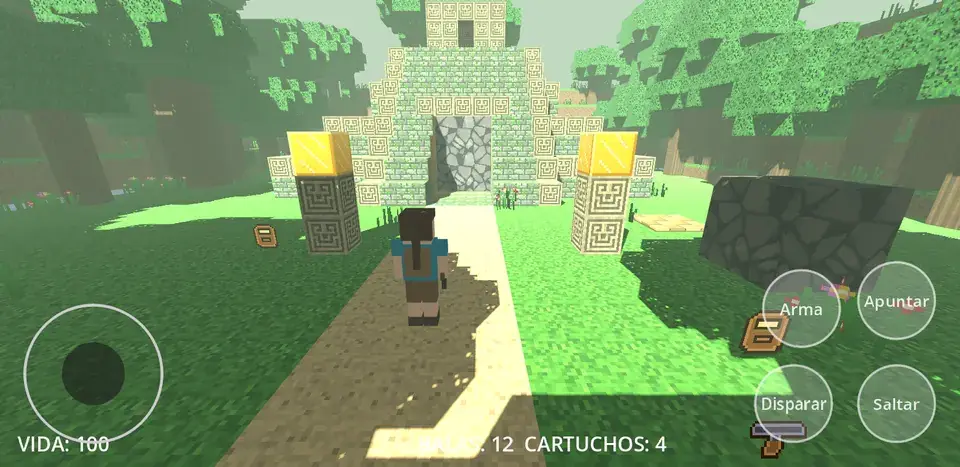
This is what you get:
- The joystick, on the left: it appears where you put your thumb and moves the explorer like the arrows (Move with the Controls reads it as it is).
- Jump, in the bottom right corner, presses ui_accept, like Space: the Jump rule works as it is.
- Shoot and Aim press the mouse buttons (mouse_left and mouse_right): the weapon rules don't change either. While you hold Aim, she aims; when you let go, she stops.
- Weapon presses switch_weapon, like Q.
With the controls on screen, touching the screen doesn't shoot: a finger away from the joystick and the buttons only turns the camera, like the mouse on a computer. And several fingers work at once: walk with the joystick, turn the camera with the other thumb and jump or shoot.
Chapter 18Let's play! (part two)
Save (Ctrl+S) and press ▶. The screen says LIFE: 100 and BULLETS: 12, with the pistol.
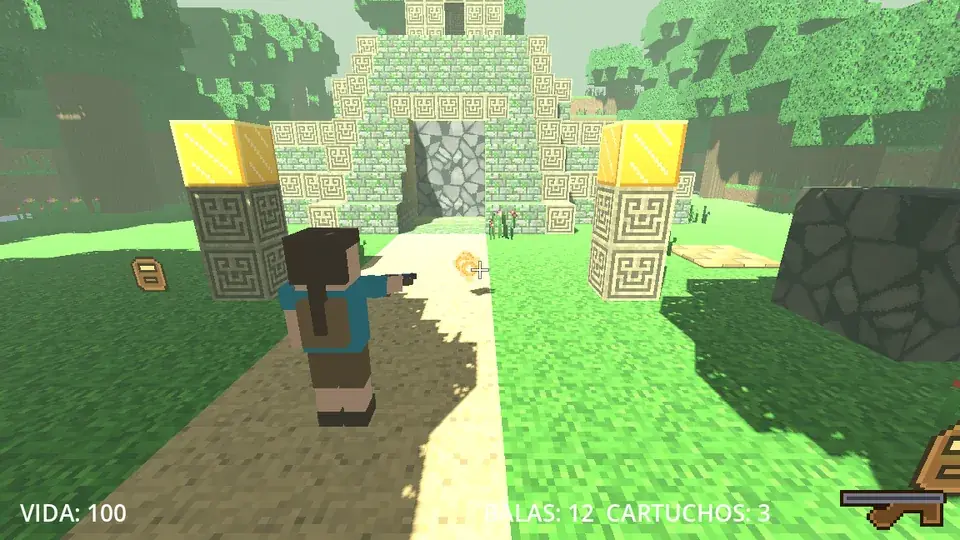
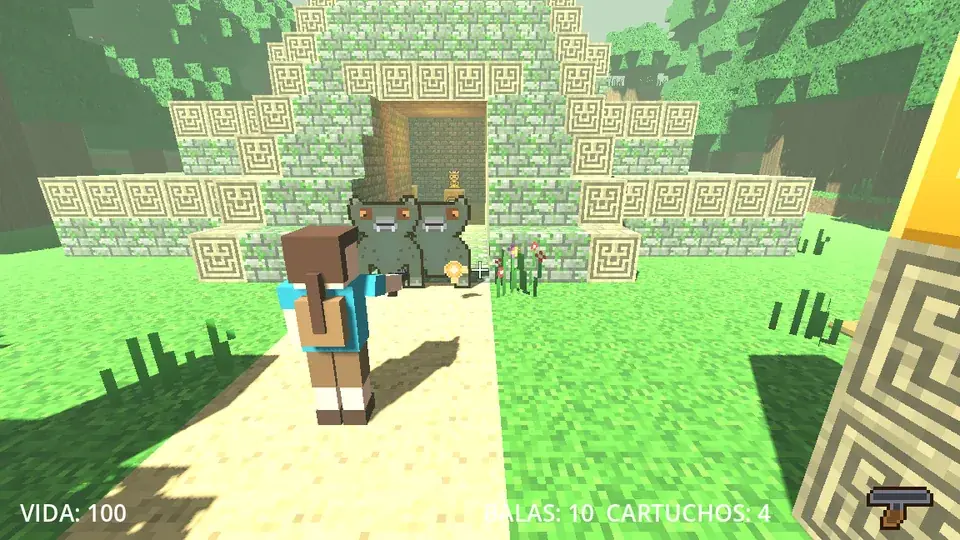
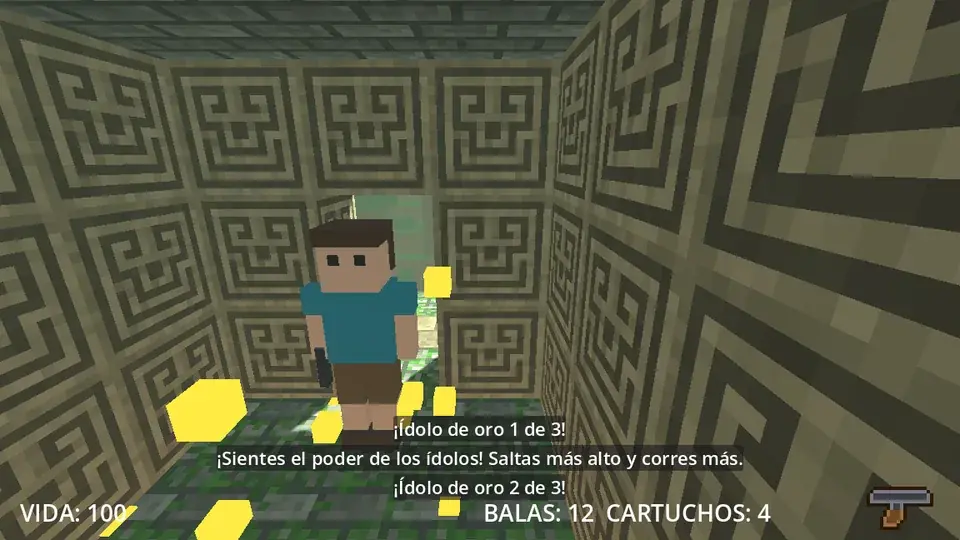
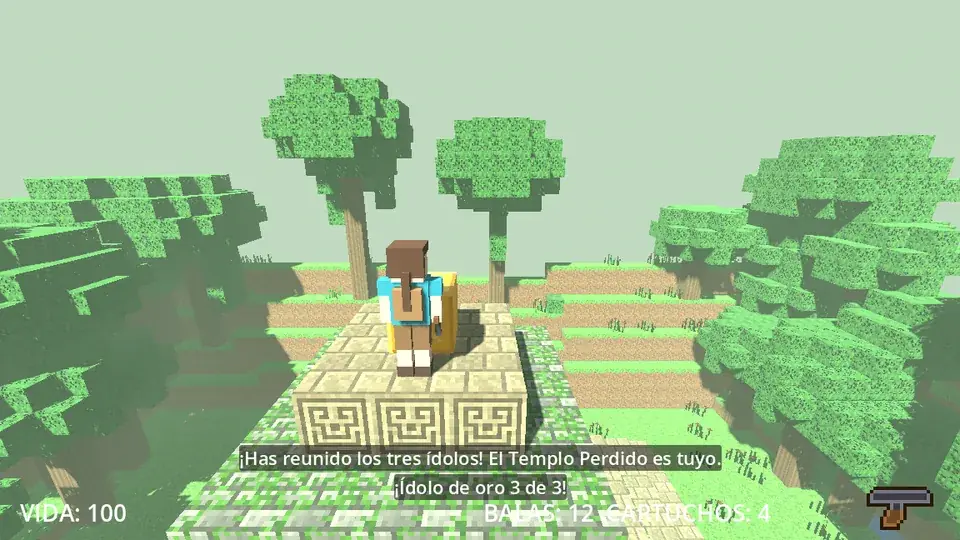
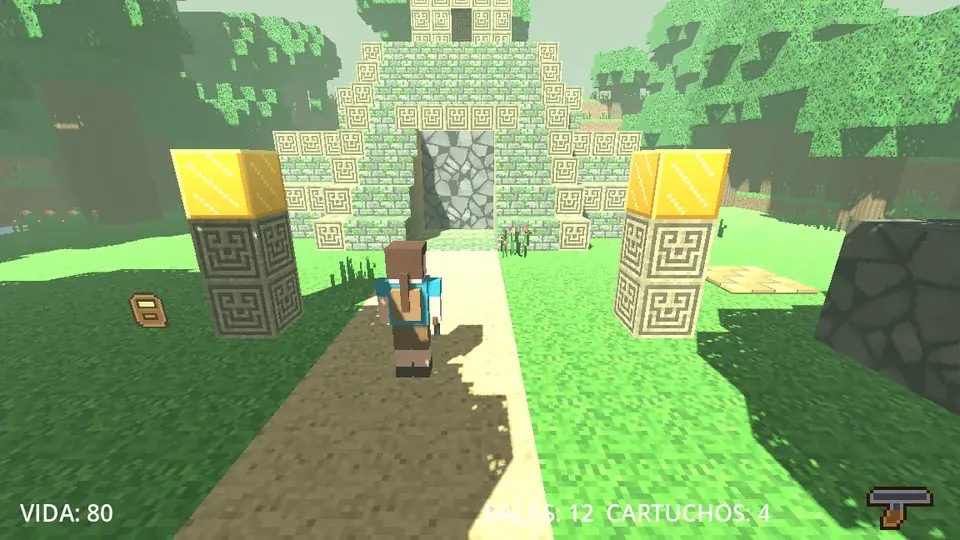
If the life reaches 0, the screen fades to black and the adventure starts again.
Chapter 19What now?
You have your own adventure! Some ideas to keep going:
- A two-plate puzzle: two stones, two plates and a variable that counts how many are pressed; the door only opens with both.
- Traps: a hidden plate in the tunnel that, when the explorer steps on it, drops a block or restarts the scene.
- Guardians in the jungle: duplicate a Guardian, put it among the trees and swap its Wake up rule for a Distance to the explorer: it sleeps on patrol until you come close.
- Another weapon: a bow with Throw (Projectile) at a lower speed and an arrow prefab that hurts more, or grenades with a RigidBody3D, which fall with gravity.
- Score: a global variable that goes up with each defeated guardian and shows on the screen.
- Build: a bridge of planks over a pond, a tree house... with the palette and On Blocks.
- Another jungle: Shapes > Generate Jungle with another seed or bigger (without the pyramid, if you've already placed your things).