
My invoicing program (desktop)
Chapter 1What you'll make
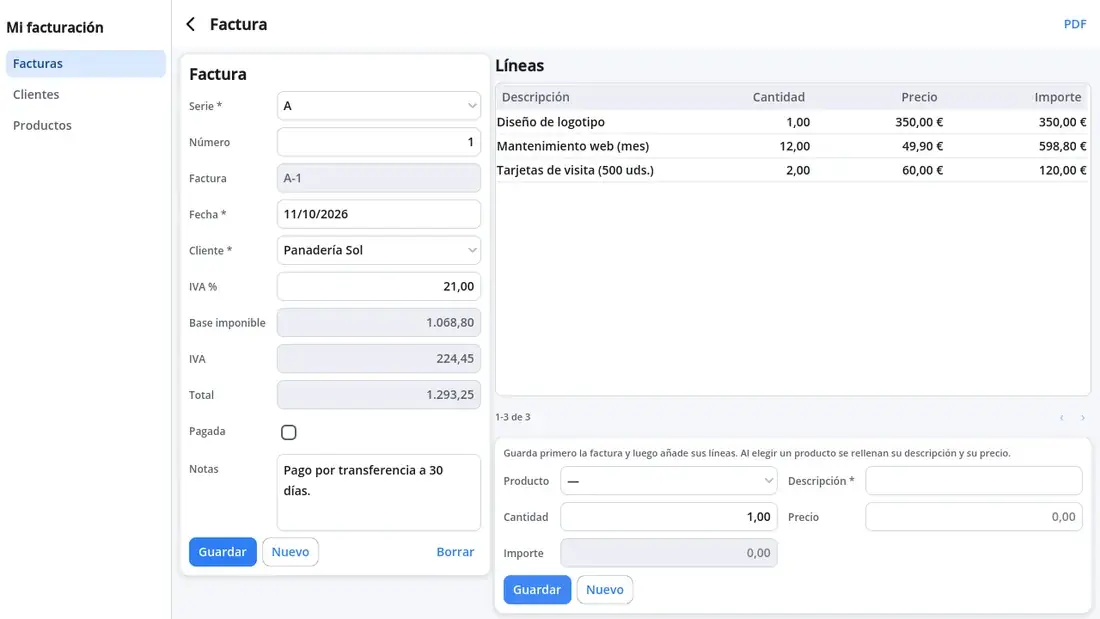
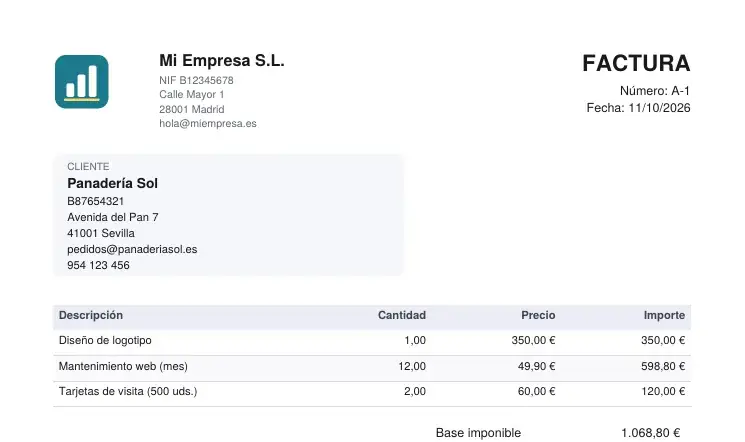
In this tutorial you'll create an invoicing program for the computer, from scratch and without writing code. It will have clients, products and invoices with their lines; it will work out the taxable base, the VAT and the total by itself; it will number invoices by series and make each invoice as a PDF, with your logo, ready to send or print.
You'll use:
- BreynData, the Data panel: here you design the tables (clients, products, invoices...) of a database saved on the computer.
- The Data Table and Data Form components, which show and edit records without programming anything.
- BreynFlow, to join the screens: open an invoice, filter its lines, make the PDF...
(The pictures show the editor in Spanish, and the example uses Spanish names for tables and fields; the buttons are in the same places in English, and you can name your fields in your language.)
Chapter 2Create the project
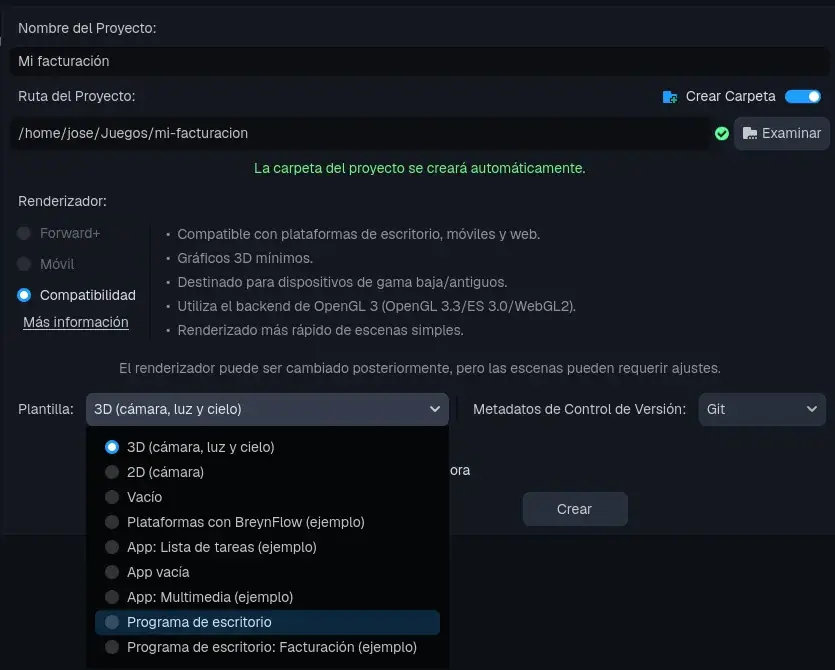
In the Project Manager, press + Create, name the project My invoicing and choose the Desktop Program template.
Open home.tscn and press 2D:
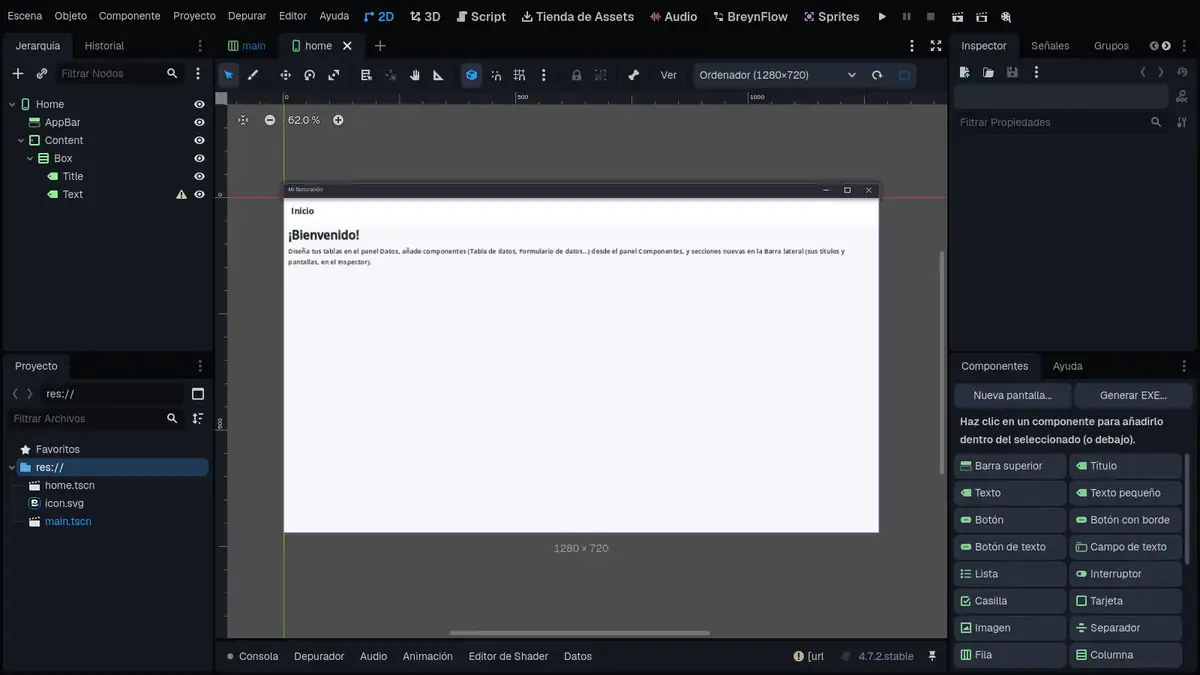
It's like App mode on the phone, with three differences:
- The screen has the Computer size and looks like a window.
- main.tscn is the program's window: a Sidebar (the sections, on the left) and Screens, where screens open. You'll fill it in at the end.
- In the Components panel, instead of Generate APK you'll see Generate EXE..., to make the Windows program.
Chapter 3Your company's details
At the bottom, in the panel bar, press Data. It's the BreynData panel. To see it big, press the expand button (on the right of that bar) or Shift+F12.
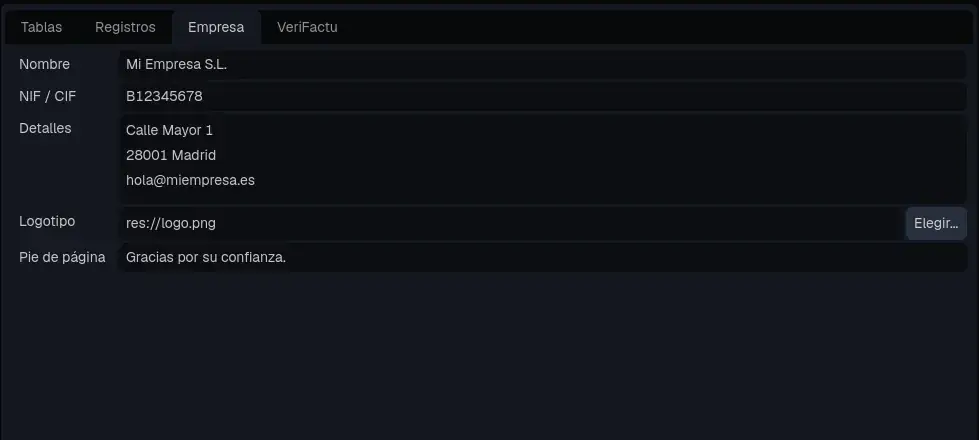
Go to the Company tab and fill in your details: they appear at the top of every PDF.
- Name and NIF / CIF (the tax ID).
- Details: the address, email, phone... one thing per line.
- Logo: press Choose... and pick an image of the project. If you don't have one at hand, copy the sample logo and choose logo.png.
- Footer: a sentence at the bottom of every page.

Chapter 4The tables: clients and products
A table is a kind of record: clients, products, invoices... Each table has fields: the details of each record (the name, the price, the date...). Go to the Tables tab.
Clients
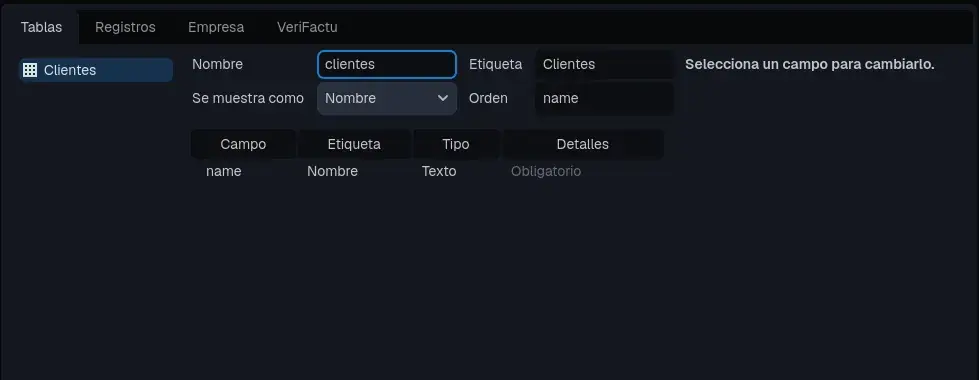
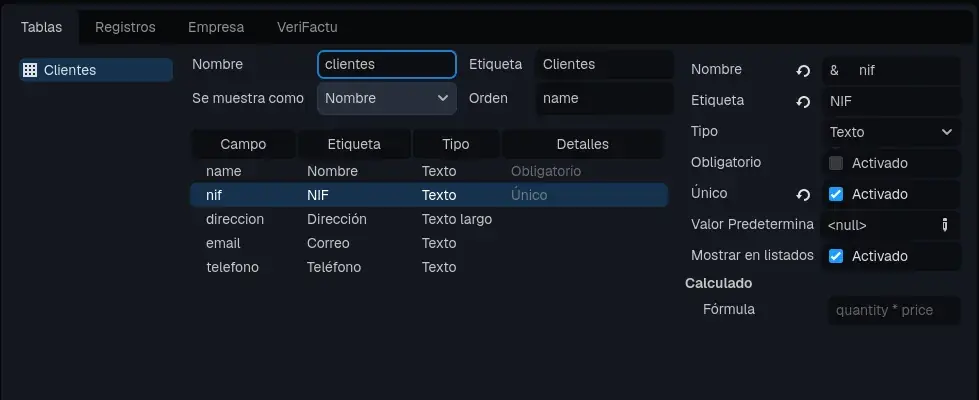
The kinds of field you can use:
- Text and Long Text (several lines).
- Whole Number, Decimal Number and Money (with two decimals and the currency symbol).
- Date and Yes/No (a check box).
- Record of Another Table: a drop-down to choose, for example, the client of an invoice.
- Choice: a drop-down with fixed values.
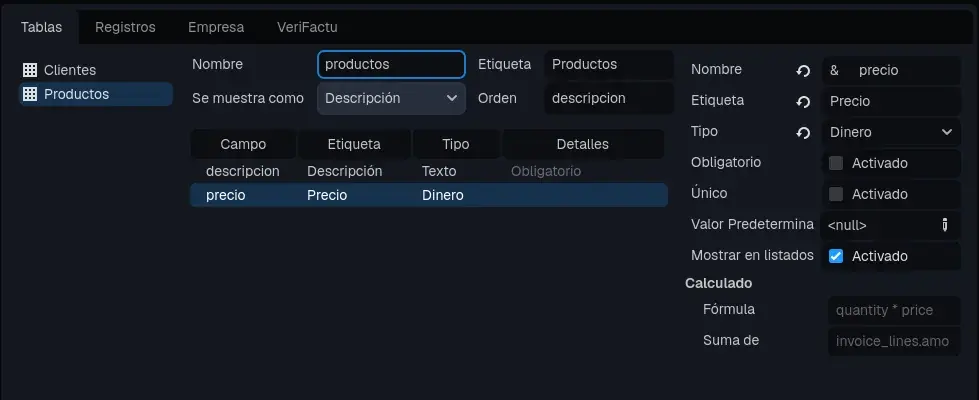
Products
Chapter 5The invoices table
Here's the most interesting part: fields that number and calculate themselves.
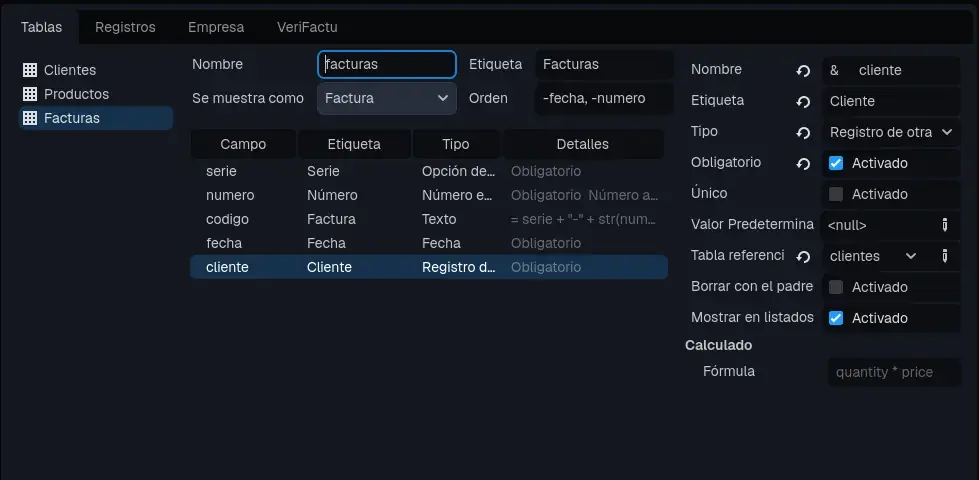
- numero (Number): Whole Number, required, with Auto Number and Number By serie. So series A goes 1, 2, 3... and R keeps its own count.
- codigo (Invoice): Text, with the Formula serie + "-" + str(numero), without Show In List. It gives "A-1", "A-2"...
- fecha (Date): Date, required, with the Default Value today.
- cliente (Client): Record of Another Table, required, with the Reference Table clientes.
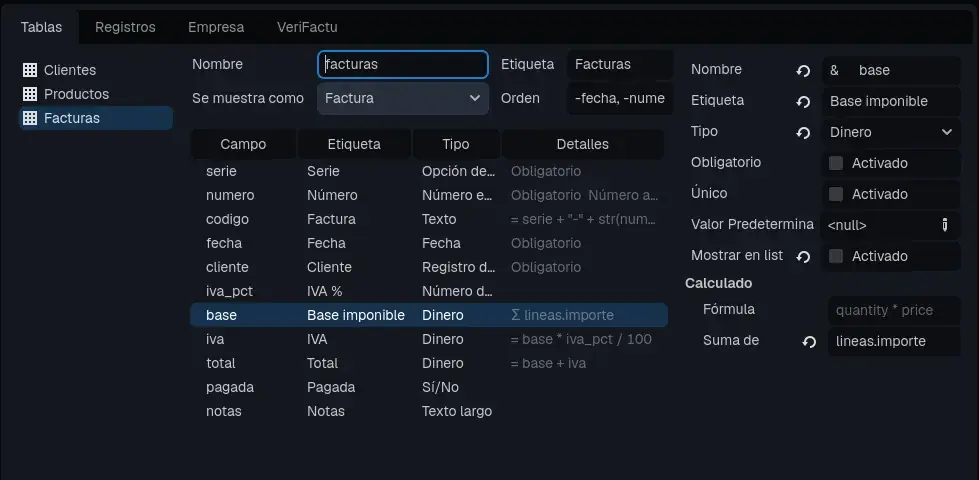
- iva_pct (VAT %): Decimal Number, with the default value 21.
- base (Taxable Base): Money, with Sum Of lineas.importe: the sum of the amounts of its lines (you'll make the lines table next).
- iva (VAT): Money, with the formula base * iva_pct / 100.
- total (Total): Money, with the formula base + iva.
- pagada (Paid): Yes/No.
- notas (Notes): Long Text.
Chapter 6The lines of the invoices
Each invoice has several lines (the items). They go in their own table:
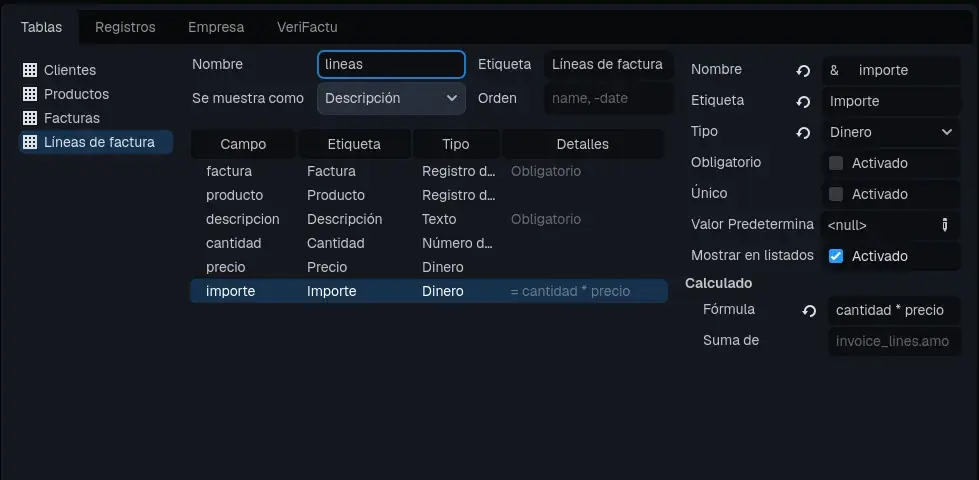
- producto (Product): Record of Another Table of productos, without Show In List.
- descripcion (Description): Text, required.
- cantidad (Quantity): Decimal Number, default value 1.
- precio (Price): Money.
- importe (Amount): Money, with the formula cantidad * precio.
Finally, press Save Tables. The design is saved in data/schema.tres and the database is brought up to date (if you add fields some day, the data you already have isn't lost).
Chapter 7The clients screen
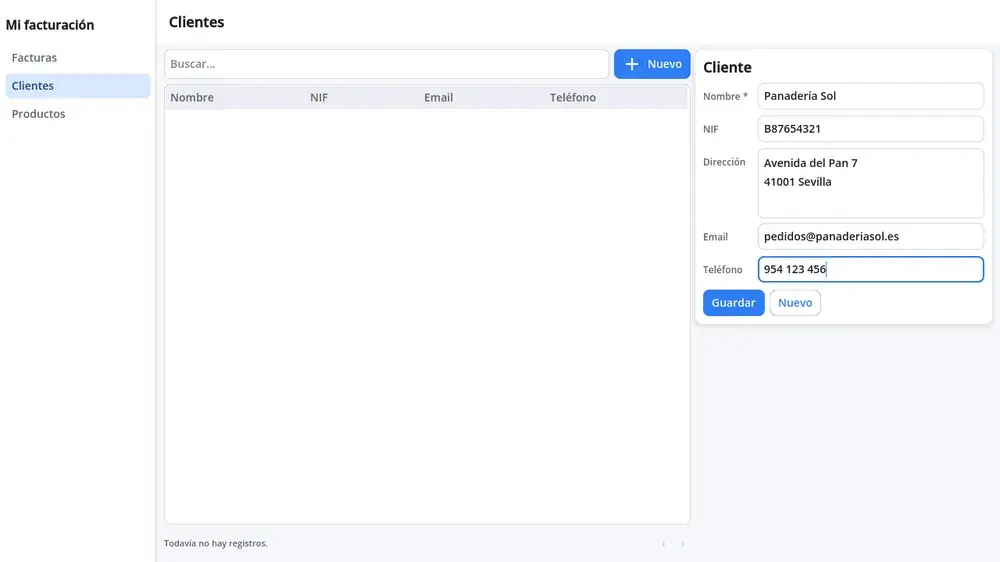
Close the big panel (Shift+F12 again) and make the screen with New Screen...: clientes.tscn. Write Clients in its Title.
The screen will have the list of clients on the left and, on the right, a card with the form of the selected client:
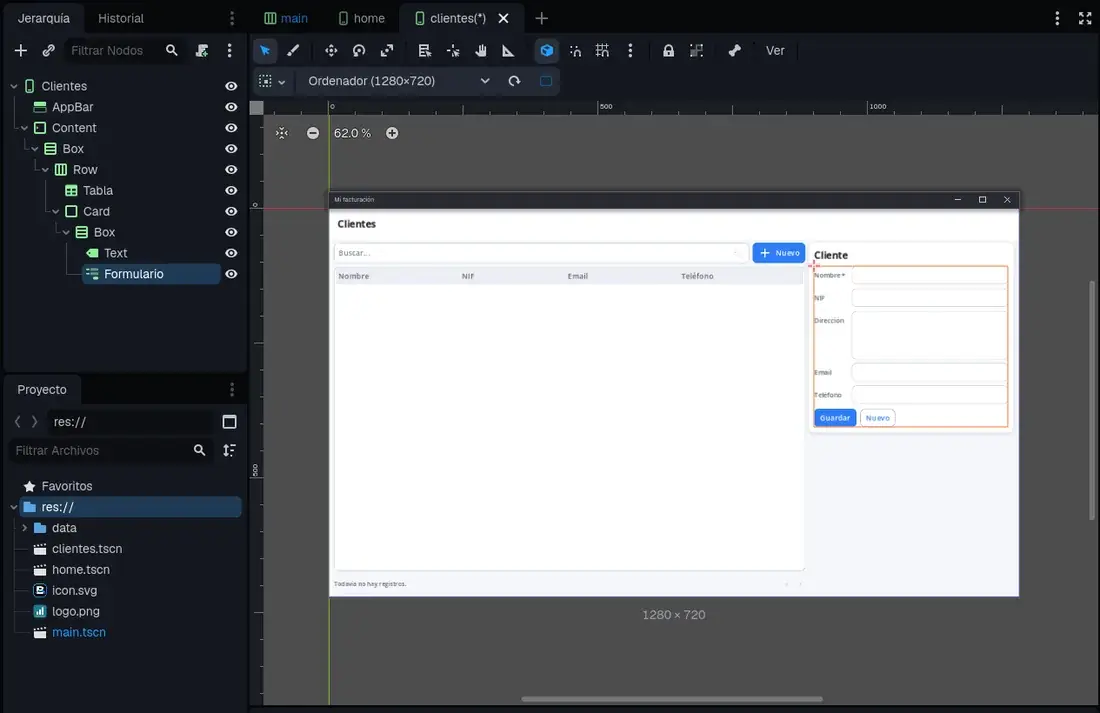
The form makes one field for each value by itself, with its kind: the drop-down, the check box, the long text... and the Save, New and Delete buttons.
Its rules
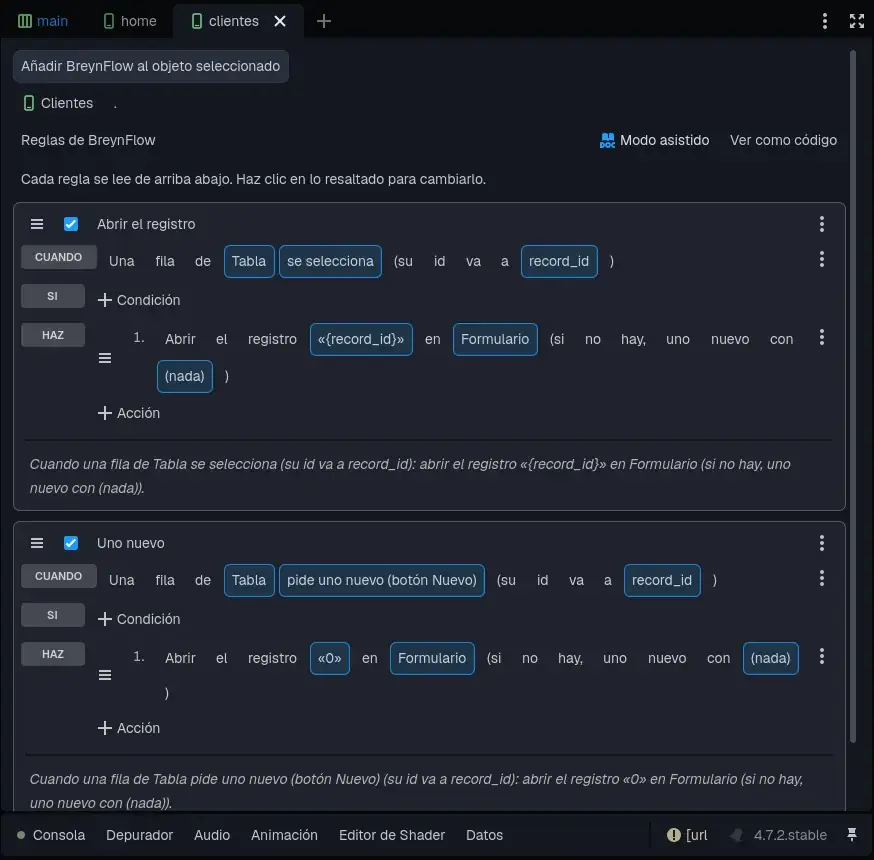
Add Rules (BreynFlow) to the screen with two rules:
- Open the record: event Data > Data Table Row (Tabla, "is selected") → action Data > Open Record in Form (Formulario). The record is {record_id}, the one of the chosen row.
- A new one: Data Table Row (Tabla, "asks for a new one (New button)") → Open Record in Form (Formulario) with the record 0, which means "a new, empty one".
And the products one
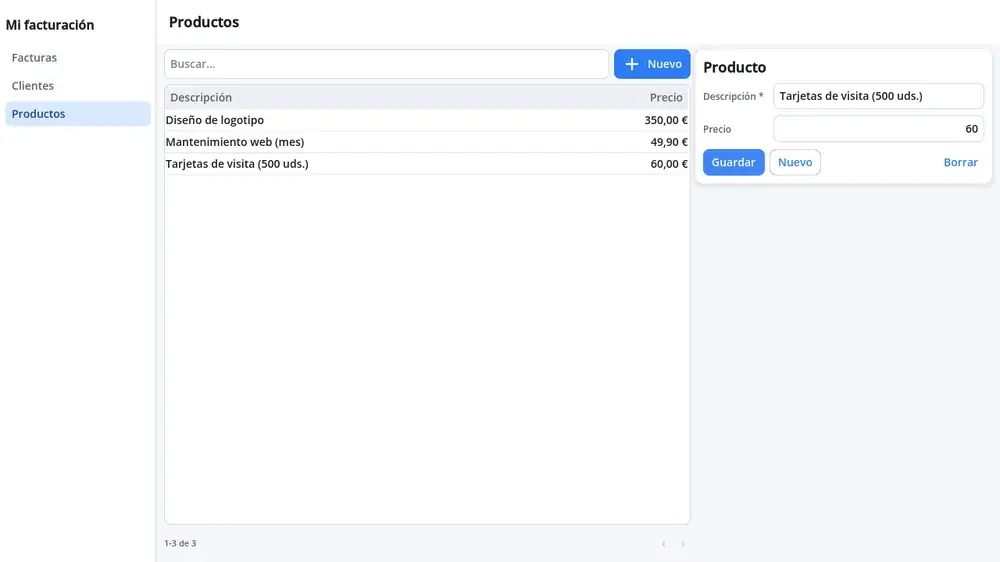
Make the productos.tscn screen the same way (title Products): a row with a Data Table of productos (columns descripcion and precio), a Product card with its Data Form and the same two rules.
Chapter 8The list of invoices
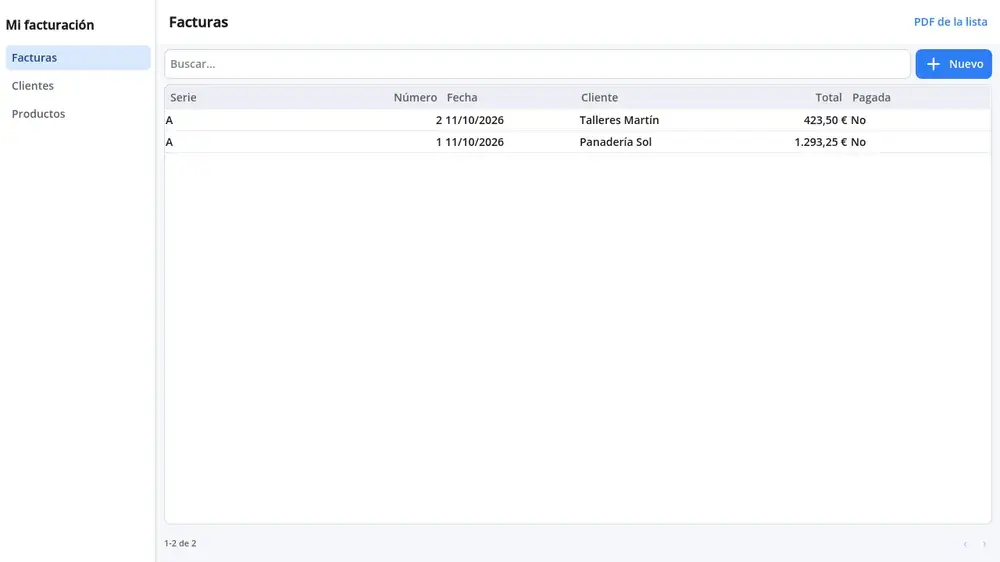
New screen: facturas.tscn, with the title Invoices.
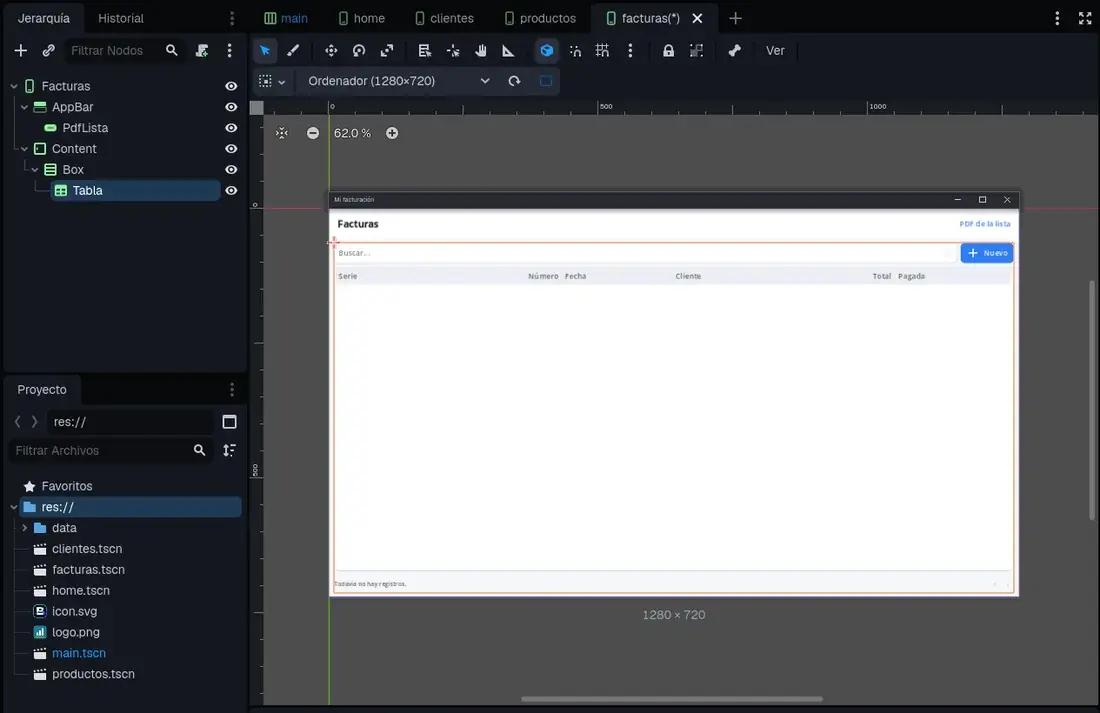
Here invoices aren't edited at the side, but in their own screen (you'll make it next). The rules:
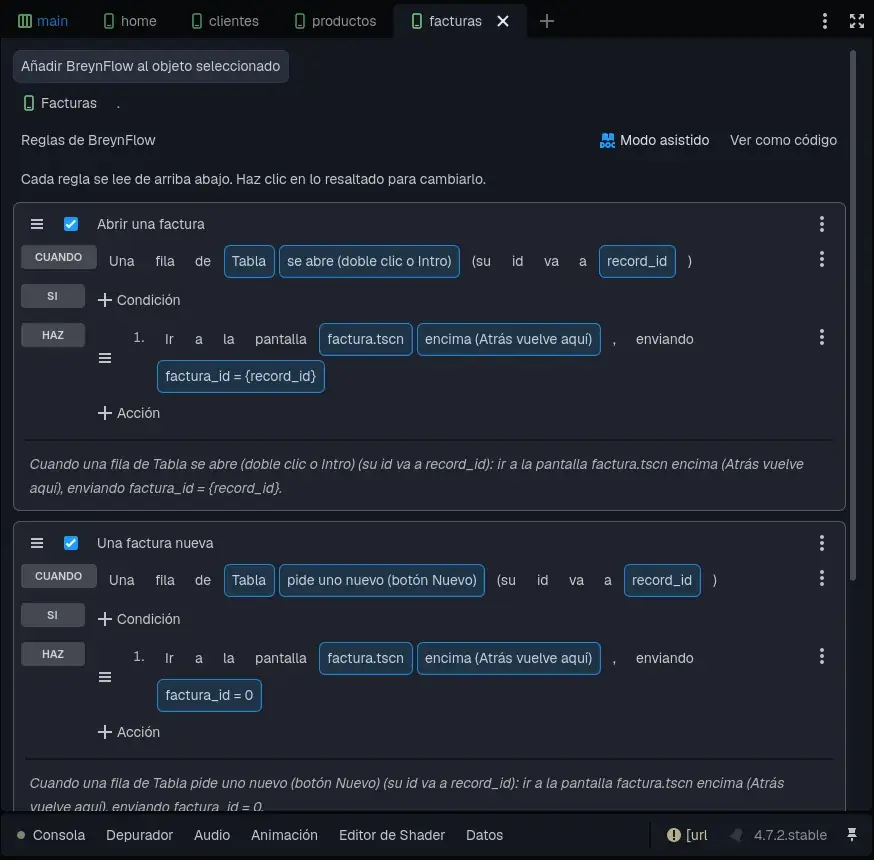
- Open an invoice: Data Table Row (Tabla, "is opened (double click or Enter)") → Go to Screen factura.tscn sending factura_id = {record_id}.
- A new invoice: Data Table Row ("asks for a new one (New button)") → Go to Screen factura.tscn sending factura_id = 0.
- PDF of the list: Button Pressed (PdfLista) → Data > Make PDF of "a list of a table", table facturas, title Invoices.
Chapter 9The screen of an invoice
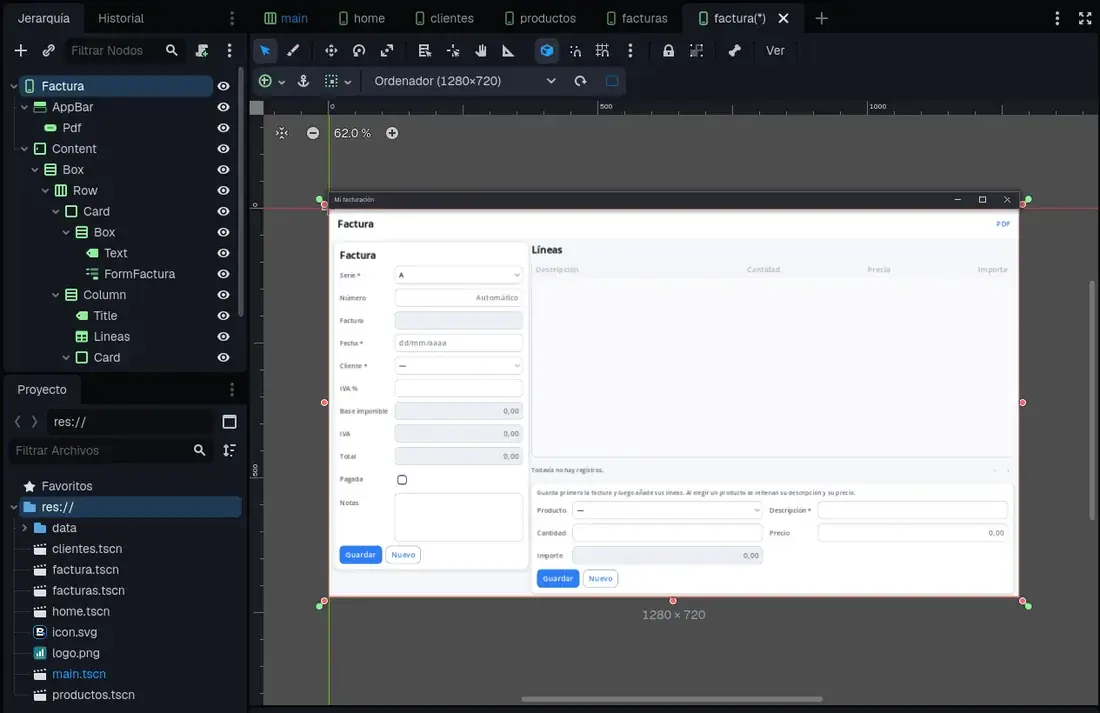
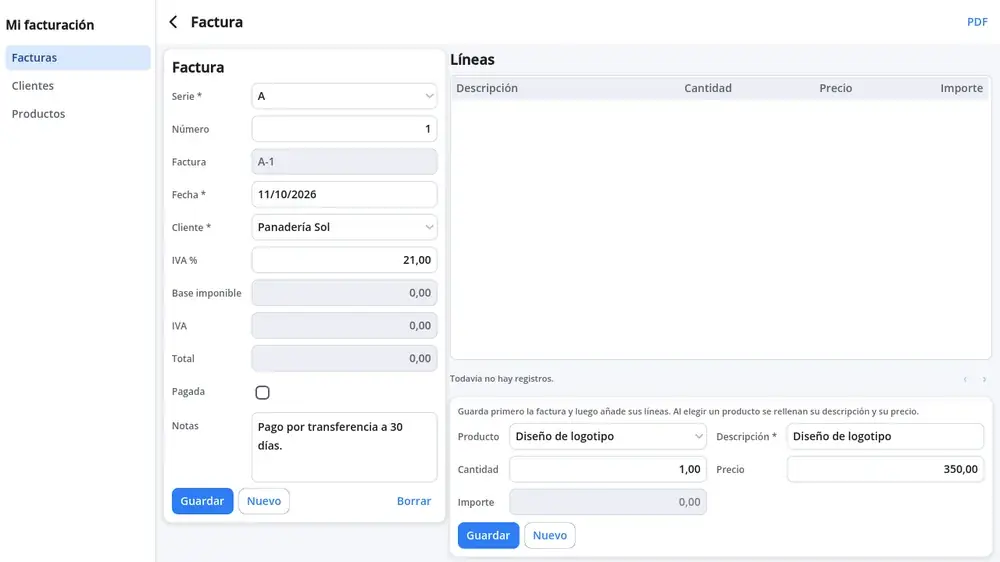
The last screen, and the most complete: factura.tscn, with the title Invoice. The invoice goes on the left and its lines on the right.
Chapter 10The rules of the invoice
Add Rules (BreynFlow) to the Invoice screen. There are seven, but they're very much alike:
- Open the invoice: Screen Is Shown → Open Record in Form (FormFactura, record {factura_id}). It's the number the list sent (0 if it's new).
- Its lines: Data > Form Saved (FormFactura, "shows a record (or a new one)", its id into factura_id) → Data > Filter Data Table (Lineas, only the records with factura = {factura_id}) → Open Record in Form (FormLinea, record 0, with the starting values factura = {factura_id}).
- Saved: its lines: the same, but with "saves a record". So, when you save a new invoice, lines can already be added to it.
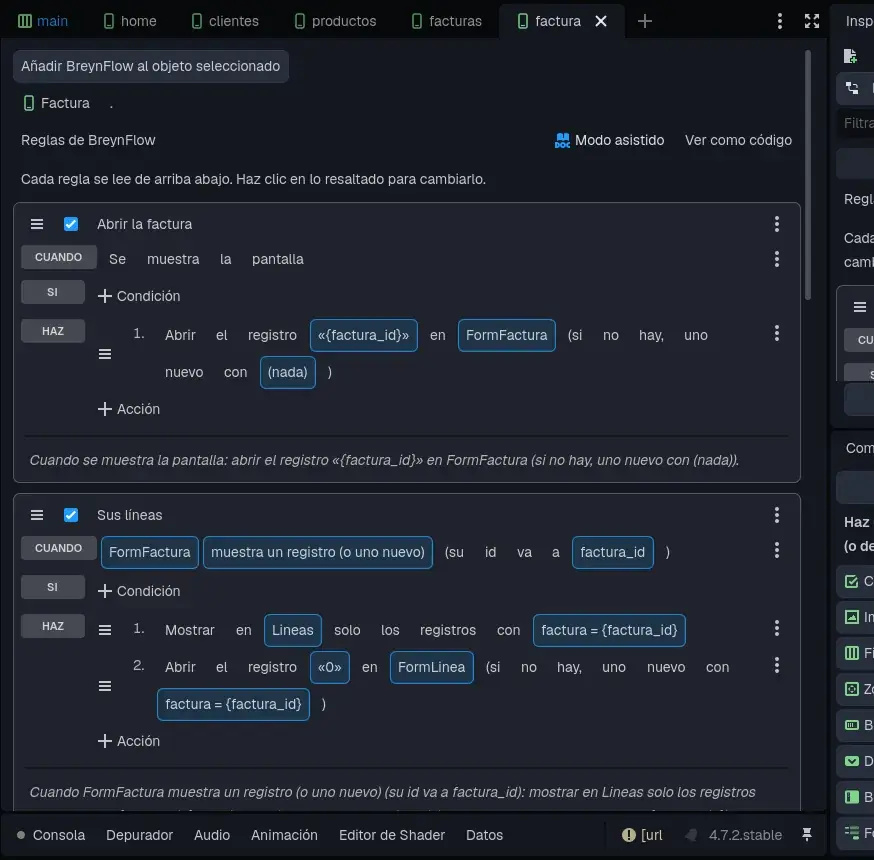
- Invoice deleted: Form Saved (FormFactura, "deletes a record") → Go Back.
- Line saved: the next one: Form Saved (FormLinea, "saves a record", its id into linea_id) → Open Record in Form (FormLinea, record 0, with factura = {factura_id}). The form is ready for the next line.
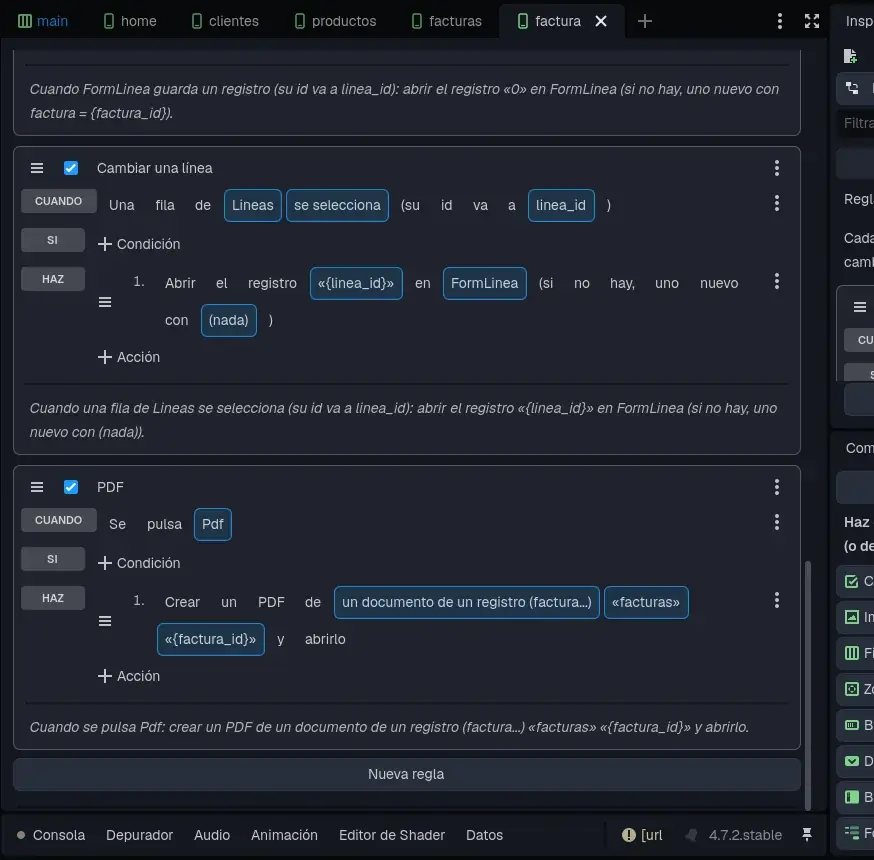
- Change a line: Data Table Row (Lineas, "is selected", its id into linea_id) → Open Record in Form (FormLinea, record {linea_id}).
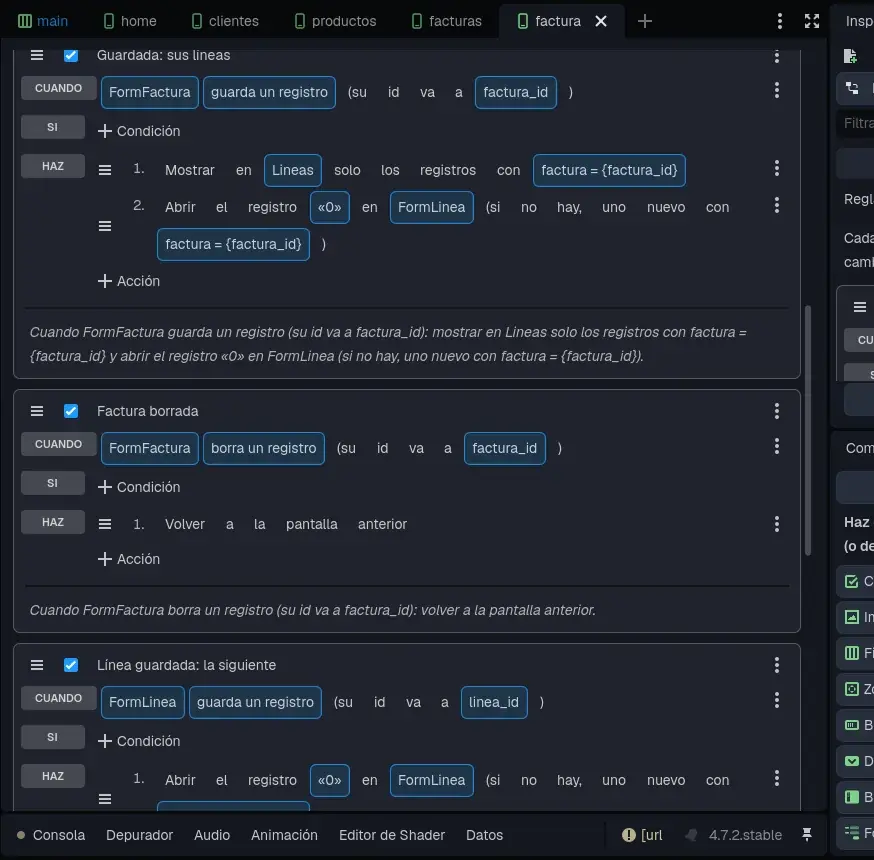
- PDF: Button Pressed (Pdf) → Make PDF of "a document of a record (invoice...)", table facturas, record {factura_id}, title Invoice.
Save (Ctrl+S).
Chapter 11The sidebar
All that's left is telling the program which sections it has. Open main.tscn and select Sidebar. In the Inspector:
- App Title: My invoicing.
- Titles: Invoices, Clients and Products.
- Screens: res://facturas.tscn, res://clientes.tscn and res://productos.tscn, in the same order.
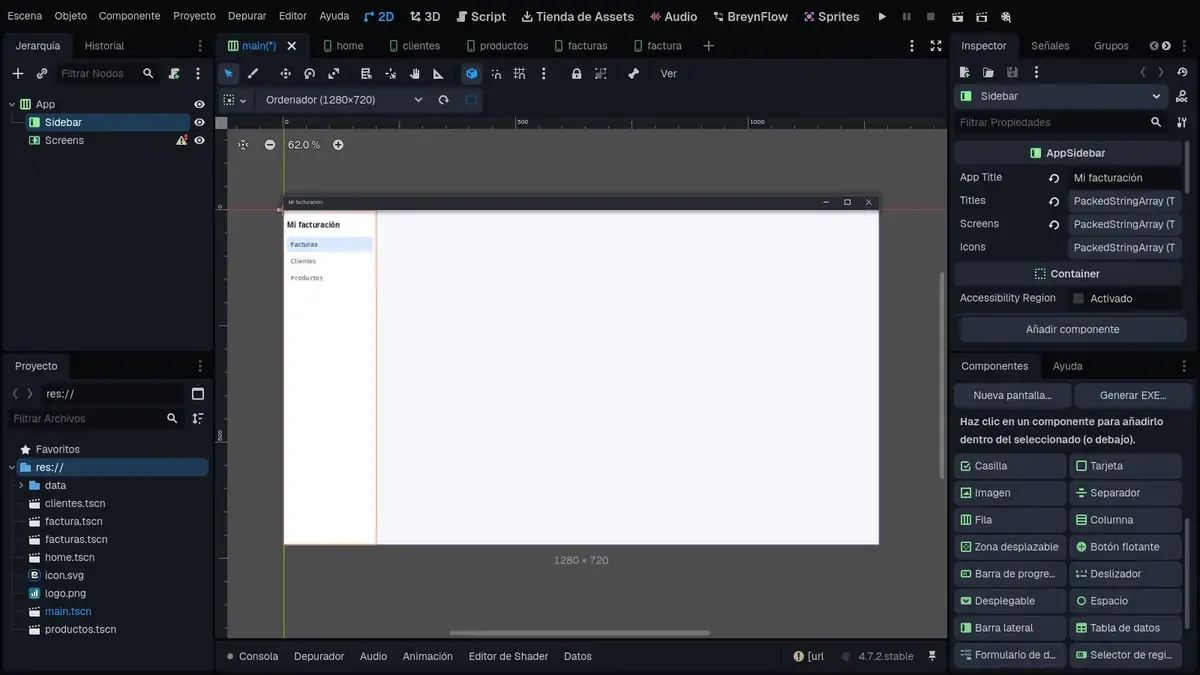
The first section is the one that opens at start. The template's home.tscn screen isn't used any more: you can delete it.
Chapter 12Let's invoice!
Save everything and press ▶. The program opens in its window.
The base, the VAT and the total are worked out with every line:
Chapter 13The Windows program
To take the program to any computer, press Generate EXE... in the Components panel.
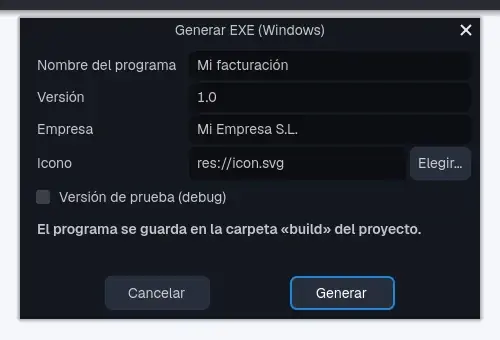
Write the program's name, the version, your company and an icon (a square PNG or an .ico; you can draw it in the Sprites editor). Press Generate and you'll have a single .exe file, with everything inside, in the project's build folder. Each computer where you use it has its own database.
VeriFactu
If you invoice in Spain, the VeriFactu tab of the Data panel prepares the program for the regulation: each invoice is sent to the AEAT with your digital certificate when it's issued, and the PDF carries the QR code.
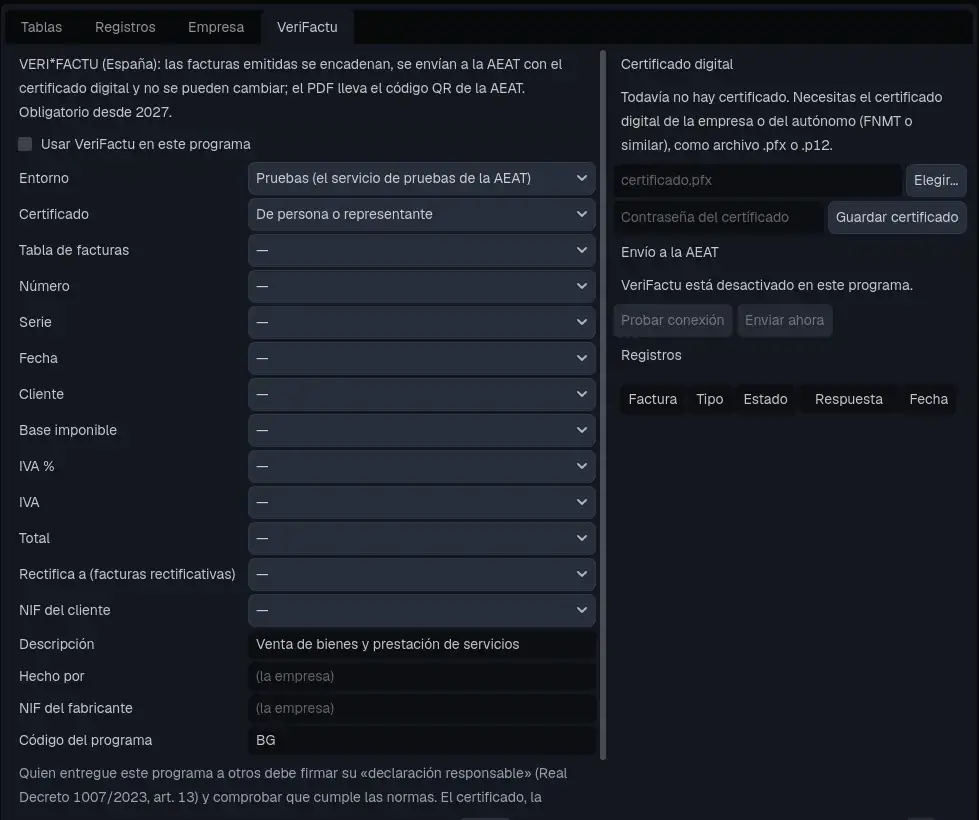
The Desktop Program: Invoicing template of the Asset Store has it already set up, with the Issue button and the BreynFlow VeriFactu pieces: it's the best place to see it working.
Chapter 14What now?
You've made a complete invoicing program! With a database, numbering by series, automatic calculations, PDFs with your logo and its Windows installer. Ideas to keep going:
- Add quotes: another table like invoices, with its lines, and its PDF with the title Quote.
- Filter the list: Filter Data Table with pagada = false to see only the unpaid invoices.
- Count what you're owed: the Number of Records condition and a text that says it.
- Put a client finder in the invoice: the Record Picker component.
- Make a phone version: the same data and components work in App mode.
May your accounts always add up!