
My task list (phone app)
Chapter 1What you'll make
In this tutorial you'll create a phone app, from scratch and without writing code: a real task list. You'll be able to write down tasks, check them as done, open each one to add notes, delete them (with a confirmation question), switch to dark mode and, at the end, give it its own icon and make the Android installer.
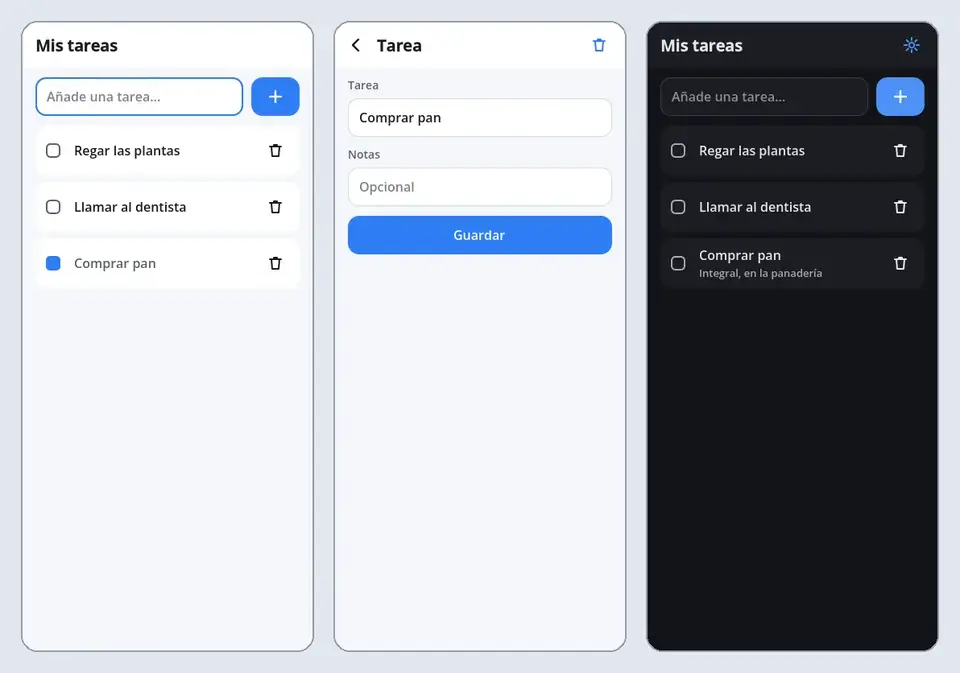
You'll use three things of BreynGINE:
- App mode: screens shaped like a phone, and the Components panel to build them with clicks.
- BreynFlow: the rules that bring the app to life ("when this button is pressed, add a task").
- The Sprites editor, to draw the icon.
If you already did the welcome tutorial, many things will sound familiar (the Hierarchy, the Inspector, the rules). If not, no problem: everything is explained step by step here.
(The pictures show the editor in Spanish; the buttons are in the same places in English.)
Chapter 2Create the project
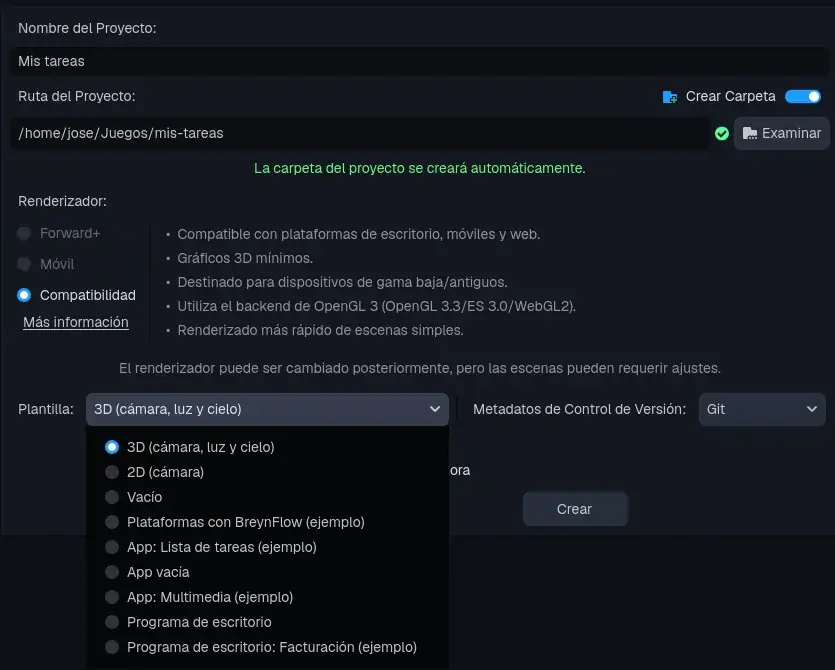
Open the Project Manager (what you see when BreynGINE starts) and press + Create.
Chapter 3App mode
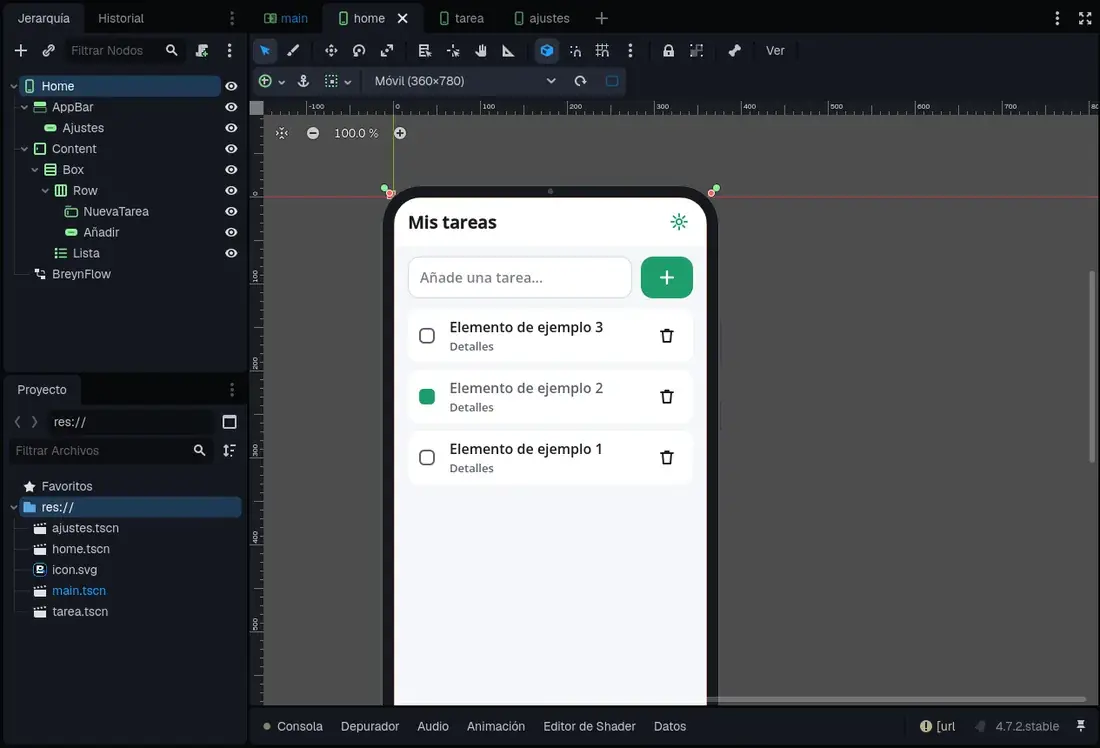
An app project has its own way of working. Double-click home.tscn in the Project panel (bottom left) and press 2D at the top if you don't see it already.
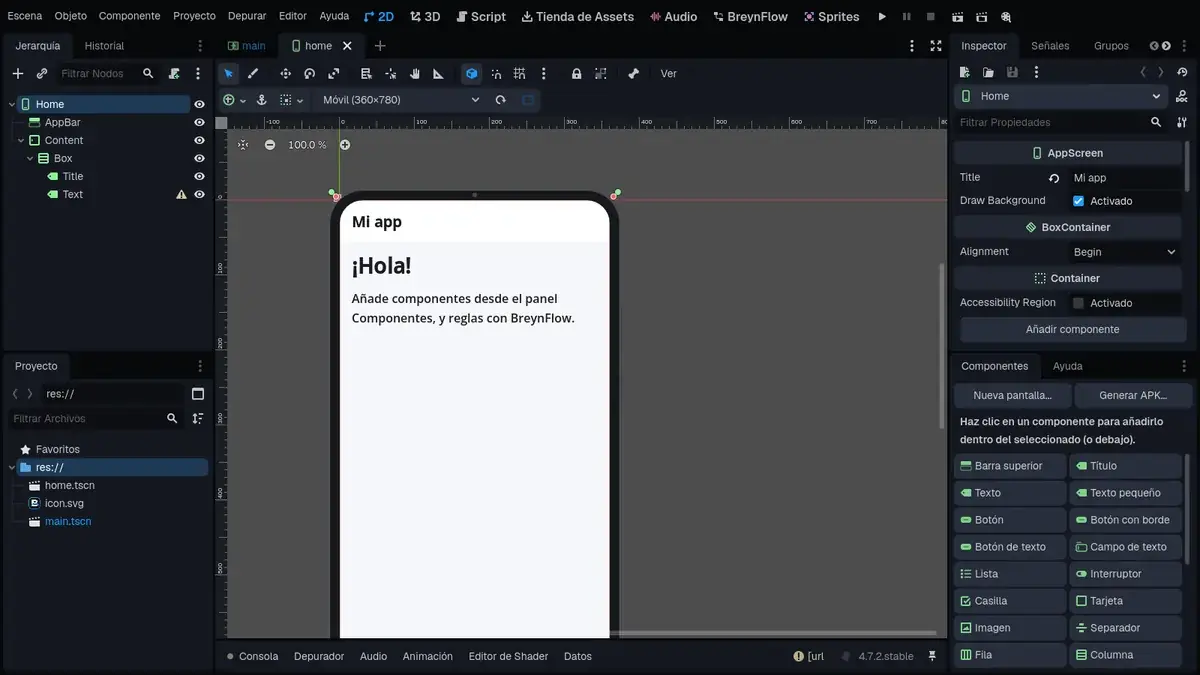
- In the middle you see the screen inside a phone. At the top you have the size: Phone, Large Phone, Tablet or Computer, and a button to rotate it. The app adapts to all of them.
- The Hierarchy shows what the screen is made of: Home (the screen), AppBar (the top bar, with the title) and Content > Box, the column where your components go.
- At the bottom right there's the Components panel: texts, buttons, fields, lists... One click and they're added to the screen.
Chapter 4The task screen
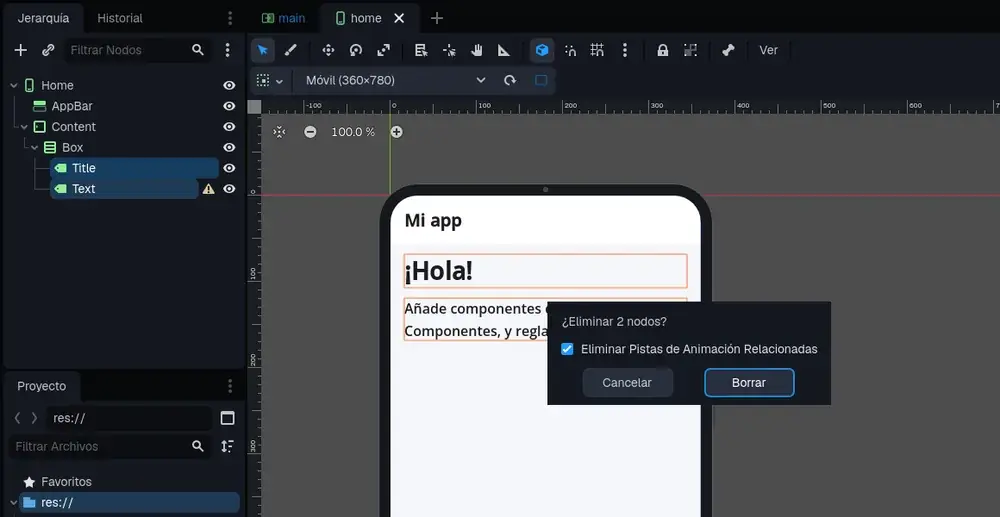
First, clear the screen. The template has a greeting you don't need:
The row to write in
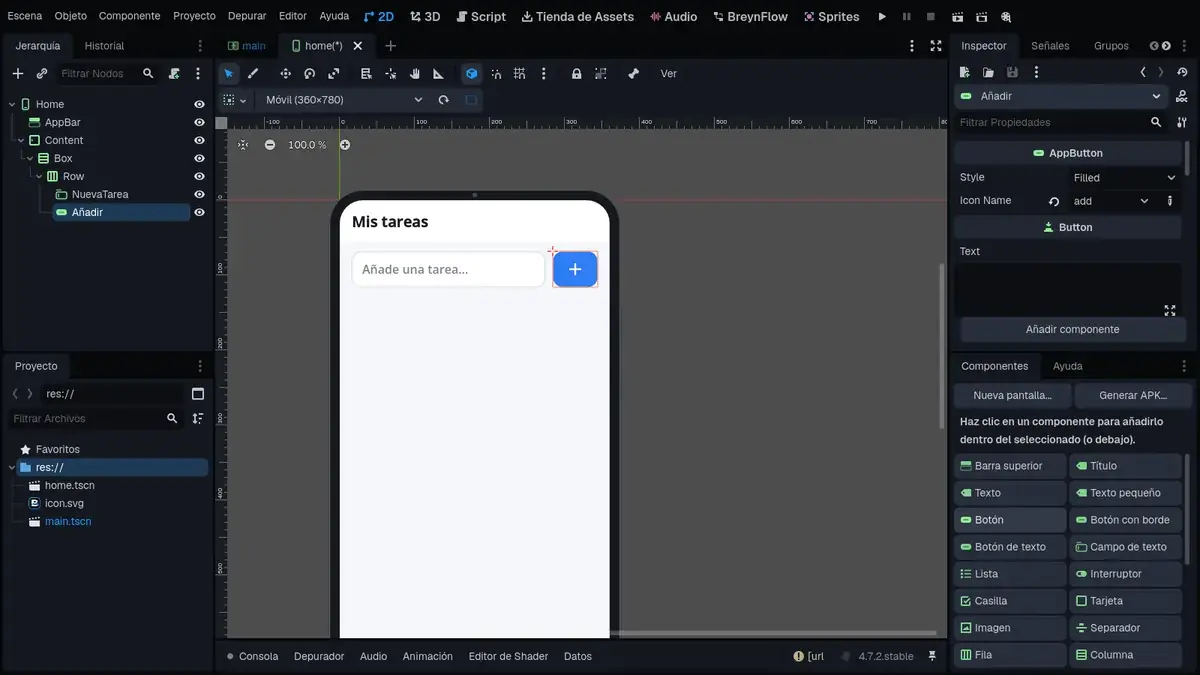
At the top there'll be a field to write the task and, next to it, a + button. To put them side by side you use a Row:
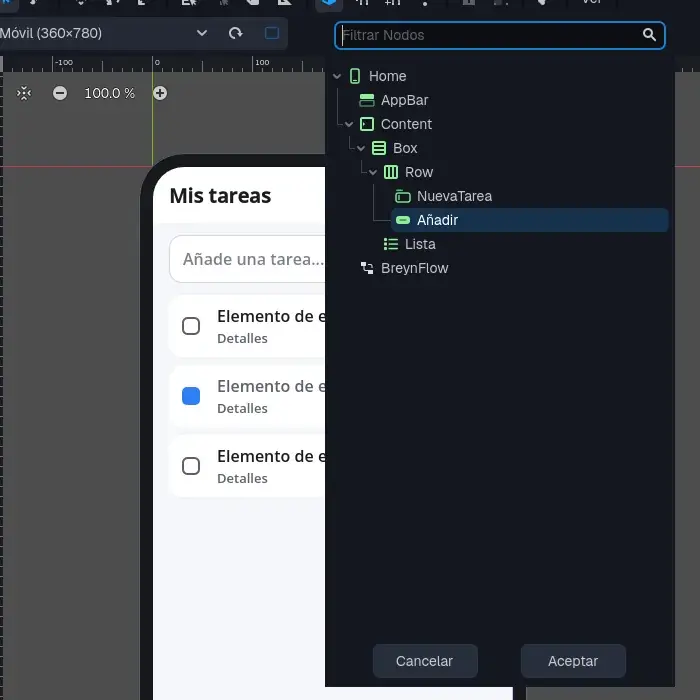
Now give them names and looks. To rename something, double-click it in the Hierarchy (or select it and press F2):
- The text field: call it NewTask. In the Inspector, clear its Label and write Add a task... in Placeholder (the gray text shown while it's empty).
- The button: call it Add. Clear its Text and in Icon Name choose add (the + sign).
The list
- Collection: tasks. It's the name of the "drawer" where tasks are kept on the phone (BreynFlow pieces use tasks unless you tell them otherwise).
- Subtitle Field: notes, to see each task's notes under its title.
- Check Field: done. So each task has its "done" box.
- Turn on Show Delete: each task gets its trash can.
- Empty Text: Nothing to do. Add your first task! It's shown while the list is empty.
- Turn on Newest First so new ones appear at the top.
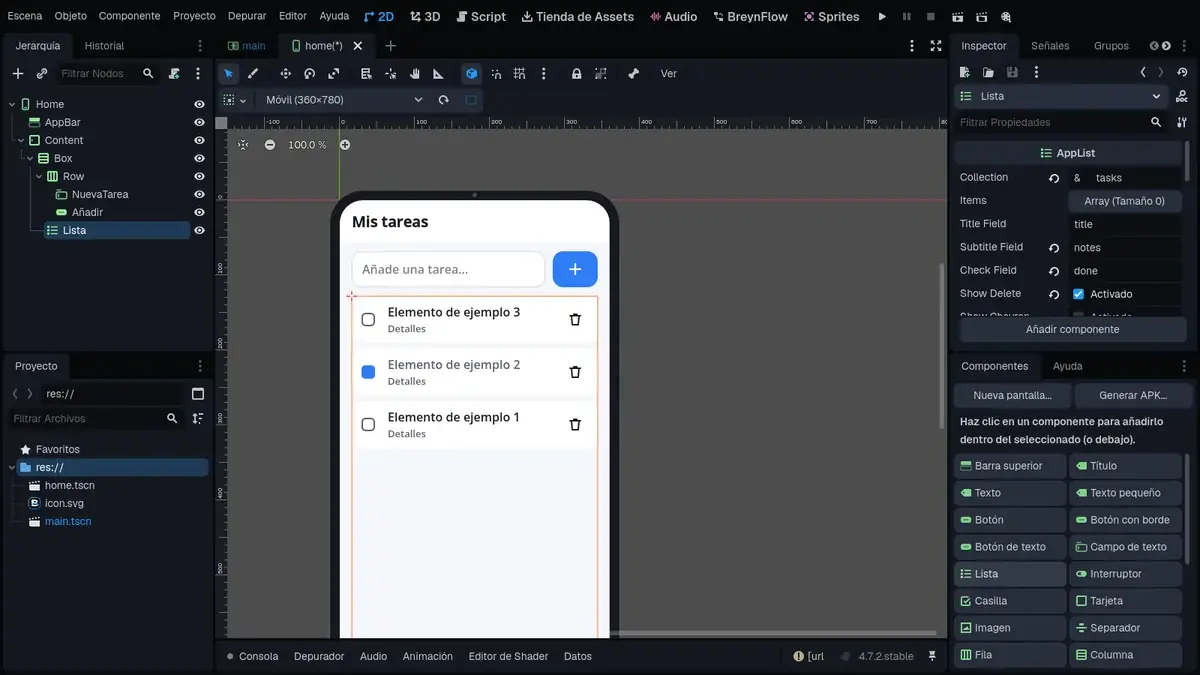
The "Sample items" only show in the editor, so you can see the design. In the app you'll see your tasks.
Save with Ctrl+S.
Chapter 5The rules: adding tasks
The screen looks nice, but it doesn't do anything yet. Time to bring it to life with BreynFlow.
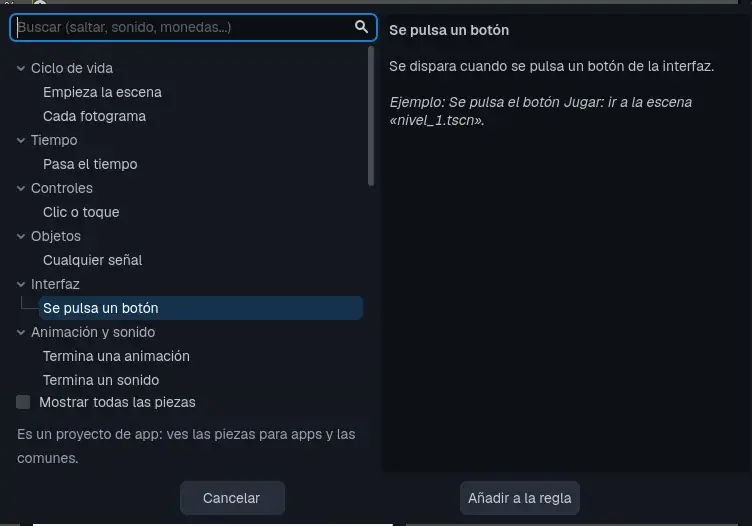
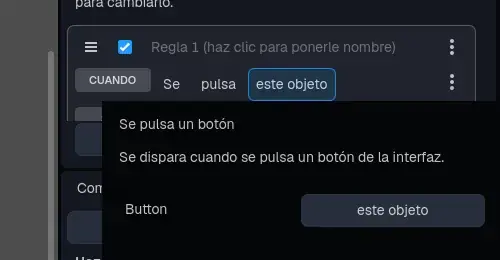
Rule 1: add with the button
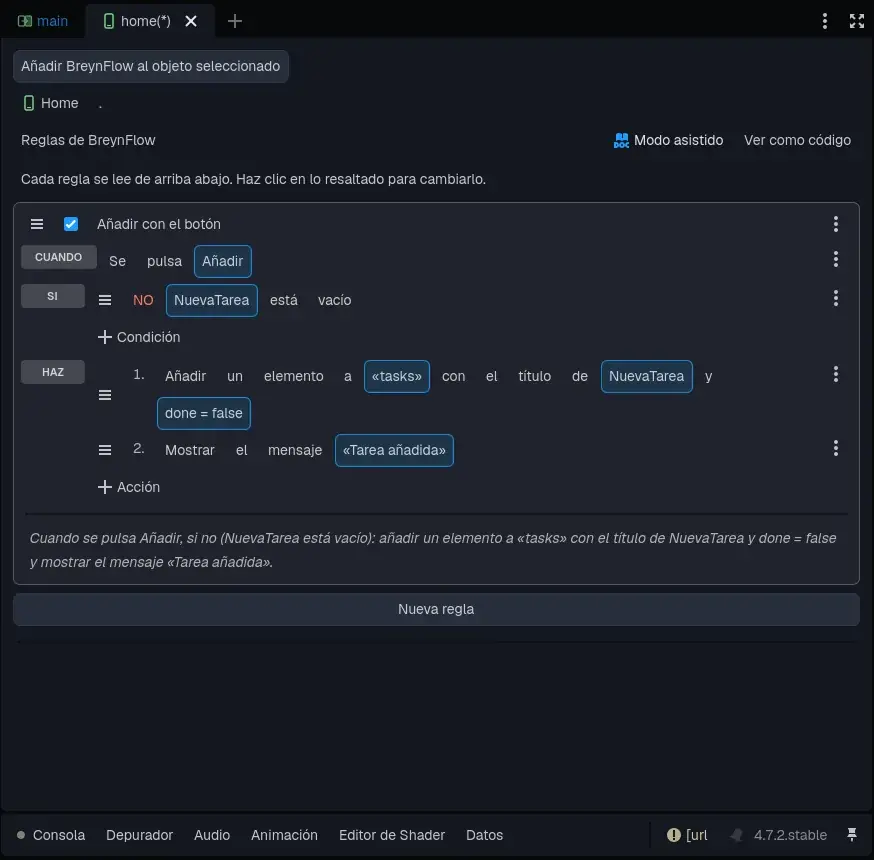
Rules 2 and 3: Enter and the trash can
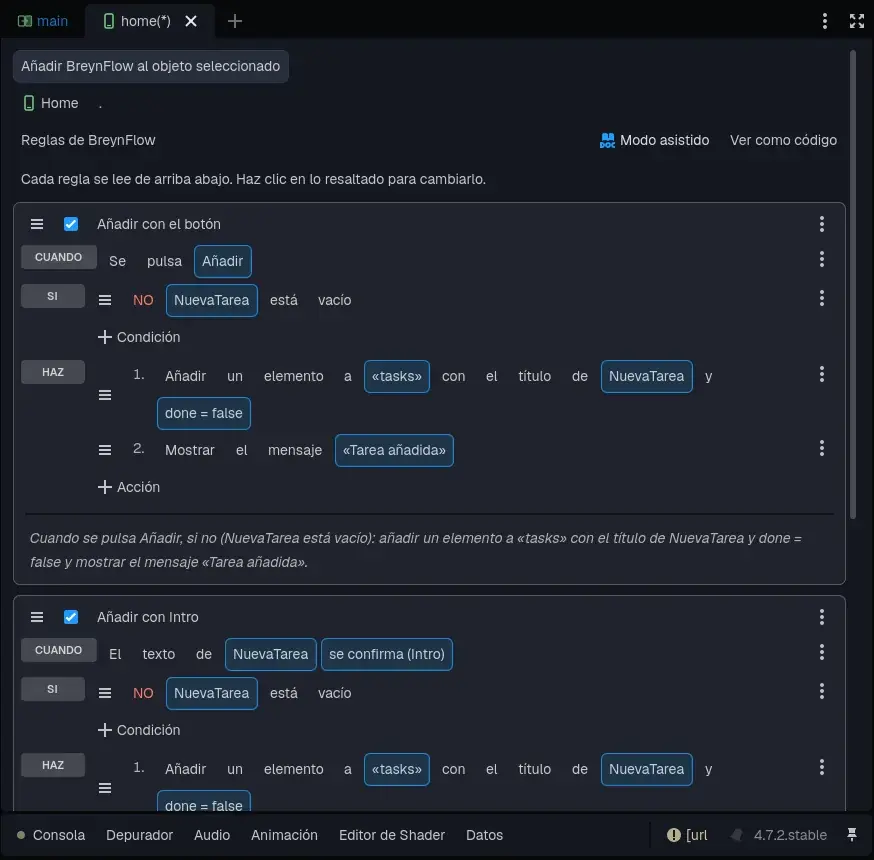
Many people type and press Enter instead of the button. Make a second rule like the first, but with the event Apps > Text Entered (field NewTask, "is confirmed (Enter)"). Call it Add with Enter.
And a third one, to say so when a task is deleted: event Apps > List Item (list List, "is deleted"), action Short Message with Task deleted. Call it Deleted from the list.
Save (Ctrl+S).
Chapter 6Try it
Press ▶ (top right, or F5). The app opens in a window the size of a phone.
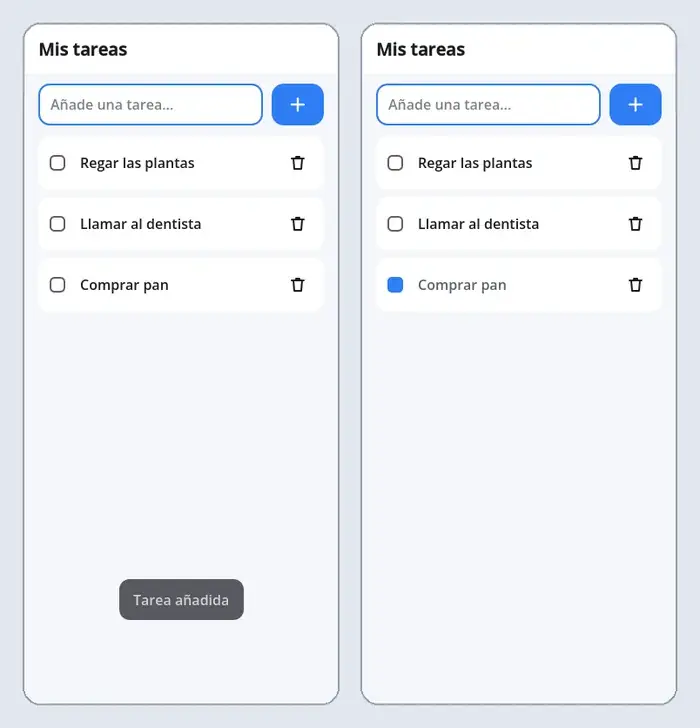
Close the window and press ▶ again: the tasks are still there! The list saves them on the device by itself.
Chapter 7A screen for each task
Now you'll make a screen open when you tap a task, to change its name, write notes or delete it.
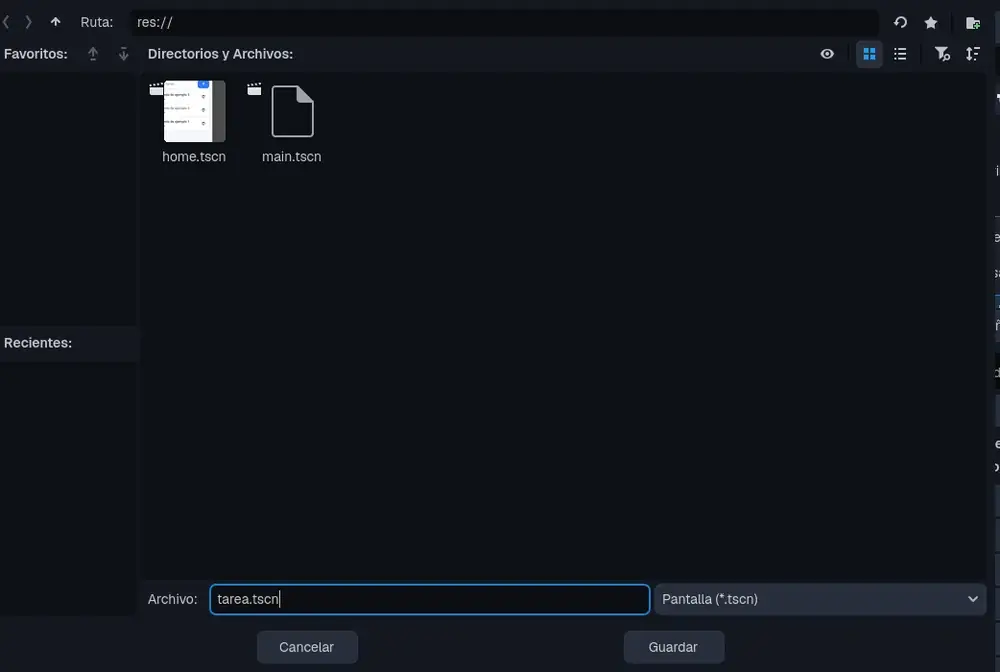
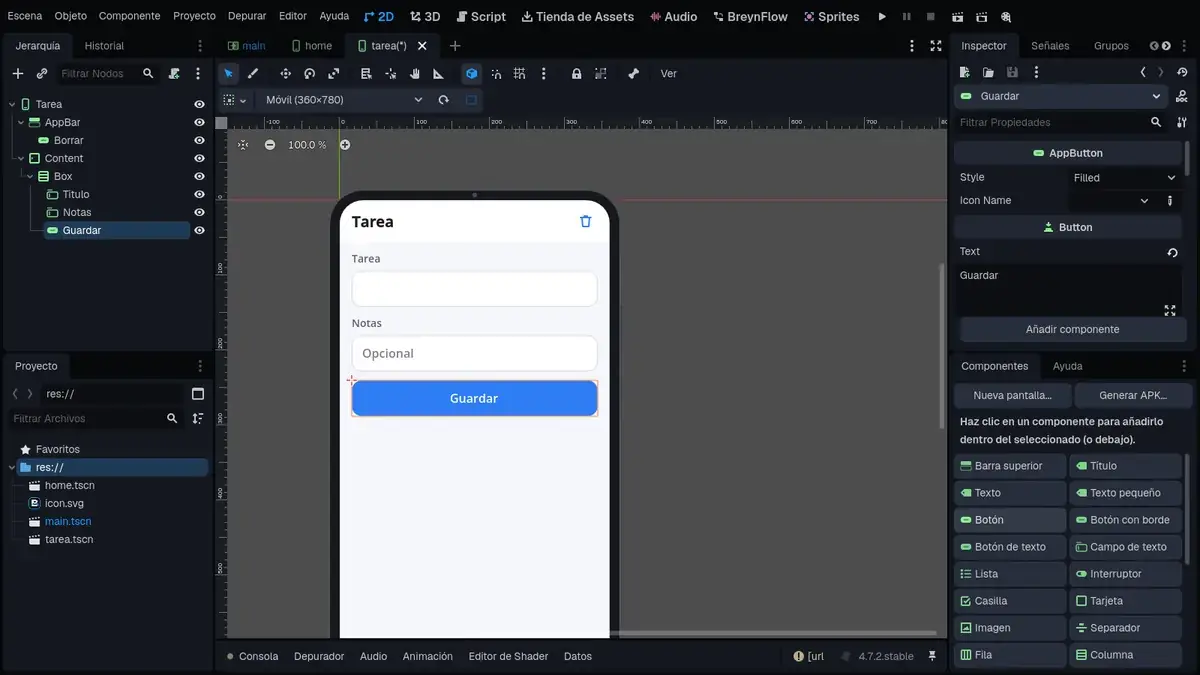
Chapter 8The rules of the Task screen
Add Rules (BreynFlow) to the Task screen (select Task and press the component). You'll make four rules.
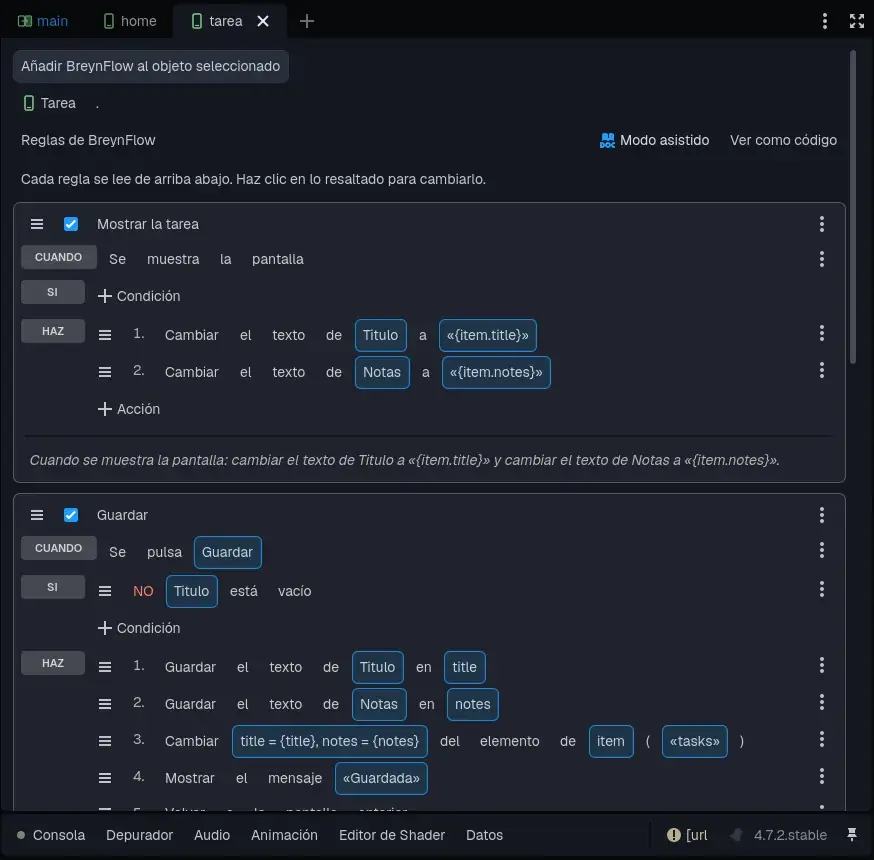
Show the task
When this screen opens, it gets the tapped task in a variable called item. Its values are written between braces: {item.title} is the title and {item.notes} the notes.
- Event: Apps > Screen Is Shown.
- Action: Interface > Change Text of TaskTitle to {item.title}.
- Action: Change Text of Notes to {item.notes}.
Save
- Event: Button Pressed (Save).
- Condition: NOT TaskTitle is empty.
- Actions: Apps > Read a Text Field (TaskTitle into title), another one (Notes into notes), Apps > Change Item with title = {title} and notes = {notes}, a Short Message Saved and Apps > Go Back.
No title, no saving
If someone clears the title and presses Save, better tell them:
- Event: Button Pressed (Save). Condition: TaskTitle is empty (this time without NOT).
- Action: Objects > Change Property of TaskTitle: property error, value Write the task first. The field turns red with that message.
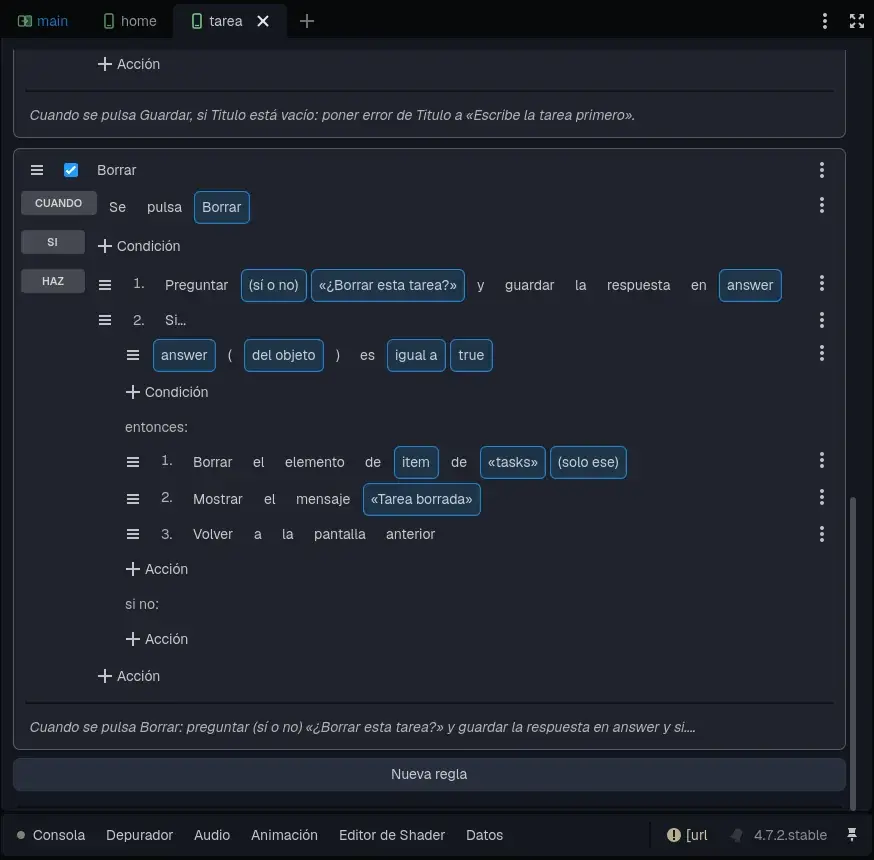
Delete, asking first
- Event: Button Pressed (Delete, the one in the bar).
- Action: Apps > Ask the User, with the title Delete this task?, the text It can't be undone. and the buttons Delete and Cancel. The answer is kept in answer (true if they press Delete).
- Action: Logic > If / Otherwise. Inside, press + Condition and choose Compare Variable: answer equal to true. And in "then", with its + Action: Apps > Delete Item, Short Message Task deleted and Go Back.
Save (Ctrl+S).
Chapter 9Opening a task from the list
Go back to the home screen (its tab, at the top) and add one more rule to its rules:
- Event: Apps > List Item (List, "is tapped").
- Action: Apps > Go to Screen: choose task.tscn and, in sending, write item = {item}. So the Task screen gets the tapped task.
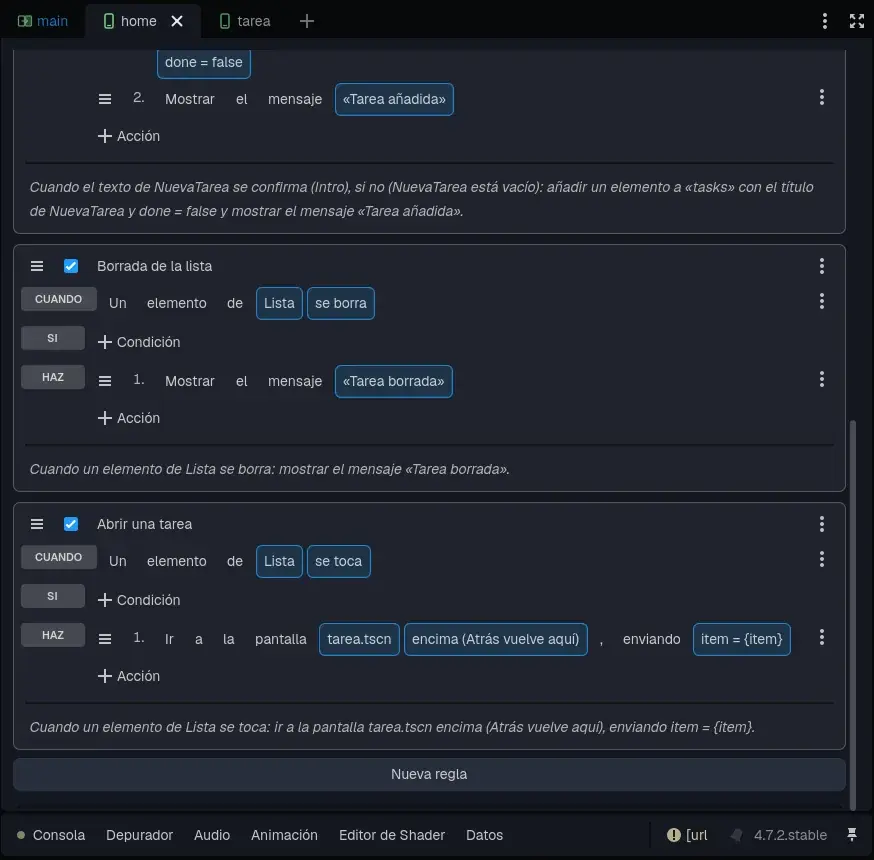
Save and press ▶. Tap a task, write a note and press Save:
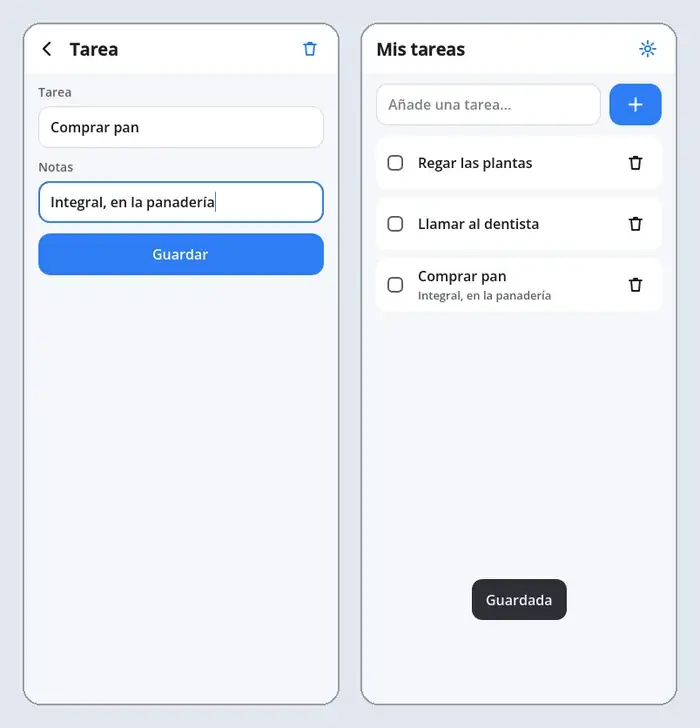
Chapter 10Settings and dark mode
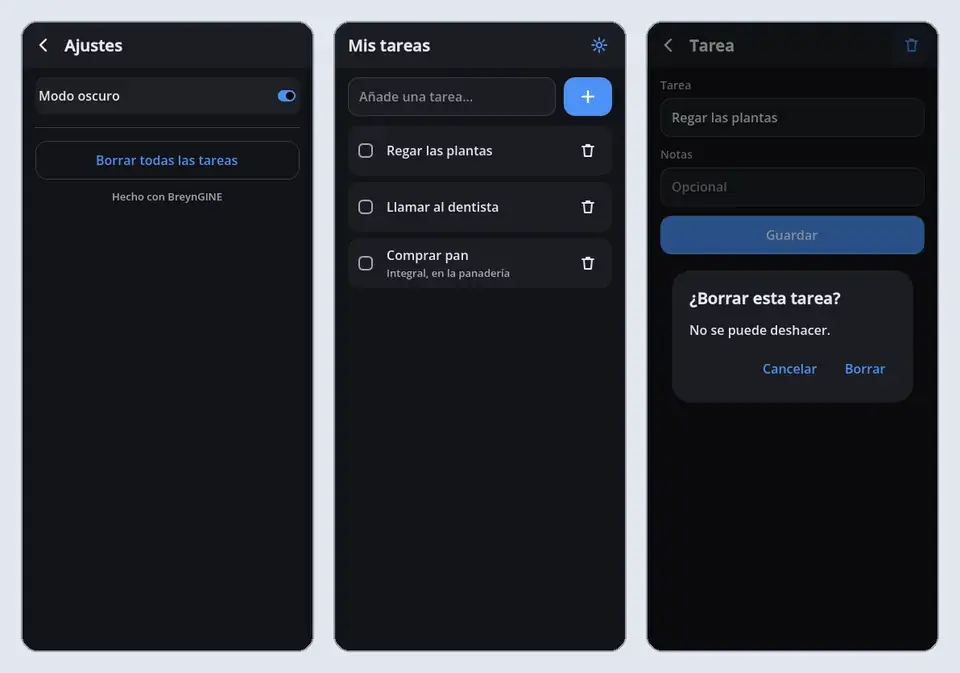
Today's apps have dark mode. Yours will too, in a settings screen.
The settings button
The settings screen
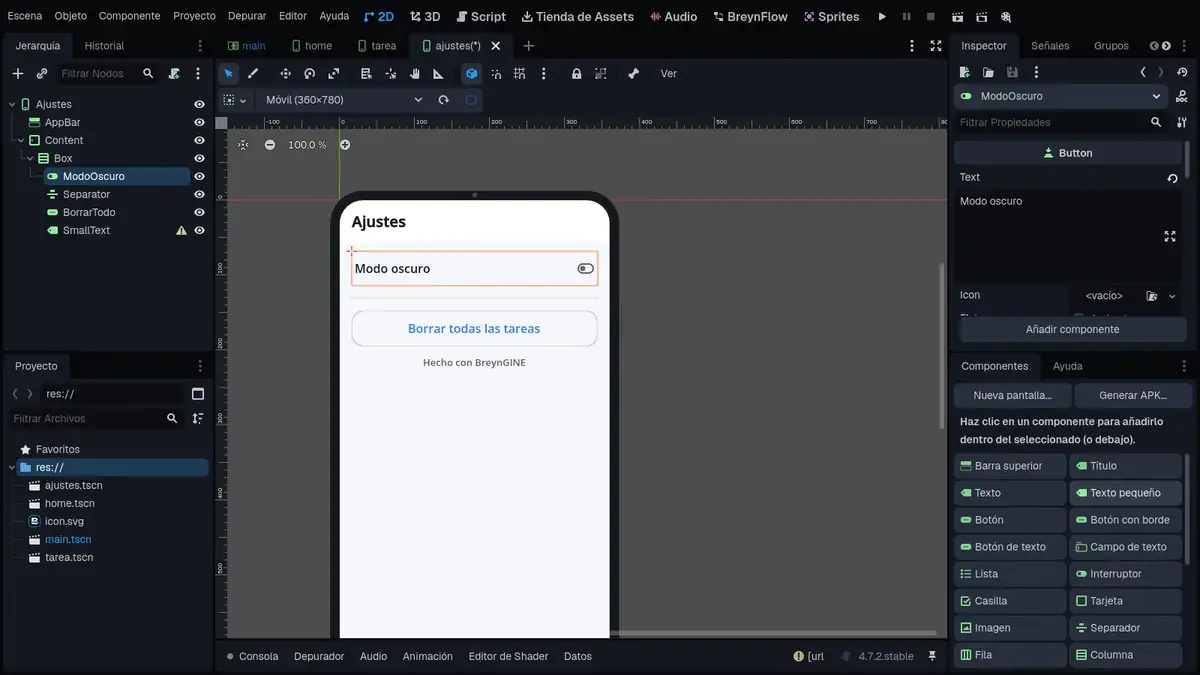
- Show the current mode: Screen Is Shown, condition Apps > Dark Mode Is On, action Change Property of DarkMode: button_pressed = true. So the switch is on if dark mode already was.
- Dark mode: Button Pressed (DarkMode) → Apps > Dark Mode (switch). The app remembers the choice.
- Delete everything: Button Pressed (DeleteAll) → Ask the User Delete all the tasks? → If / Otherwise with answer equal to true, and inside Delete Item with the all option on and a Short Message All tasks deleted.
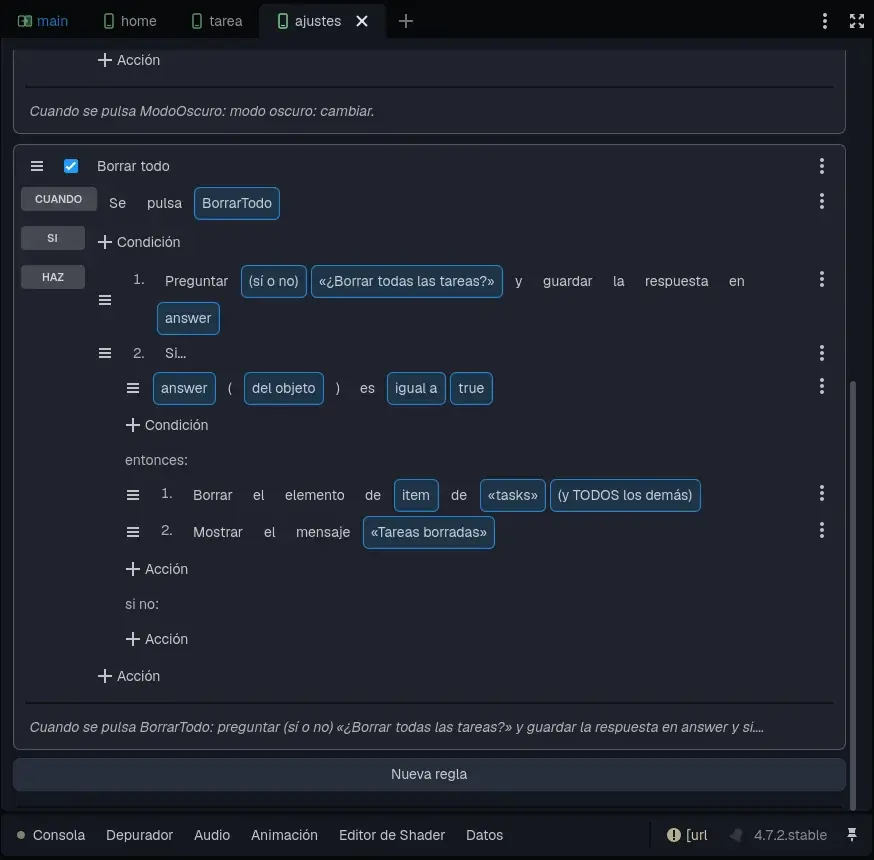
Save everything and try it: press the settings button, turn dark mode on and go back.
Chapter 11Your color
Blue is fine, but the app is yours. The main color (buttons, check boxes, icons) is changed in one place:
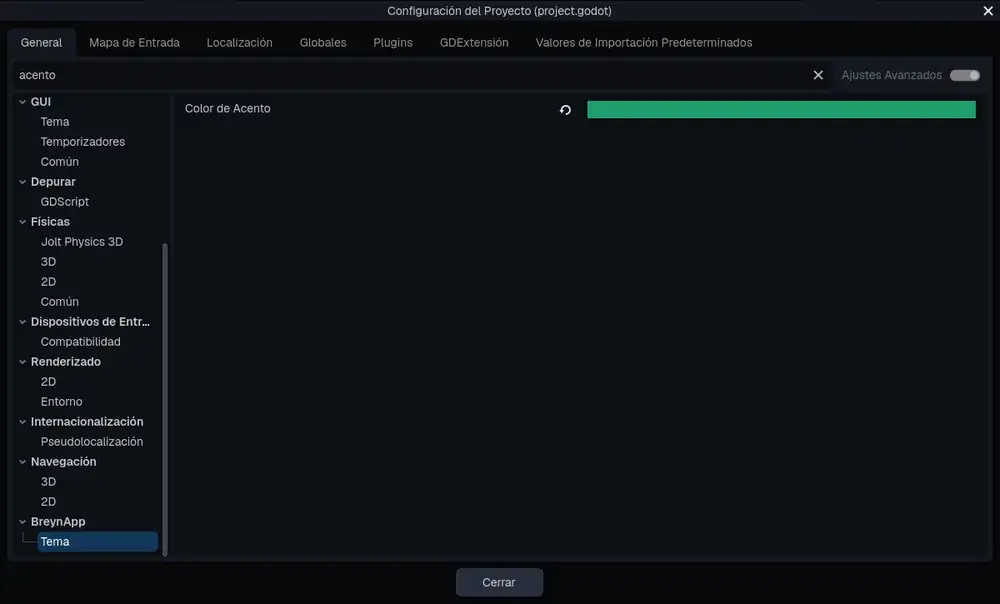
When you close it, the screen in the editor already shows the new color, and so does the app.
Chapter 12The icon and the APK
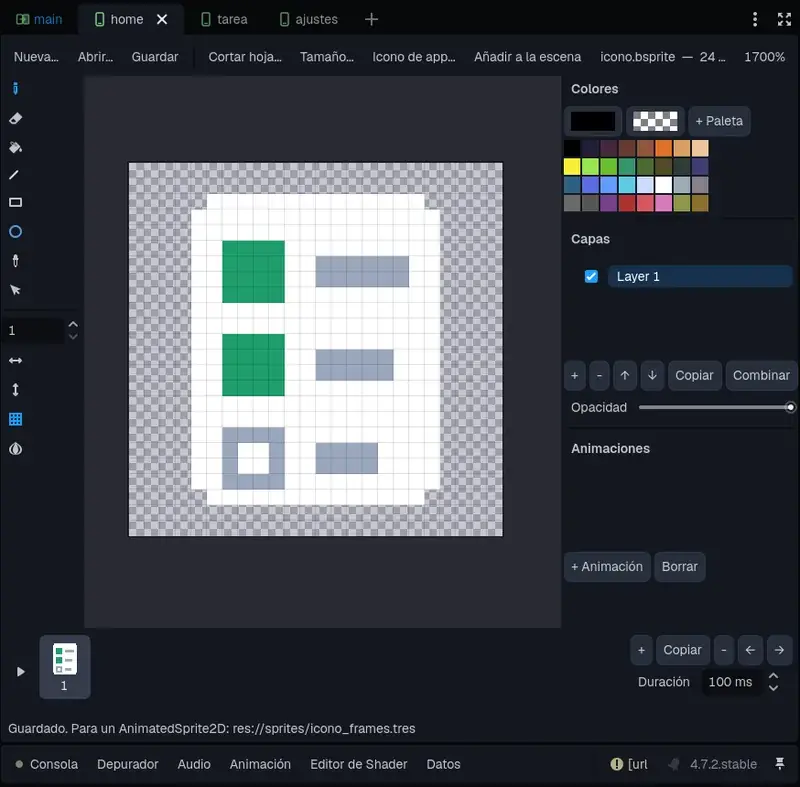
The last step: give your app its icon on the phone and make the file to install it.
Draw the icon
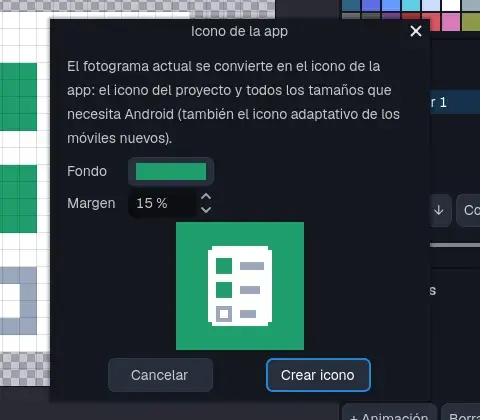
Generate the APK
Press Generate APK... in the Components panel.
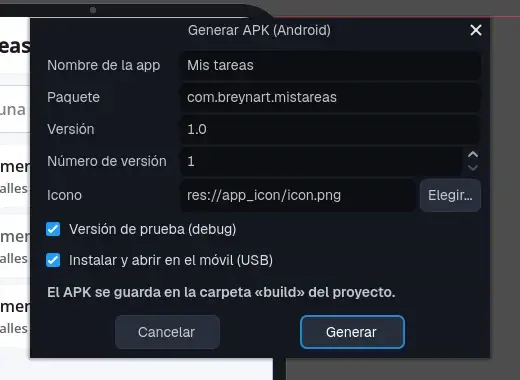
- App Name: the one shown under the icon.
- Package: a unique name for the stores (com.yourcompany.mytasks).
- Test version (debug): leave it checked while you test. To publish, uncheck it.
- Install and open it on the phone (USB): with the phone connected, it installs and opens it by itself.
Press Generate and you'll have the APK in the project's build folder.
Chapter 13What now?
You've made a complete app! With three screens, data that saves itself, confirmation questions, dark mode, your color and your icon. Ideas to keep going:
- Add a date to each task: another field in the Task screen, and date = {date} in Change Item.
- Show how many tasks are left: the Number of Items condition and a text with Change Text.
- Use a Floating Button (the round one at the bottom right) instead of the row at the top.
- Explore the App: Multimedia template of the Asset Store: video, web, music and the camera, also without code.
- Look at View as Code in the rules, in case you feel like programming one day.
And if you want to make a computer program, with a database, invoices and PDFs, go on with the invoicing tutorial.
Get organized!